# Video

# How to set the listing and delisting of video products?

<div data-elink-language-switch="1" id="bkmrk-%E4%B8%AD%E6%96%87" style="border:1px solid #d6d9de;border-radius:6px;padding:10px 12px;margin:0 0 18px 0;background:#f8fafc;font-size:14px;">[中文](/books/250cf/page/4c5bd)</div><span style="font-size:15px;">1. When creating/editing a product, you can set the product to be listed.</span>

<span style="font-size:15px;">If you set the product to be listed immediately, it will be displayed in the store upon publication.</span>

<span style="font-size:15px;">If you set the product to be listed at a scheduled time, it will be displayed in the store after the set time.</span>

<span style="font-size:15px;">If you set the product to be hidden after listing, it can only be accessed via a link.</span>

<span style="font-size:15px;">![image (4).png](https://wechatapppro-1252524126.file.myqcloud.com/help_document/image/ueditor/42831800_1640269362.png ".png")</span>

<span style="font-size:15px;">  
</span>

<span style="font-size:15px;">2. After saving a product, you can directly list or unlist the video product in the video list.</span>

<span style="font-size:15px;">![image (5).png](https://wechatapppro-1252524126.file.myqcloud.com/help_document/image/ueditor/29051900_1640269372.png ".png")</span>

<span style="font-size:15px;">  
</span>

# After creating a video course, how can merchants share the video product with learners?

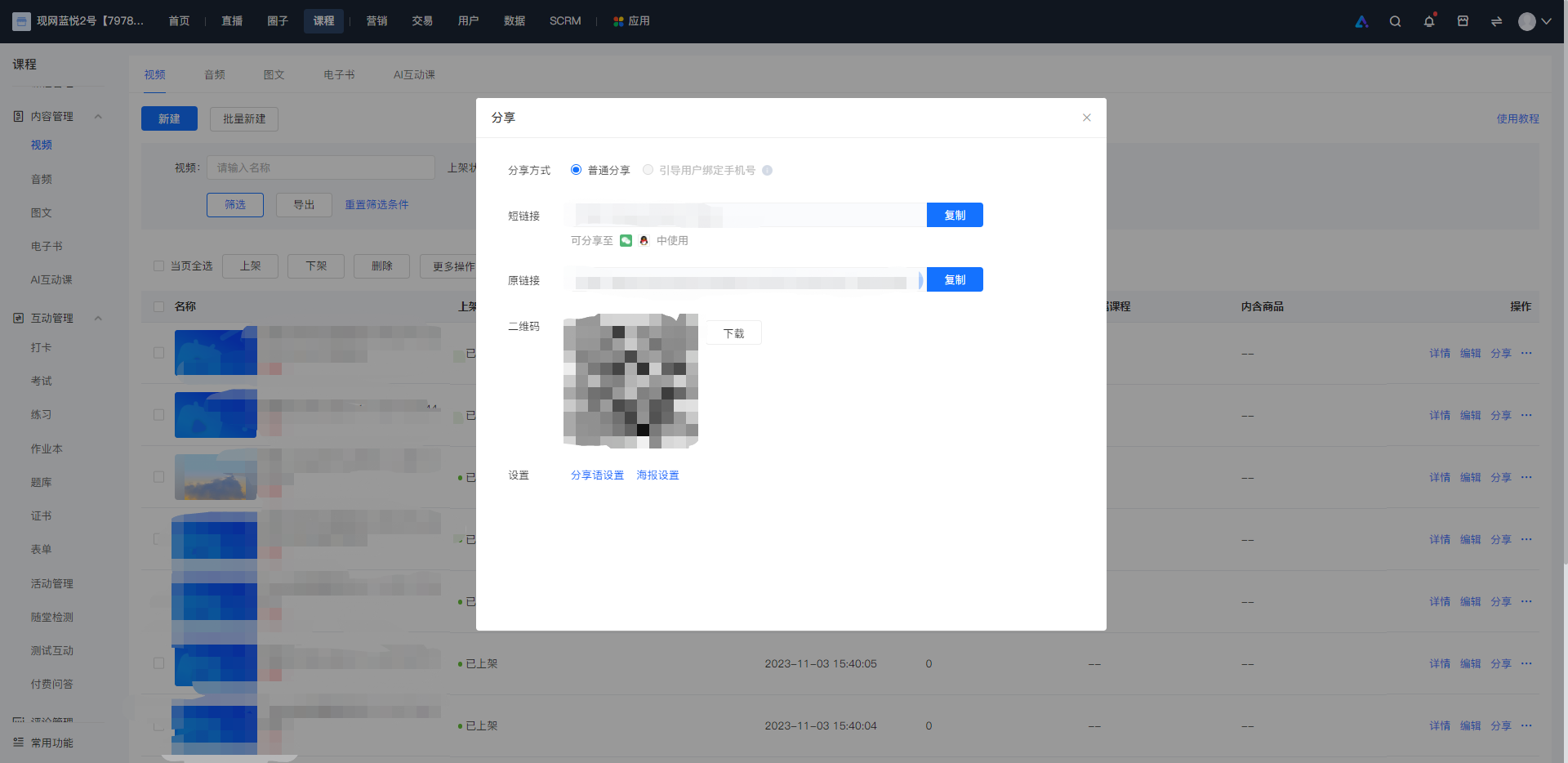
<div data-elink-language-switch="1" id="bkmrk-%E4%B8%AD%E6%96%87" style="border:1px solid #d6d9de;border-radius:6px;padding:10px 12px;margin:0 0 18px 0;background:#f8fafc;font-size:14px;">[中文](/books/250cf/page/c058f)</div><span style="font-family:'Microsoft YaHei', '微软雅黑';white-space:pre-wrap;background-color:rgb(255,255,255);font-size:15px;">Click \[Share\] in the video list to display a QR code and a link. Learners can open WeChat, click \[+ in the top right corner - Scan\], scan the QR code to view the created graphic products, or directly copy the link and open it in the WeChat environment.</span>

<span style="font-family:'Microsoft YaHei', '微软雅黑';white-space:pre-wrap;background-color:rgb(255,255,255);font-size:15px;">![image.png](https://wechatapppro-1252524126.file.myqcloud.com/help_document/image/ueditor/6542300_1699002229.png ".png")</span>

# What should I do if the video keeps being transcoded during upload?

<div data-elink-language-switch="1" id="bkmrk-%E4%B8%AD%E6%96%87" style="border:1px solid #d6d9de;border-radius:6px;padding:10px 12px;margin:0 0 18px 0;background:#f8fafc;font-size:14px;">[中文](/books/250cf/page/bcbe3)</div><span style="font-size:14px;"><span style="font-family:'Microsoft YaHei', '微软雅黑';white-space:pre-wrap;background-color:rgb(255,255,255);">After the video is successfully uploaded, video transcoding is required. Generally, video transcoding can be completed within 10 minutes. During the transcoding process, the video resource will be hidden and will automatically appear after transcoding is completed (it is recommended to reserve some extra time before the set display time for resource upload and transcoding). The video transcoding time depends on factors such as file size and network environment.</span>  
  
<span style="font-family:'Microsoft YaHei', '微软雅黑';white-space:pre-wrap;background-color:rgb(255,255,255);">If the video transcoding takes too long, you can check if there is a network anomaly. If there is no anomaly, it is recommended that you try uploading again using a different browser. If transcoding continues indefinitely, you can call the official customer service hotline: 4001026665 or submit your issue to the online customer service on the right side of the \[Overview\] section of the management console.</span></span>

# What are video pre-roll ads?

<div data-elink-language-switch="1" id="bkmrk-%E4%B8%AD%E6%96%87" style="border:1px solid #d6d9de;border-radius:6px;padding:10px 12px;margin:0 0 18px 0;background:#f8fafc;font-size:14px;">[中文](/books/250cf/page/9bf31)</div><span style="font-size:15px;">Video posters refer to the preview images (i.e., video cover images) displayed before video playback. You can set them in \[Content\] - \[Videos\] - \[Create New Video\] - \[Video Poster\]. To ensure display quality, the uploaded files must be JPG or PNG files smaller than 5MB, and the file size should be set to 750\*422px or in a 16:9 aspect ratio.</span>

![image (7).png](https://wechatapppro-1252524126.file.myqcloud.com/help_document/image/ueditor/63491200_1640269572.png ".png")

<span style="font-size:15px;">Meanwhile, it is recommended that you do not select transparent images as preview images, as this may cause abnormal display on your section pages. If you do not upload a video poster, the first frame of the video will be used by default.</span>

# Is there a limit to the number of videos that can be uploaded?

<div data-elink-language-switch="1" id="bkmrk-%E4%B8%AD%E6%96%87" style="border:1px solid #d6d9de;border-radius:6px;padding:10px 12px;margin:0 0 18px 0;background:#f8fafc;font-size:14px;">[中文](/books/250cf/page/bca82)</div><span style="font-family:'Microsoft YaHei', '微软雅黑';white-space:pre-wrap;background-color:rgb(255,255,255);font-size:14px;">There is no limit to the number of video courses you can upload, but you can only upload 2000 video files per day.</span>

# Is the uploaded video exportable?

<div data-elink-language-switch="1" id="bkmrk-%E4%B8%AD%E6%96%87" style="border:1px solid #d6d9de;border-radius:6px;padding:10px 12px;margin:0 0 18px 0;background:#f8fafc;font-size:14px;">[中文](/books/250cf/page/f4f6d)</div><span style="font-family:'Microsoft YaHei', '微软雅黑';white-space:pre-wrap;background-color:rgb(255,255,255);font-size:14px;">You cannot directly export videos in the \[Video\] section of \[Course Management\]. However, the uploaded videos will be stored in the \[Video\] section of \[Material Center\], where you can download and export them.</span>

# How to handle the situation where the video is always in the transcoding process or the transcoding fails?

<div data-elink-language-switch="1" id="bkmrk-%E4%B8%AD%E6%96%87" style="border:1px solid #d6d9de;border-radius:6px;padding:10px 12px;margin:0 0 18px 0;background:#f8fafc;font-size:14px;">[中文](/books/250cf/page/32072)</div><span style="font-family:'Microsoft YaHei', '微软雅黑';white-space:pre-wrap;background-color:rgb(255,255,255);font-size:14px;">It is recommended to use Format Factory software for re - encoding and uploading.</span>

# Does the video course support the function of variable-speed playback?

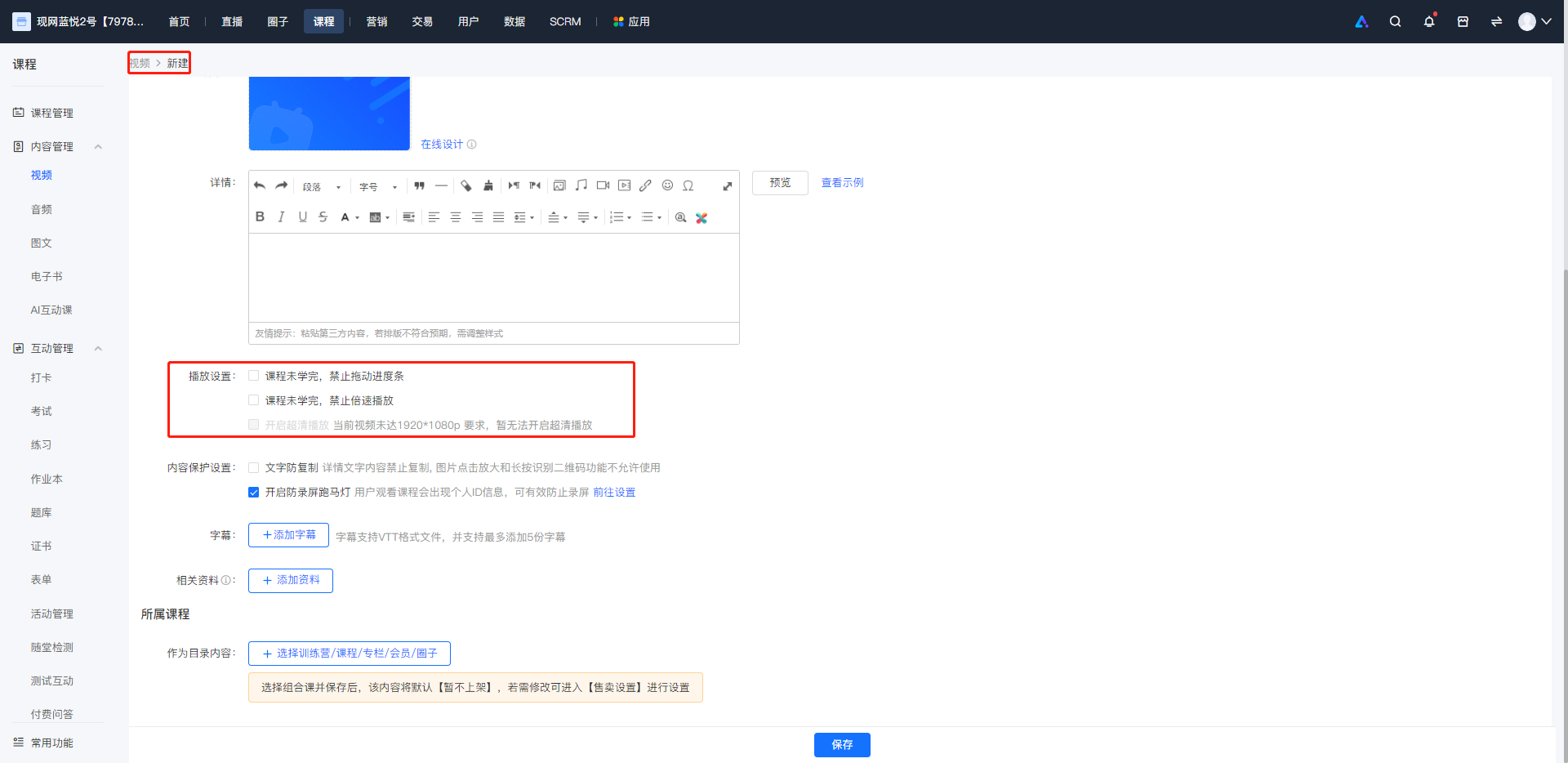
<div data-elink-language-switch="1" id="bkmrk-%E4%B8%AD%E6%96%87" style="border:1px solid #d6d9de;border-radius:6px;padding:10px 12px;margin:0 0 18px 0;background:#f8fafc;font-size:14px;">[中文](/books/250cf/page/f340f)</div><span style="font-size:15px;">Yes, it is supported. The video course editing page supports playback at different speeds by default. Merchants can also uncheck the option if they want to disable it.</span>

<span style="font-size:15px;">![image.png](https://wechatapppro-1252524126.file.myqcloud.com/help_document/image/ueditor/22602100_1699004084.png ".png")</span>

<span style="font-size:15px;">The specific details of the video courses supporting playback at different speeds are as follows:</span>

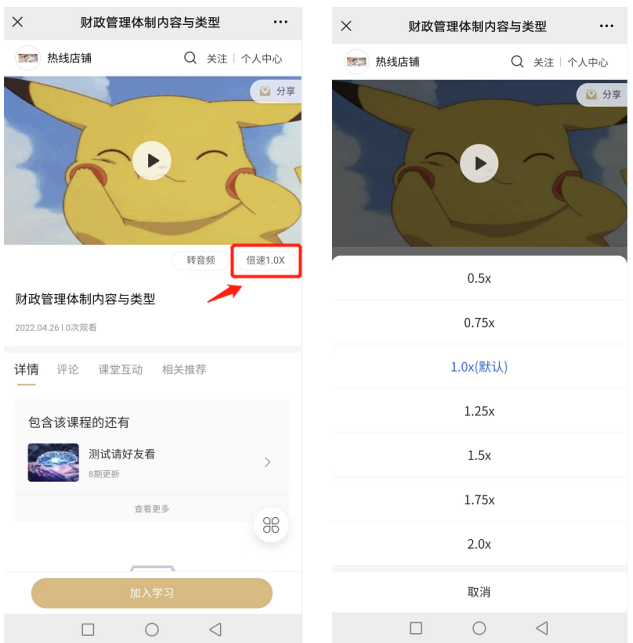
<span style="font-size:15px;">① Supported platforms: H5, Mini Program, PC web, elink App;</span>

<span style="font-size:15px;">② Supported speed options: 0.75x, 1.0x, 1.25x, 1.5x, 1.75x, 2.0x</span>

<span style="font-size:15px;">  
</span>

<span style="font-size:15px;">The display effect on the learner's end is as follows:</span>

![image.png](https://wechatapppro-1252524126.file.myqcloud.com/help_document/image/ueditor/33680600_1699004084.png ".png")

<span style="font-size:14px;font-family:'Microsoft YaHei', '微软雅黑';white-space:pre-wrap;background-color:rgb(255,255,255);">  
  
</span>

# Does the video support the continuous playback function?

<div data-elink-language-switch="1" id="bkmrk-%E4%B8%AD%E6%96%87" style="border:1px solid #d6d9de;border-radius:6px;padding:10px 12px;margin:0 0 18px 0;background:#f8fafc;font-size:14px;">[中文](/books/250cf/page/0e659)</div><span style="font-size:15px;">Currently, the video courses in the column are set to play continuously by default. You can click here to switch the playback mode.</span>

<span style="font-size:15px;">![image (8).png](https://wechatapppro-1252524126.file.myqcloud.com/help_document/image/ueditor/30323900_1640269676.png ".png")</span>

<span style="font-size:15px;">  
</span>

<span style="font-size:15px;">  
</span>

# Video transcoding rules

<div data-elink-language-switch="1" id="bkmrk-%E4%B8%AD%E6%96%87" style="border:1px solid #d6d9de;border-radius:6px;padding:10px 12px;margin:0 0 18px 0;background:#f8fafc;font-size:14px;">[中文](/books/250cf/page/a97da)</div><span style="font-size:17px;">**I. Purpose of Transcoding**</span>

<span style="font-size:15px;">1. The purpose of uploading and transcoding is to uniformly adapt videos to the mainstream video sizes and formats compatible with online playback on most mobile devices.</span>

<span style="font-size:15px;">2. Transcoded videos can be opened and played faster and more smoothly on the user - end.</span>

<span style="font-size:15px;">3. It also saves network bandwidth costs and user data costs.</span>

<span style="font-size:15px;">  
</span>

<span style="font-size:17px;">**II. Transcoding Rules**</span>

<span style="font-size:15px;">All uploaded videos will be transcoded by Tencent Cloud. The transcoding rule is to transcode downwards in stages:</span>

<span style="font-size:15px;"><span style="font-size:14px;">Greater than 1080P</span><span style="font-size:14px;text-decoration:underline;">(Resolution reaches 1920\*1080)</span><span style="font-size:14px;">: Transcode to 1080p;</span></span>

<span style="font-size:15px;">Less than 1080p but greater than 720P: Transcode to 720p;</span>

<span style="font-size:15px;">Less than 720P but greater than 480P: Transcode to 480p;</span>

<span style="font-size:15px;">Less than 480P but greater than 360P: Transcode to 360p;</span>

<span style="font-size:15px;">  
</span>

<span style="font-size:15px;">Considering the domestic network bandwidth, reduce the bit - rate while maintaining the clarity as much as possible to minimize the bandwidth requirements. For videos with fast - changing frames and rich colors, reducing the bit - rate will significantly affect the clarity.</span>

<span style="font-size:15px;">  
</span>

<span style="font-size:17px;">**III. Transcoding Instructions**</span>

<span style="font-size:15px;">1080p ultra - high - definition transcoding is currently only supported for flagship - edition online stores. Basic - edition and professional - edition online stores can support up to 720p high - definition transcoding;</span>

<span style="font-size:15px;">  
</span>

[What should I do if the video cannot be played or the transcoding takes too long to complete?](https://helpcenter.xiaoe-tech.com/#/problem/detail?document_id=doc_5f294be6513cd_BP4YD)

# What should I do if the video fails to play or the transcoding takes too long to complete?

<div data-elink-language-switch="1" id="bkmrk-%E4%B8%AD%E6%96%87" style="border:1px solid #d6d9de;border-radius:6px;padding:10px 12px;margin:0 0 18px 0;background:#f8fafc;font-size:14px;">[中文](/books/250cf/page/07cdf)</div><span style="font-size:14px;font-family:arial, helvetica, sans-serif;">To provide students with a better course learning experience, we aim to make course videos clearer. Currently, elink supports video uploads of up to 5GB, with a maximum 1080p ultra - high - definition transcoding (1920x1080 resolution), and is compatible with various mainstream video formats such as mp4, avi, wmv, mov, flv, rmvb, 3gp, m4v, and mkv.</span>

<span style="font-size:14px;font-family:arial, helvetica, sans-serif;">  
</span>

<span style="font-size:14px;font-family:arial, helvetica, sans-serif;"></span>

<span style="font-family:arial, helvetica, sans-serif;color:rgb(51,51,51);letter-spacing:0px;vertical-align:baseline;font-size:14px;">Through testing and research, some merchants have reported the following video issues:</span>

<span style="font-family:arial, helvetica, sans-serif;font-size:14px;">**<span style="font-family:arial, helvetica, sans-serif;color:rgb(51,51,51);letter-spacing:0px;vertical-align:baseline;">Videos:</span>**<span style="font-family:arial, helvetica, sans-serif;color:rgb(51,51,51);letter-spacing:0px;vertical-align:baseline;"></span><span style="font-family:arial, helvetica, sans-serif;font-weight:bold;color:rgb(51,51,51);letter-spacing:0px;vertical-align:baseline;">Black screen, freezing, audio - video out of sync, blurry video, and excessively long transcoding time</span></span>

<span style="font-family:arial, helvetica, sans-serif;font-size:14px;"><span style="font-family:arial, helvetica, sans-serif;font-weight:bold;color:rgb(51,51,51);letter-spacing:0px;vertical-align:baseline;">  
</span></span>

<span style="font-family:arial, helvetica, sans-serif;font-size:14px;"><span style="font-family:arial, helvetica, sans-serif;color:rgb(51,51,51);letter-spacing:0px;vertical-align:baseline;">Most of these issues are due to problems in the original recorded files,</span><span style="font-family:arial, helvetica, sans-serif;font-weight:bold;color:rgb(51,51,51);letter-spacing:0px;vertical-align:baseline;">such as over - compression, low transcoding bitrate, outdated video formats, damaged recorded files, and only changing the file extension without actually converting the format when changing the file format.</span><span style="font-family:arial, helvetica, sans-serif;color:rgb(51,51,51);letter-spacing:0px;vertical-align:baseline;">elink recommends the following video transcoding solutions for your reference:</span></span>

<span style="font-family:arial, helvetica, sans-serif;font-size:15px;color:rgb(51,51,51);letter-spacing:0px;vertical-align:baseline;">  
</span>

<span style="font-family:arial, helvetica, sans-serif;font-size:14px;"><span style="font-family:arial, helvetica, sans-serif;">1. </span><span style="font-family:arial, helvetica, sans-serif;color:rgb(51,51,51);letter-spacing:0px;vertical-align:baseline;">Record videos using eLive for a better playback experience;</span></span>

<span style="color:rgb(51,51,51);font-size:15px;letter-spacing:0px;vertical-align:baseline;font-family:arial, helvetica, sans-serif;"> <span style="color:rgb(51,51,51);letter-spacing:0px;vertical-align:baseline;font-family:arial, helvetica, sans-serif;font-size:14px;">\[Help Center\] - \[</span></span>[<span style="font-size:15px;letter-spacing:0px;vertical-align:baseline;font-family:arial, helvetica, sans-serif;"><span style="letter-spacing:0px;vertical-align:baseline;font-family:arial, helvetica, sans-serif;font-size:14px;"><span style="font-size:14px;font-family:arial, helvetica, sans-serif;letter-spacing:0px;vertical-align:baseline;background-color:rgb(255,255,255);">How to Record and Publish Video Courses Using eLive</span></span></span>](https://helpcenter.xiaoe-tech.com/#/problem/detail?document_id=doc_655ac1523a468_fzRdb)<span style="color:rgb(51,51,51);font-size:15px;letter-spacing:0px;vertical-align:baseline;font-family:arial, helvetica, sans-serif;"><span style="color:rgb(51,51,51);letter-spacing:0px;vertical-align:baseline;font-family:arial, helvetica, sans-serif;font-size:14px;"><span style="font-size:14px;font-family:arial, helvetica, sans-serif;letter-spacing:0px;vertical-align:baseline;background-color:rgb(255,255,255);color:rgb(112,48,160);"></span><span style="font-family:arial, helvetica, sans-serif;letter-spacing:0px;vertical-align:baseline;color:rgb(53,53,53);background-color:rgb(255,255,255);">\]</span></span></span><span style="color:rgb(51,51,51);letter-spacing:0px;font-family:arial, helvetica, sans-serif;font-size:14px;">;</span>

<span style="color:rgb(51,51,51);letter-spacing:0px;font-family:arial, helvetica, sans-serif;font-size:14px;">  
</span>

<span style="font-family:arial, helvetica, sans-serif;font-size:14px;"><span style="font-family:arial, helvetica, sans-serif;">2. </span><span style="font-family:arial, helvetica, sans-serif;color:rgb(51,51,51);letter-spacing:0px;vertical-align:baseline;">Use Format Factory (recommended),</span><span style="font-family:PingFangSC;color:rgb(53,53,53);background:rgb(255,255,255);letter-spacing:0px;vertical-align:baseline;">Windows tools such as Video Editing Expert</span><span style="font-family:arial, helvetica, sans-serif;color:rgb(51,51,51);letter-spacing:0px;vertical-align:baseline;">for transcoding (format conversion).</span></span>

  
<span style="font-size:14px;"></span>

<span style="font-size:17px;">**How to Transcode (Convert Format) and Compress Videos While Maintaining Clarity**</span>

<span style="font-size:17px;">  
</span>

**<span style="font-size:14px;">I. Choose Appropriate Editing and Transcoding Software</span>**

<span style="font-size:14px;">For video editing and transcoding: Commonly used Windows software such as Format Factory and Video Editing Expert is recommended. Download address:[http://www.pcgeshi.com/](http://www.pcgeshi.com/)</span>

**<span style="font-size:14px;">II. Ensure the Video Bitrate</span>**

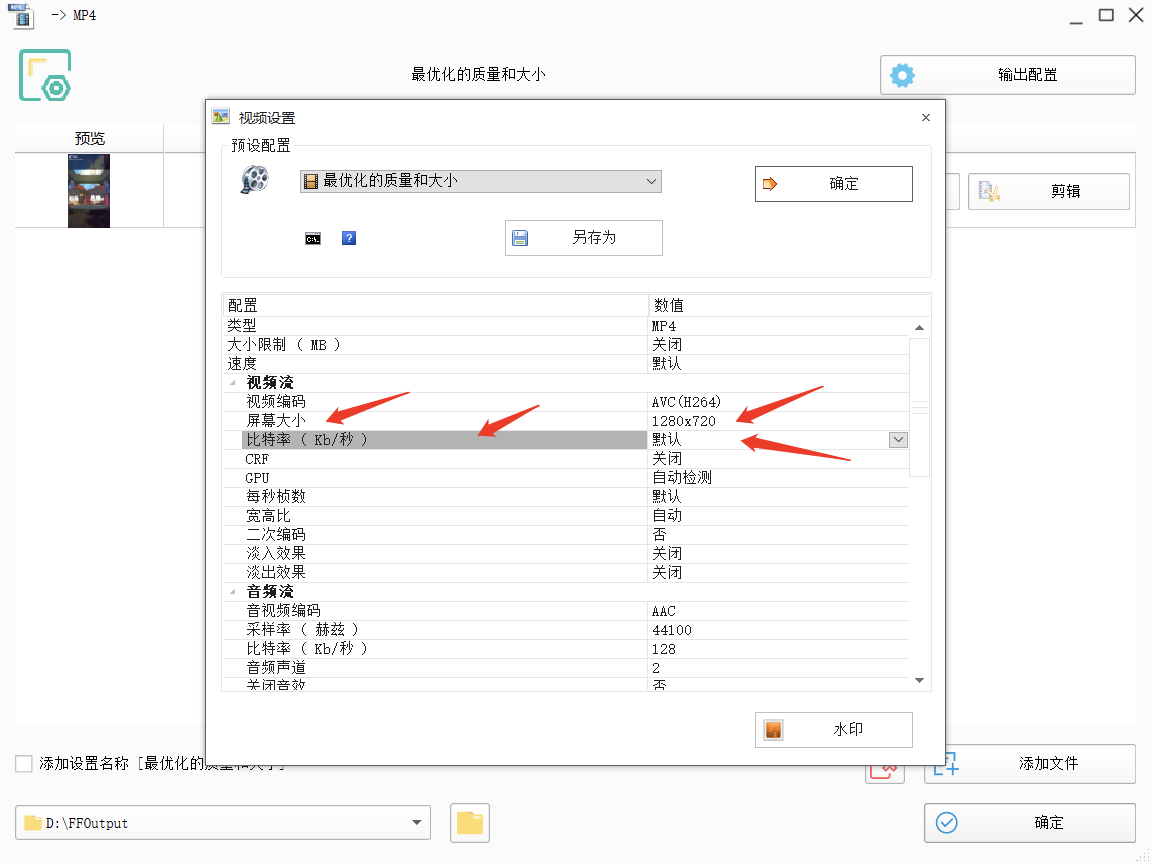
<span style="font-size:14px;">Through testing, the rule that 'at a fixed resolution, the higher the bitrate, the higher the clarity' has been verified. During the process of transcoding and compressing videos, if you have high requirements for clarity, it is recommended to choose a bitrate of 1000 or above. Currently, 'Format Factory' can support a relatively high bitrate. After video transcoding and format conversion, there is almost no obvious difference in clarity.</span>

<span style="font-size:14px;">  
</span>

**<span style="font-size:14px;">III. Choose the Appropriate Video Format</span>**

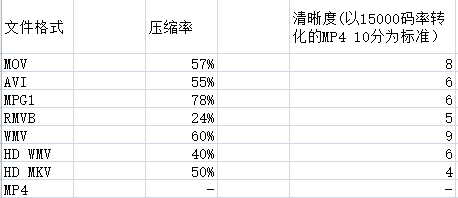
<span style="font-size:14px;">For the final video format, it is recommended to choose the MP4 or WMV format, which can ensure a low compression ratio (small video size) but high clarity (close to the original video).</span>

<span style="font-size:14px;">  
</span>

<span style="font-size:14px;">![1.png](https://wechatapppro-1252524126.file.myqcloud.com/help_document/image/ueditor/16884400_1702260165.png ".png")</span>

<span style="font-size:14px;">Clarity Reference Diagram</span>

<span style="font-size:14px;">  
</span>

**<span style="font-size:14px;">IV. Ensure the Video Resolution</span>**

<span style="font-size:14px;">Resolution has the greatest impact on video size and clarity. If you want high - definition video playback (720p), make sure to choose a 1280x720 resolution during the transcoding and compression process.</span>

<span style="font-size:14px;">  
</span>

**<span style="font-size:14px;">V. Control the Video Size</span>**

<span style="font-size:14px;">If the original video is extremely large (e.g., 6GB), it is recommended to split it into several course videos and upload them separately. elink supports single - file video uploads of up to 5GB. You can also choose a lower resolution and bitrate during the transcoding and compression process to reduce the video size for a single upload, but the clarity will be affected.</span>

<span style="font-size:14px;">Software Operation Process (Taking Format Factory as an Example):</span>

<span style="font-size:14px;">  
</span>

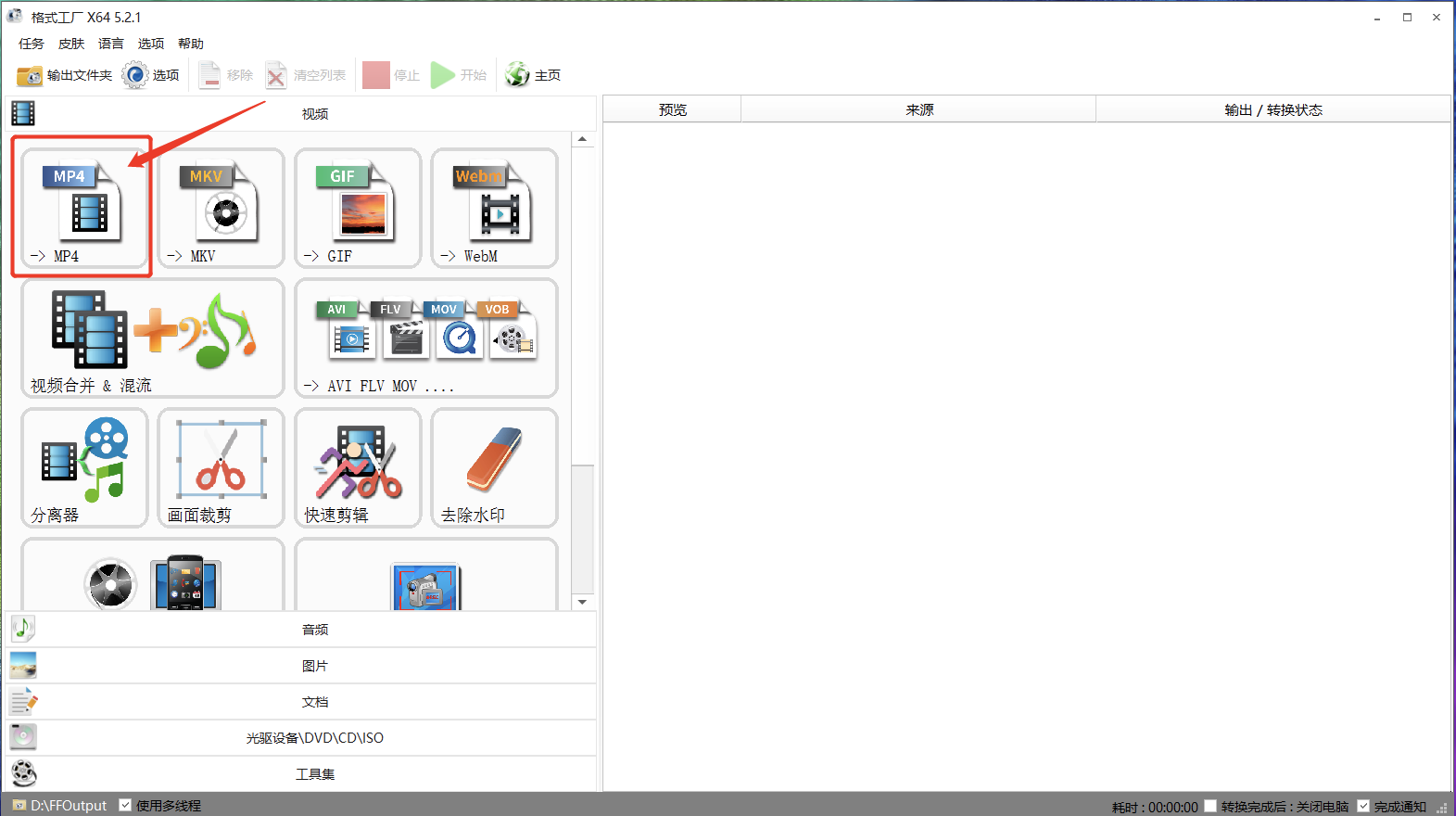
<span style="font-size:14px;">① Click 'Output as MP4'</span>

<span style="font-size:14px;">![2.png](https://wechatapppro-1252524126.file.myqcloud.com/help_document/image/ueditor/40198700_1702260165.png ".png")</span>

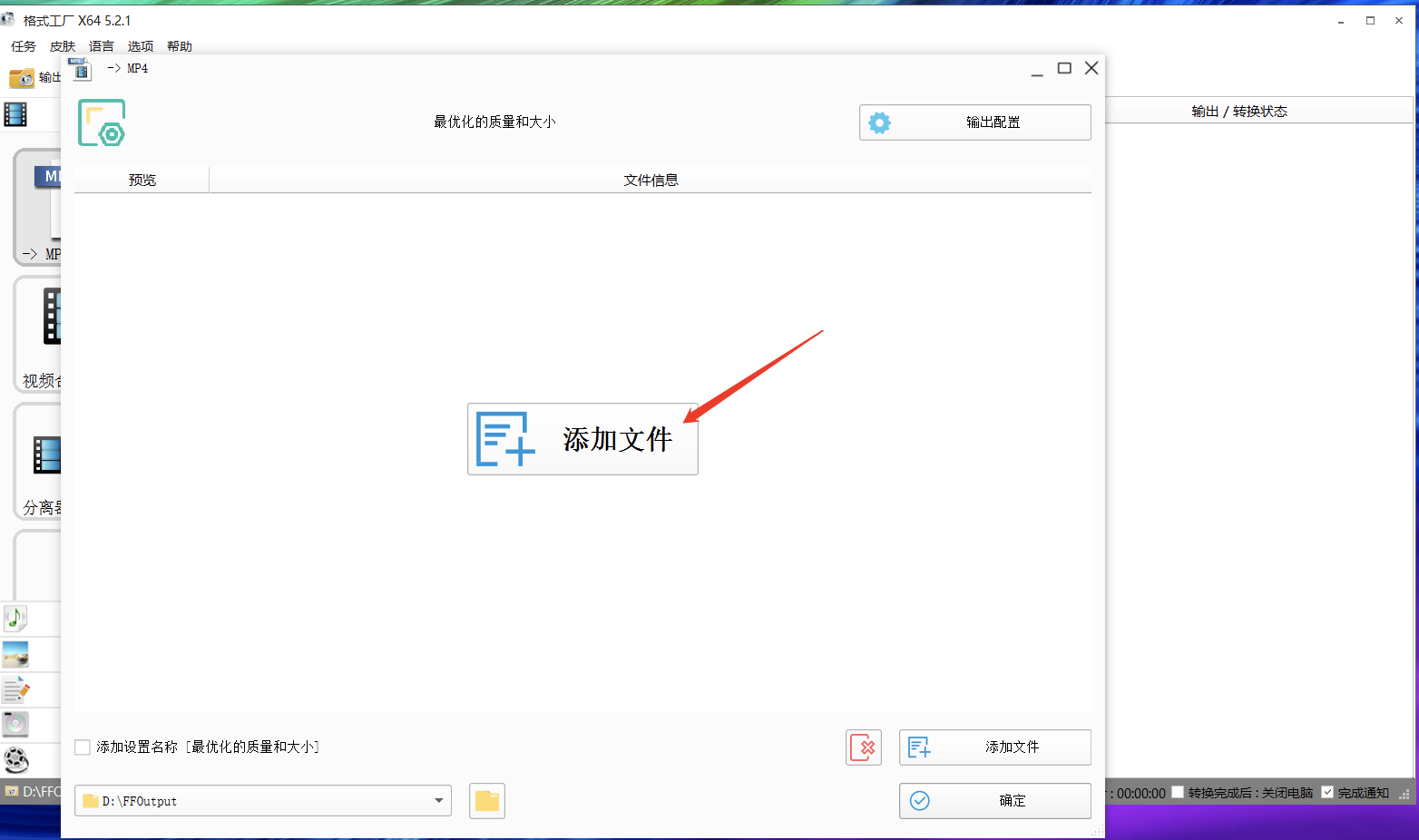
<span style="font-size:14px;">② Click 'Add Files'</span>

<span style="font-size:14px;">![3.png](https://wechatapppro-1252524126.file.myqcloud.com/help_document/image/ueditor/53535300_1702260165.png ".png")</span>

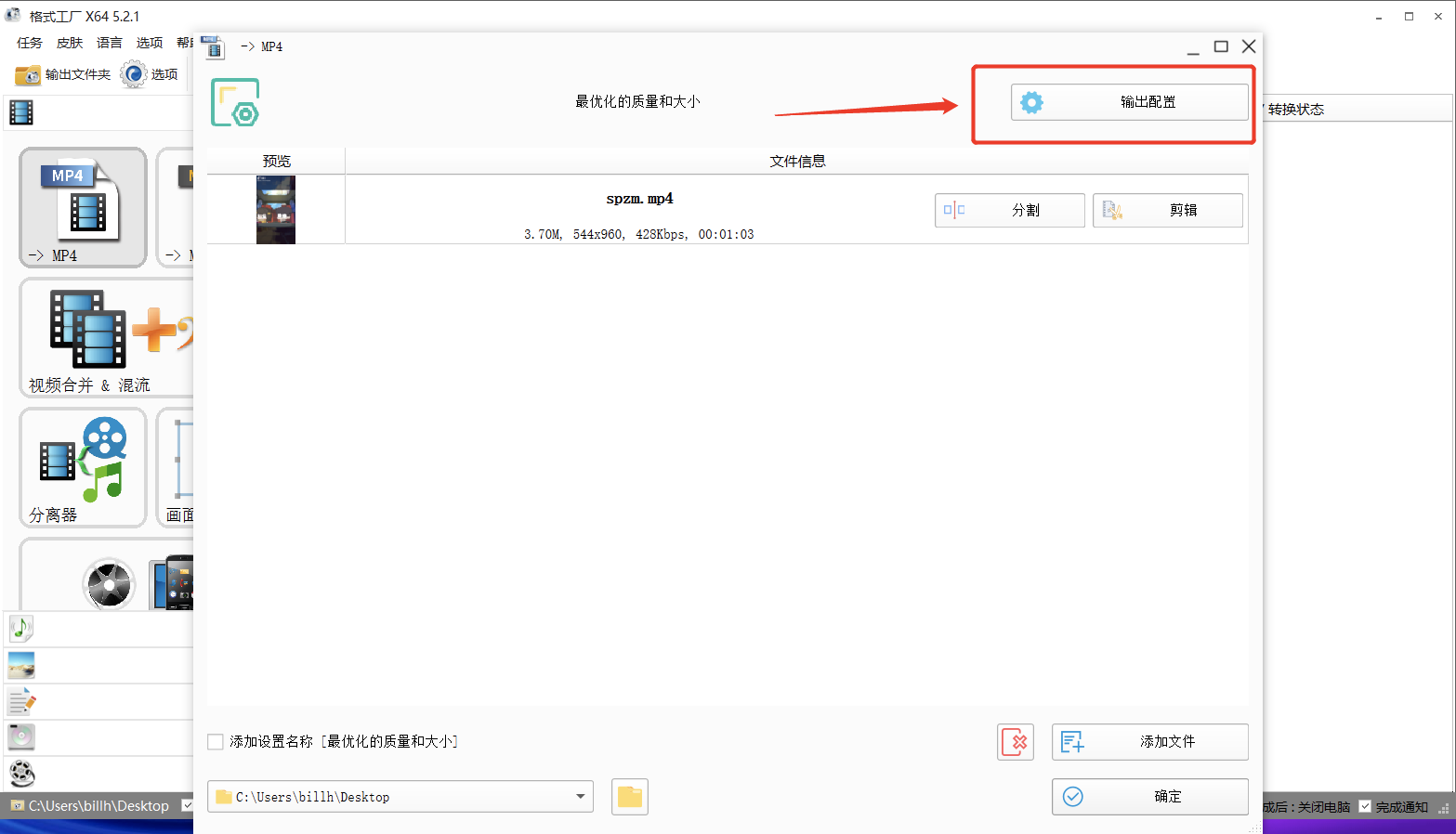
<span style="font-size:14px;">③ Click 'Output Configuration'</span>

<span style="font-size:14px;">![4.png](https://wechatapppro-1252524126.file.myqcloud.com/help_document/image/ueditor/72416300_1702260165.png ".png")</span>

<span style="font-size:14px;">④ Set the video, change the bitrate and screen size, and click 'OK'.</span>

<span style="font-size:14px;">![5.png](https://wechatapppro-1252524126.file.myqcloud.com/help_document/image/ueditor/85328400_1702260165.png ".png")</span>

<span style="font-size:14px;">  
</span>

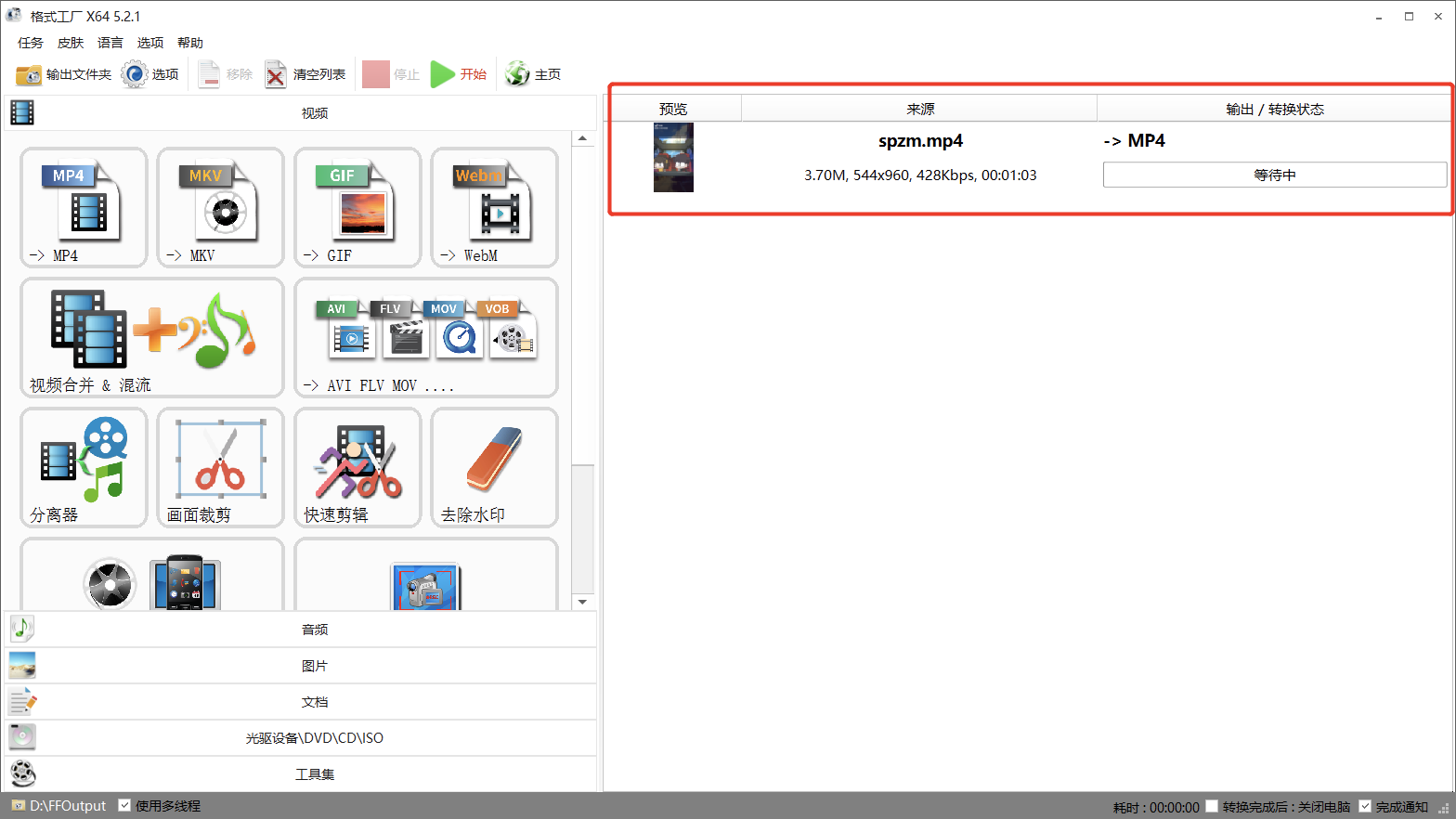
<span style="font-size:14px;">⑤ You can see that the file is being converted. Just wait for the transcoding to succeed.</span>

<span style="font-size:14px;">![6.png](https://wechatapppro-1252524126.file.myqcloud.com/help_document/image/ueditor/98723900_1702260165.png ".png")</span>

<span style="font-size:14px;">  
</span>

<span style="font-size:14px;">  
</span>

<span style="font-size:17px;">**Upload the Processed Video to elink**</span>

<span style="font-size:14px;">Once the video is processed, you can upload it to elink. It is recommended that you play the video on a mobile device. If it does not meet your requirements, you can check the size of the original video and the processing steps.</span>