Course
How to set up individual sales for chapter content within a course series?
One course series supports individual sales, and multiple chapter contents under the course series support separate sales (for specific steps, please refer to the video tutorial):
1) Create new courses for different contents to be sold. After creating new courses, you can use the 'Import from existing courses' option in the course catalog to import the course contents to be sold separately with one click.
2) There are three ways to display multiple courses:
① Product recommendation: On one course page, learners can click 'Related recommendations' to see other courses available for purchase.
② Combo products: On one product link, learners can select courses with different specifications for purchase.
③ Micro - page: One page supports custom decoration to display different course contents.
Course Usage Tutorial
II. Purpose of Use
CoursesIt focuses on creating systematic courses that combine learning, practice, and testing, providing students with a more excellent learning experience. Managers can conduct more refined operations on students, improve students' learning outcomes, enhance the teaching reputation of merchants, and increase sales revenue.
III. Use Scenarios
IV. Operation Path
Merchant Side:AcademyManagement Console → Course Management →Series Courses→ Courses
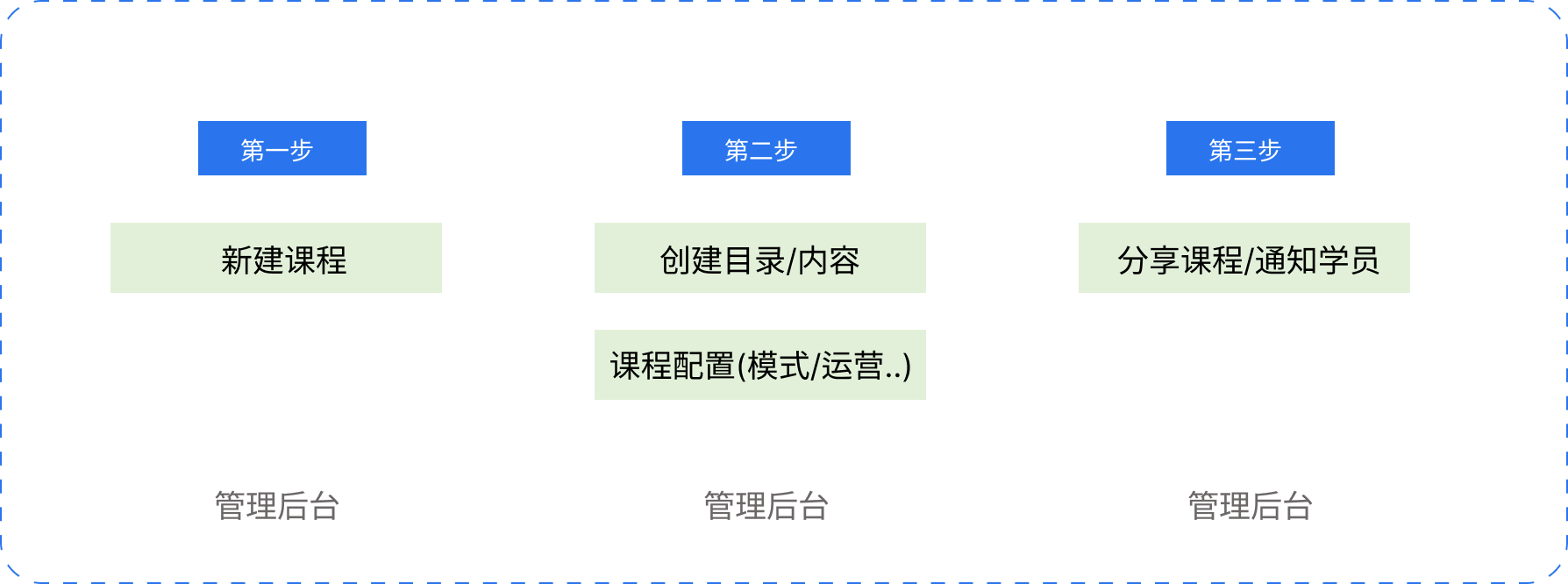
V. Usage Tutorial
Step 1: Create a New Course (Management Background)
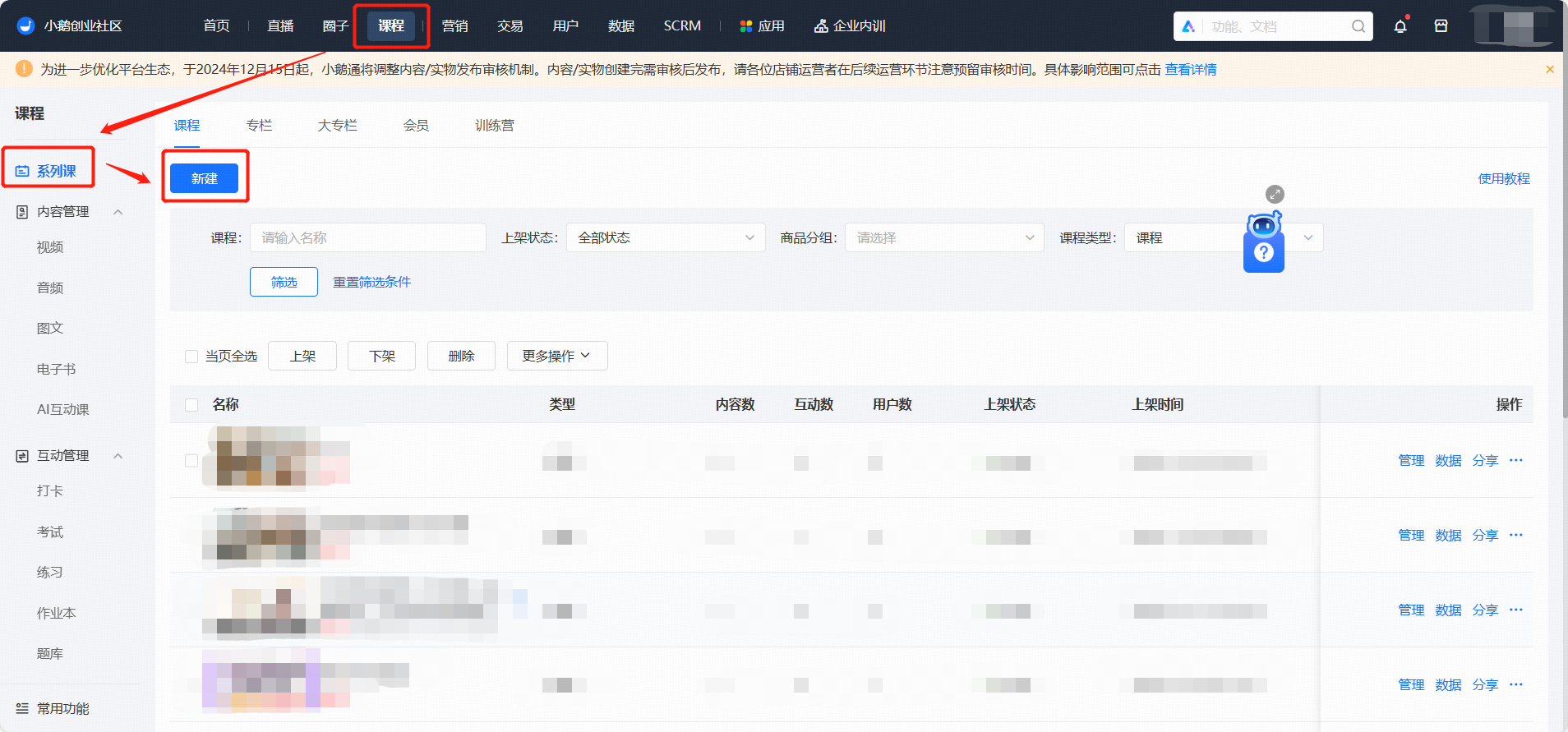
1. Create a Course
Log in to the elink Management Console, select 【Series Courses】 → 【New】 from 【Courses】;
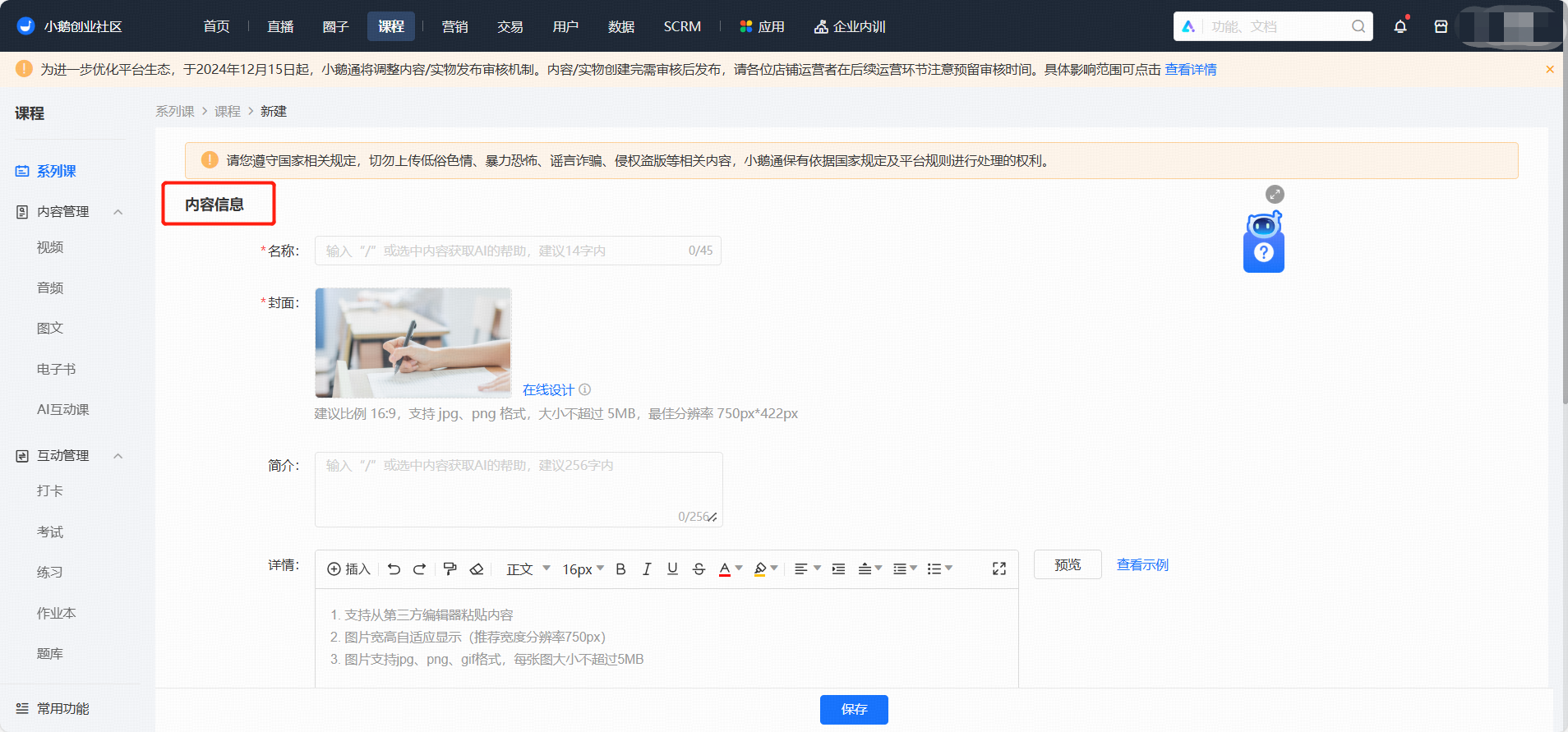
2. Content Information
Fill in the course name, cover, introduction, and details
● Name: You can enter up to 45 characters. It is recommended to enter within 14 characters.
● Cover: It is recommended to upload a picture with a ratio of 16:9, a resolution of 750*420px, and a size less than 5M.
● Introduction: The maximum input is 256 characters.
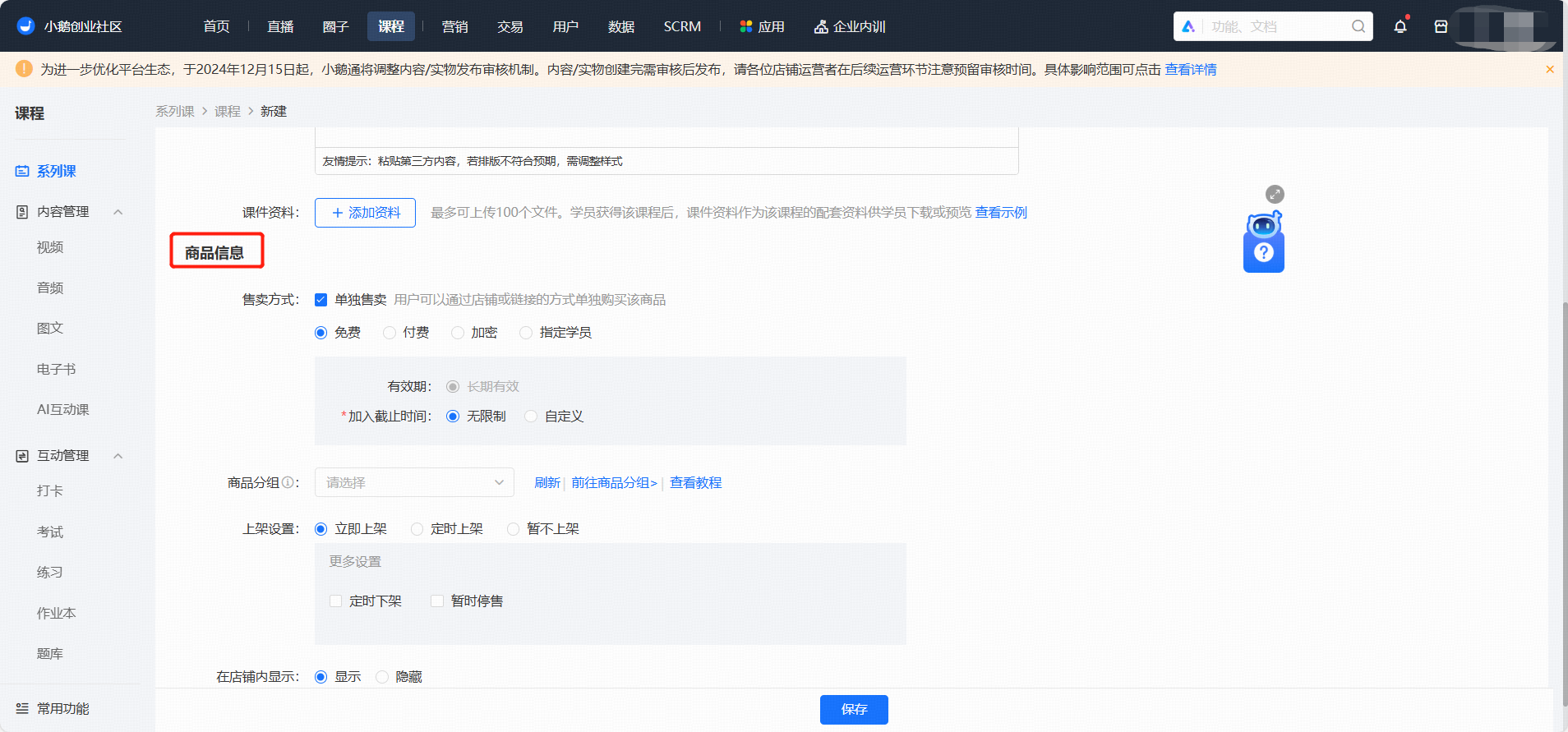
3. Course Information
Fill inProduct grouping, listing and delisting information,student visibility range
Step 2: Add Content/Course Configuration(Management Background)
1. Directory Management
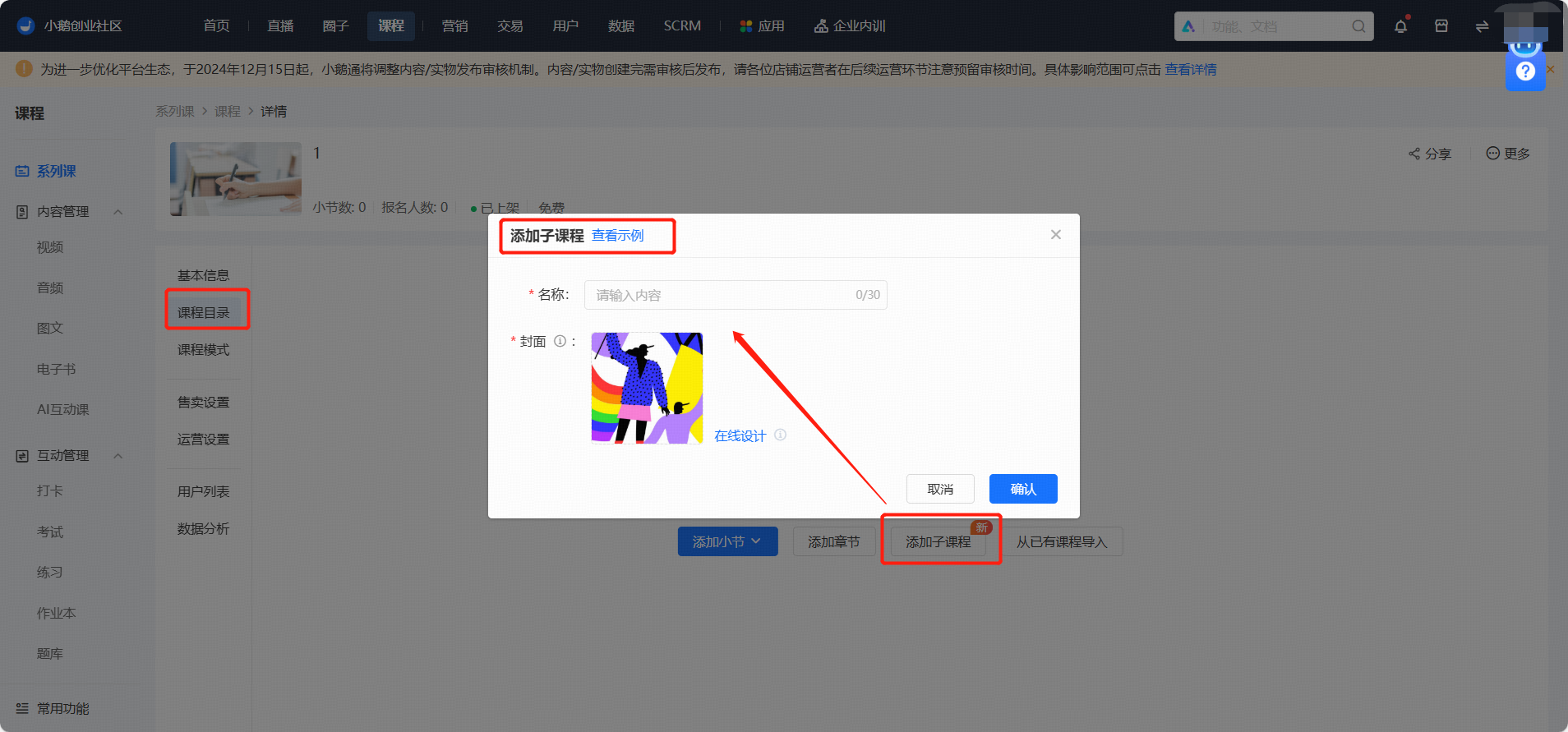
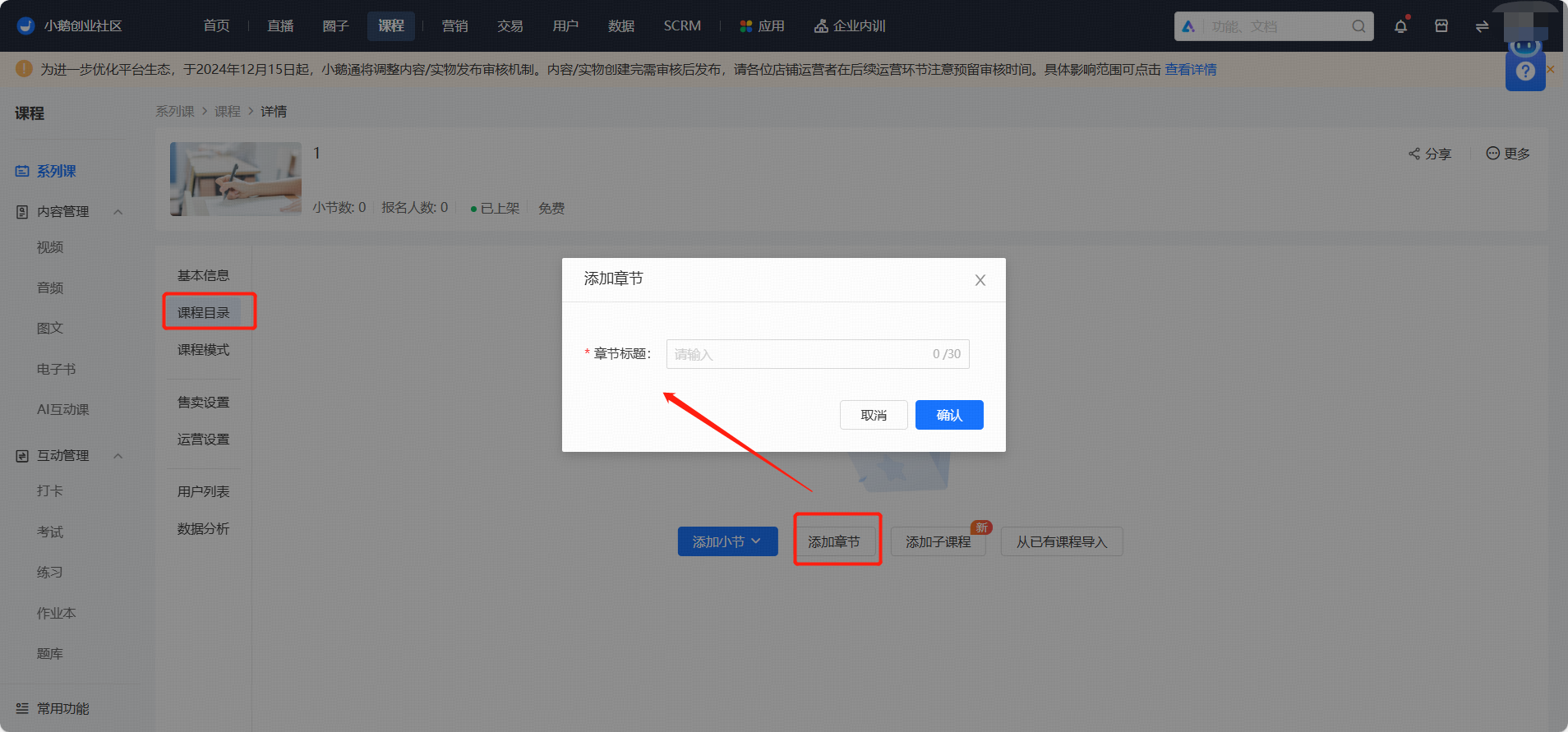
The directory hierarchical structure is: Course - Sub - course - Chapter - Section
Click 【Add Sub - course】 to add a first - level directory
Click 【New Chapter】 to add a first - level directory or a second - level directory under a sub - course;
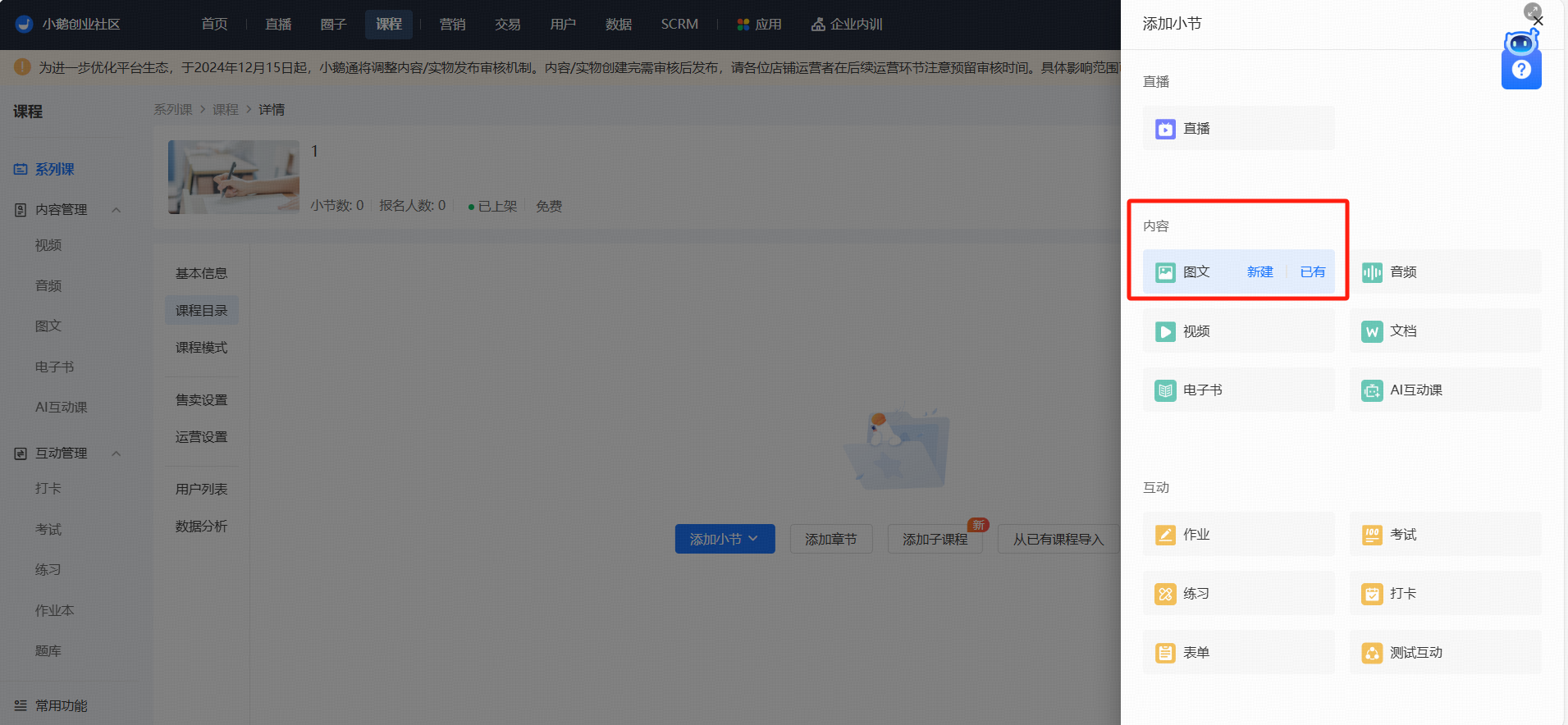
Click 【Add Section】 to addassociatedvarious course content, supporting live streams, images and texts, audio, videos, documents, e - books, assignments, exams, exercises, check - ins, forms,interactive tests;
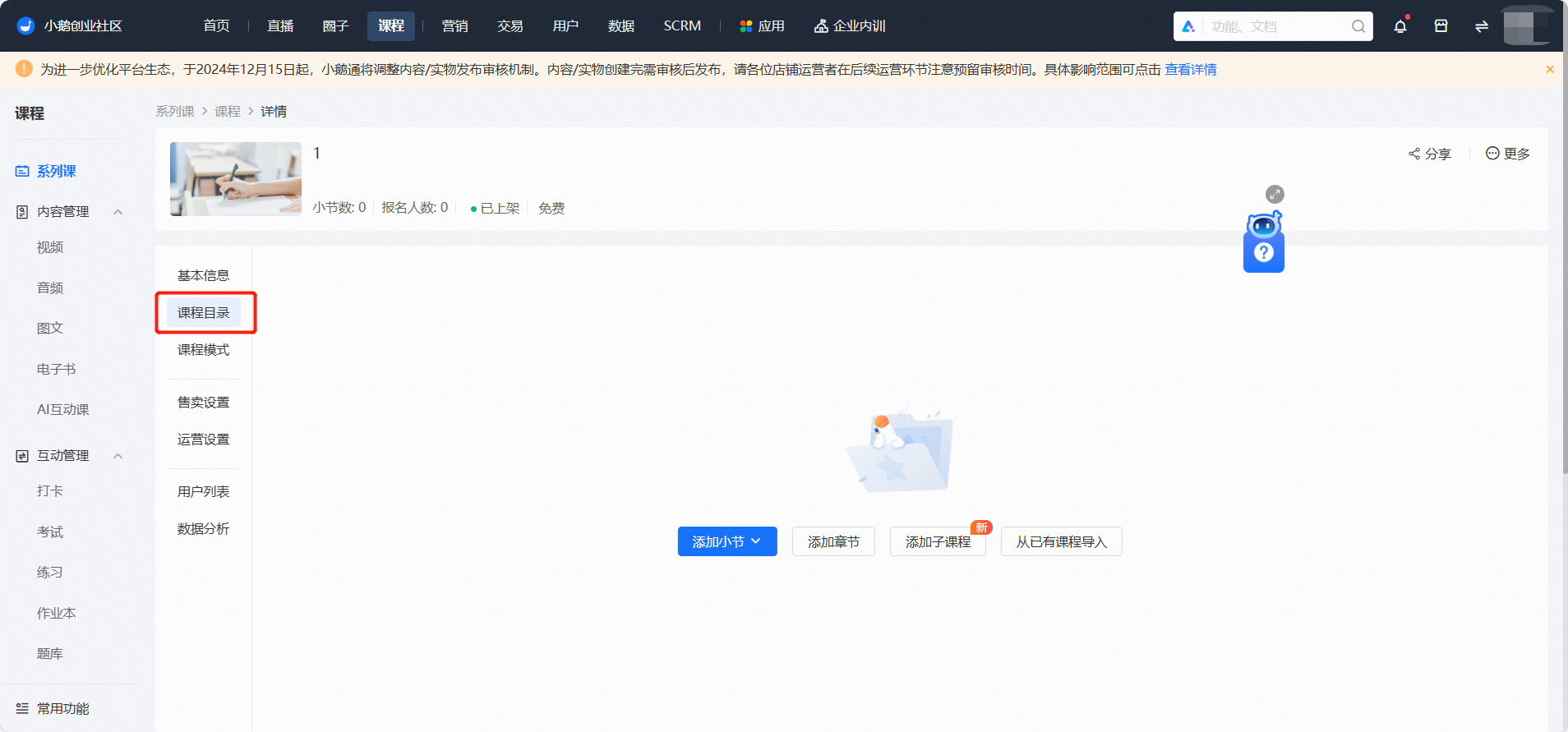
【Add Section】 supports creating new on the current page, and also supports associating or copying existing tasks;
2. Course Settings
(1) Basic Information (already filled in during creation, can be skipped)
Fill in basic course information such as name and cover, and