Column
- How to enable the table of contents display for a column?
- What's the difference between a column and a major column?
- How to enable update reminders for a column?
- How to remove a single product after associating it with a column?
- If the same product is associated with two courses, can users access the un-purchased course for free?
- How to add products to a column
- How to set the preview content for a column?
- What's the purpose of enabling the catalog display for a column?
How to enable the table of contents display for a column?
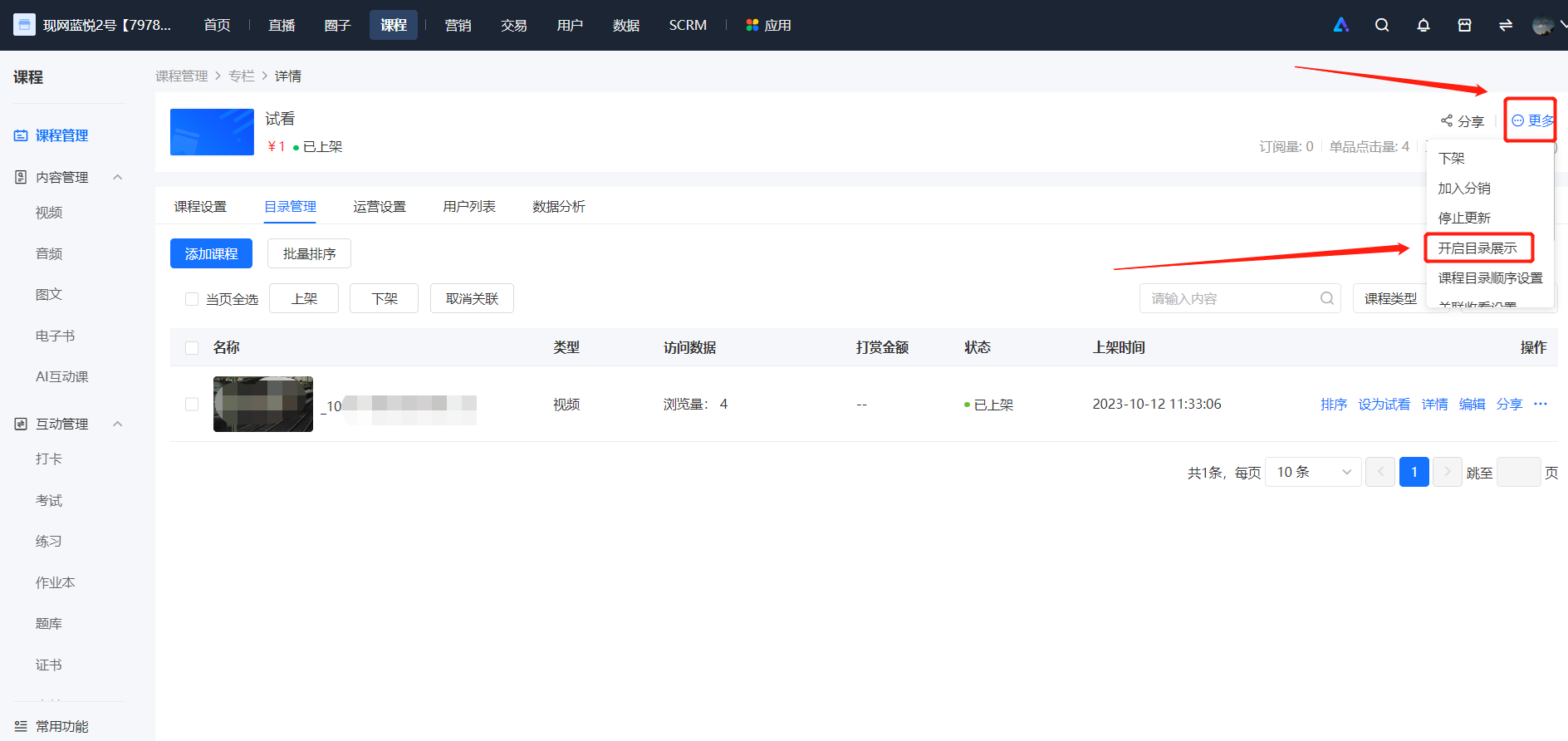
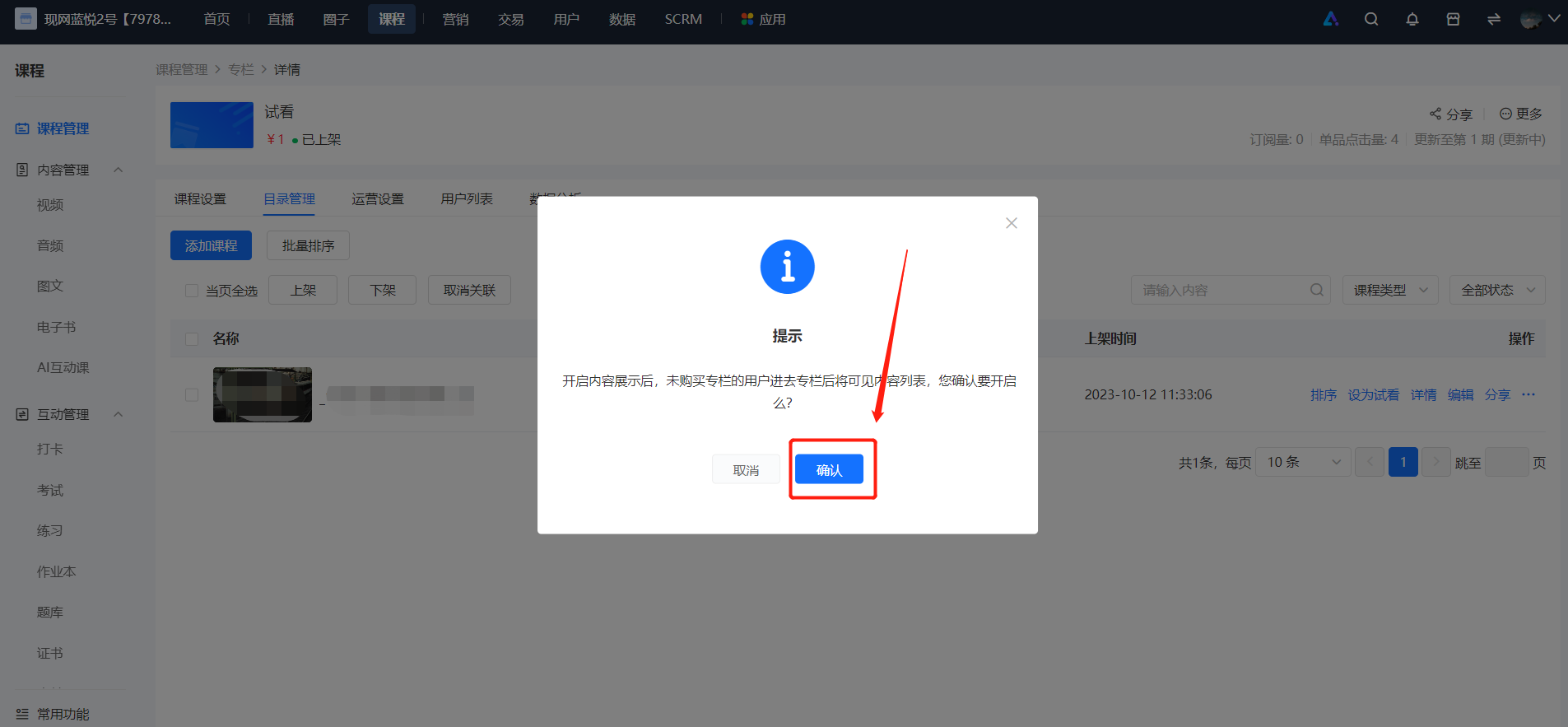
Merchants log in to the elink backend, go to [Course Management] - [Columns], select [More] for the corresponding column, and then click [Enable Table of Contents Display].
What's the difference between a column and a major column?
A column is a collection of multiple single products, which can meet the scenario requirements of packaging and selling multiple single-course products.
A mega-column is a packaging of multiple columns, which is a course format that enables the collective sale of multiple column courses.
How to enable update reminders for a column?
You will receive a message notification when the column is updated. You can go to [Settings] → [Push Settings] → [Message Push] to enable the course update reminder. Meanwhile, when updating a single column course item, select to enable the service account notification function. Additionally, users need to actively subscribe to the update prompt for the service account to send notifications to students.


**Note:1. For columns that have been taken off the shelves or hidden, there will be no service account notifications after course updates.
2. After setting the column to stop updating, you can continue to add single items and update the column content. To send message reminders to students for column updates, you need to manually change the column status to [Start Updating].
How to remove a single product after associating it with a column?
If your single product is associated with a column, you can edit the single product and select 'Cancel associated sales' in the sales method section.
If you need to completely delete a single product course, you can open the course list page, click 'More' - 'Delete' for the course you want to delete.
If the same product is associated with two courses, can users access the un-purchased course for free?
When the same course is associated with two paid columns and a user only purchases one of the columns:
1. If the associated course allows individual sales, the course can be viewed in both columns. However, if the column that the user hasn't purchased doesn't display the column catalog, the course cannot be viewed.
2. If the associated course doesn't allow individual sales, in the column that the user hasn't purchased, a prompt 'You can watch this course after subscribing to the column' will appear.
How to add products to a column
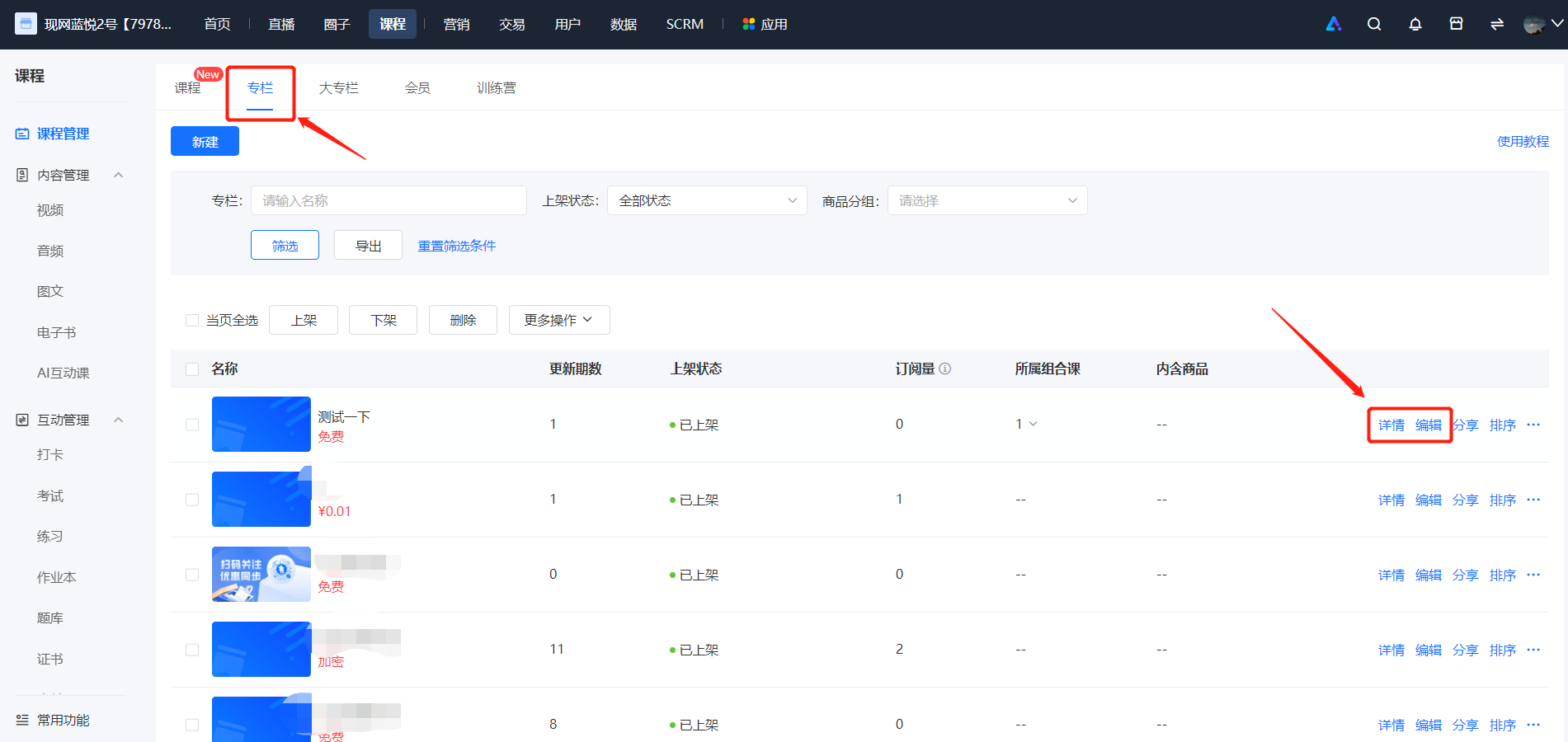
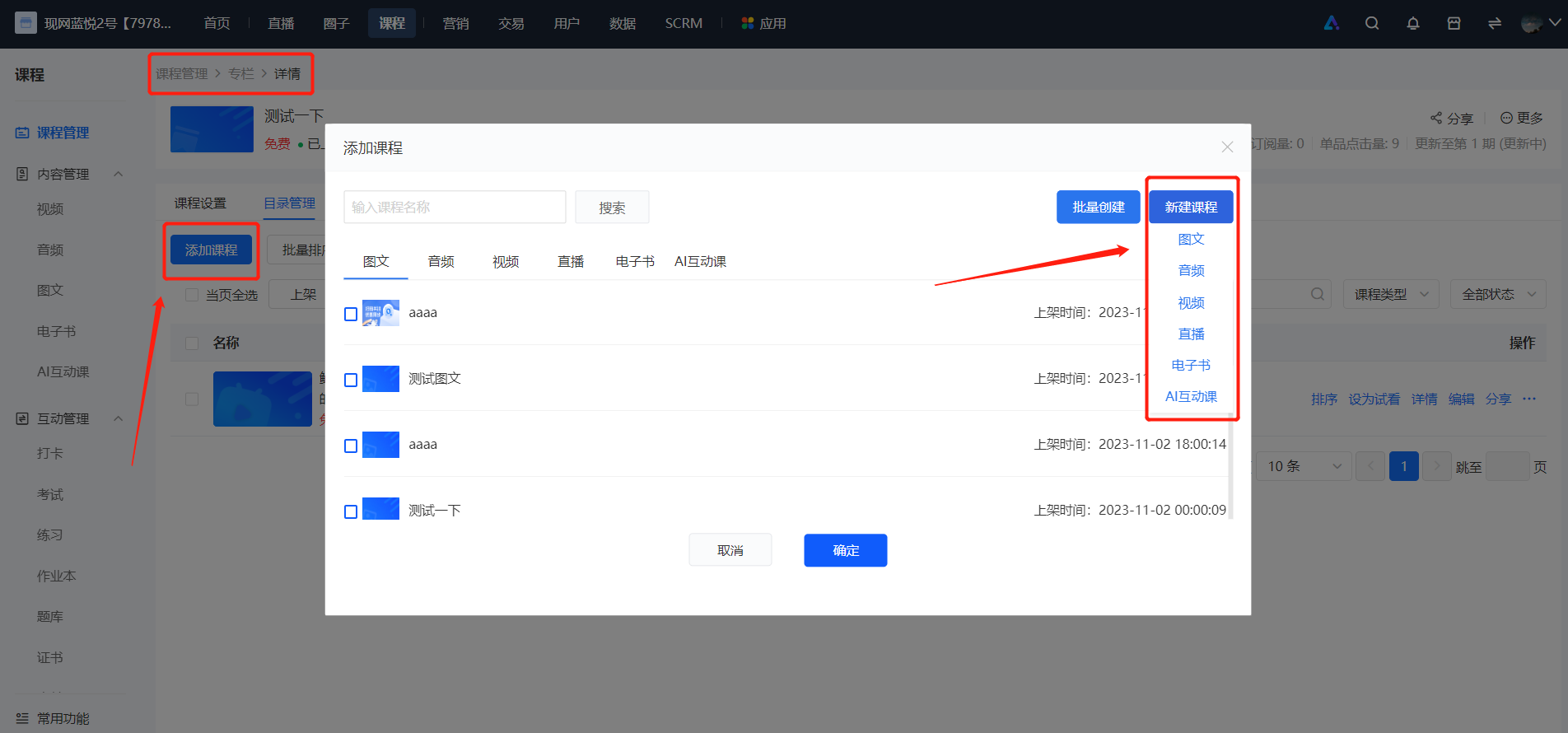
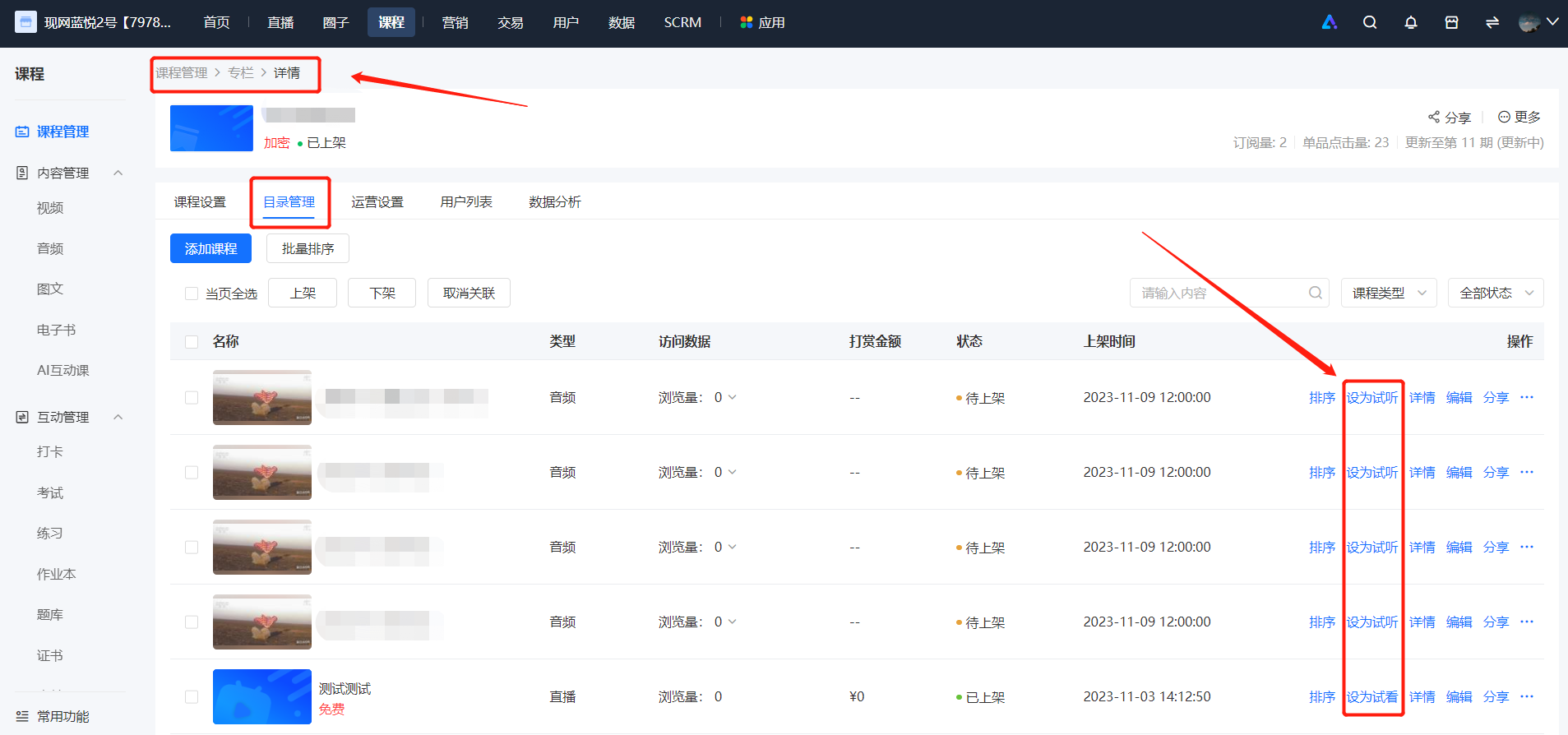
In the column list, click on the column to which you want to add content. Then click [Details] - [Catalog Management] - [Add Course], and you can select existing products or create new ones. The [Create New] mode follows the same process as creating a single product. You can create five types of single products: audio, video, graphic - text, live stream, e - book, and AI interactive course.
How to set the preview content for a column?
Merchants can set audio, videos, images and texts, live streams, and e-books in the column as free previews. Users who have not subscribed to the column can view the free preview content for free.
Setting method:Find the content you want to set as a free preview. In the additional operations, click [Set as Free Preview]. Merchants who offer single-item sales do not support setting content as free previews. This content will then become free content for users who have not subscribed to the column to view. After the setting is successful, you can see the 'Free Preview' label on the right side of the content name. You can also cancel the free preview at any time in the additional operations. After cancellation, users who have not subscribed to the column will not be able to view this content.
What's the purpose of enabling the catalog display for a column?
After enabling the catalog display for the column, users who haven't purchased the column can view which single courses are included in the column.