# Applications - Application Zone

# WeChat Service Account

# Process for activating a WeChat Certified Service Account

<div data-elink-language-switch="1" id="bkmrk-%E4%B8%AD%E6%96%87" style="border:1px solid #d6d9de;border-radius:6px;padding:10px 12px;margin:0 0 18px 0;background:#f8fafc;font-size:14px;">[中文](/books/821fa/page/69adc)</div><span style="font-size:14px;font-family:'等线';color:rgb(43,43,43);">If you haven't applied for a service account yet, please follow the instructions below for registration and verification:</span>

<span style="font-size:13px;font-family:Symbol;">·<span style="font-size:9px;line-height:normal;font-family:'Times New Roman';"> </span></span><span style="font-size:14px;font-family:'等线';">Service account registration address:</span>[<span style="font-size:14px;font-family:'等线';color:rgb(112,177,231);">http://t.cn/RWrNbyR</span>](http://t.cn/RWrNbyR)

<span style="font-size:13px;font-family:Symbol;">·<span style="font-size:9px;line-height:normal;font-family:'Times New Roman';"> </span></span><span style="font-size:14px;font-family:'等线';">Service account registration steps:</span>[<span style="font-size:14px;font-family:'等线';color:rgb(112,177,231);">http://t.cn/RUeGaQO</span>](http://t.cn/RUeGaQO)

<span style="font-size:13px;font-family:Symbol;">·<span style="font-size:9px;line-height:normal;font-family:'Times New Roman';"> </span></span><span style="font-size:14px;font-family:'等线';">Service account verification process:</span>[<span style="font-size:14px;font-family:'等线';color:rgb(112,177,231);">http://t.cn/RljAySR</span>](http://t.cn/RljAySR)

# Explanation on the expiration of Service Account verification

<div data-elink-language-switch="1" id="bkmrk-%E4%B8%AD%E6%96%87" style="border:1px solid #d6d9de;border-radius:6px;padding:10px 12px;margin:0 0 18px 0;background:#f8fafc;font-size:14px;">[中文](/books/821fa/page/f7490)</div><span style="font-size:16px;">According to the annual review notification mechanism of the WeChat Official Account platform, reminders will be sent to the Official Account backend and the corresponding administrator's WeChat account when the certification expires in 3 months, 2 months, 1 month, 7 days, and upon expiration. If you fail to conduct the annual review in advance, you can apply for a 7-day temporary extension via the administrator's WeChat account on the expiration date.</span>

<span style="font-size:16px;">After the certification of the service account authorized by the merchant expires, WeChat will disable the payment function, authorization, and other advanced interfaces of the service account. New users may not be able to authorize and log in to your store.</span>

<span style="font-size:16px;">elink will send notifications 1 month, 7 days before the expiration of your WeChat service account and upon expiration. If your service account has expired, please go to the WeChat Official Account platform for annual review as soon as possible. You can quickly restore the service account functions through the following steps after expiration:</span>

<span style="font-size:16px;">1. Apply for a 7-day temporary extension on the administrator's WeChat account of the service account on the expiration date.</span>

<span style="font-size:16px;">![01.png](https://wechatapppro-1252524126.file.myqcloud.com/help_document/image/ueditor/14003500_1622024706.png ".png")</span>

<span style="font-size:16px;">2. Go to the WeChat Official Account platform for annual review. Enter the WeChat Official Account platform at https://mp.weixin.qq.com/, log in to the service account authorized to elink, and enter the WeChat service account management console for annual review. The review period is generally 1 - 3 days.</span>

<span style="font-size:16px;">![02.png](https://wechatapppro-1252524126.file.myqcloud.com/help_document/image/ueditor/59862100_1622024706.png ".png")</span>

<span style="font-size:16px;">3. You can use it normally after passing the review.</span>

<span style="font-size:16px;">To ensure the normal use of your store, please log in to the WeChat Official Account platform in time to complete the annual review and certification before the service account expires.</span>If you no longer renew or use your service account, please go to \[**Marketing Center - WeChat Service Account - Authorization Status\] in the management console**to revoke the authorization.

# Configure the business domain name of the Service Account

<div data-elink-language-switch="1" id="bkmrk-%E4%B8%AD%E6%96%87" style="border:1px solid #d6d9de;border-radius:6px;padding:10px 12px;margin:0 0 18px 0;background:#f8fafc;font-size:14px;">[中文](/books/821fa/page/c3e87)</div><span style="font-size:14px;font-family:'等线';color:rgb(43,43,43);">To avoid the issue of a security prompt popping up above the comment box when users leave comments, it is recommended that you complete the domain configuration for your Official Account.</span>

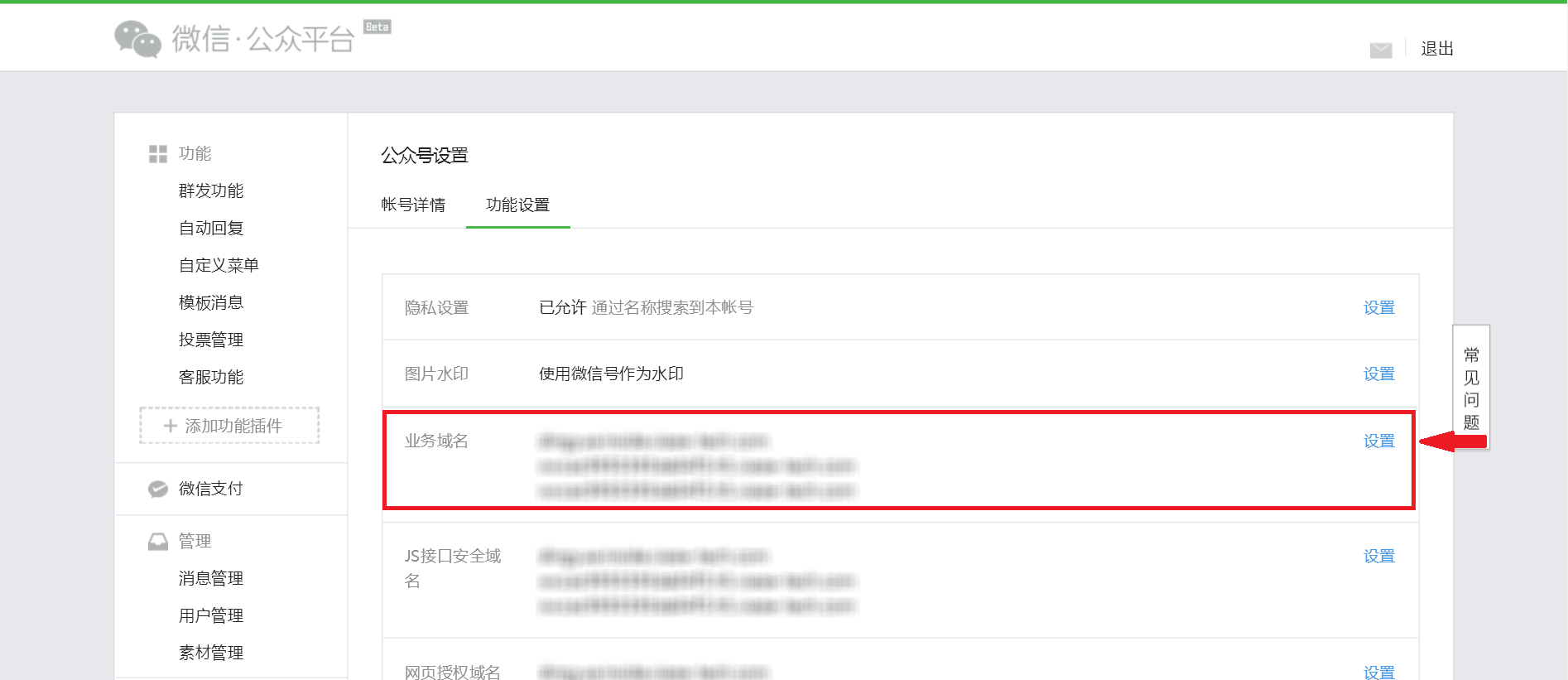
<span style="font-size:14px;font-family:'等线';color:rgb(43,43,43);">Step 1</span><span style="font-size:14px;font-family:'等线';color:rgb(43,43,43);">: Enter**WeChat Official Account Platform**</span><span style="font-size:14px;font-family:'等线';color:rgb(43,43,43);">, and click on**\[Settings\]**under**\[Official Account Settings\]**, then click on**\[Feature Settings\]**. In the**\[Business Domain Name\]**section, click on**\[Configure\]**.</span>

![image006.png](https://wechatapppro-1252524126.file.myqcloud.com/help_document/image/ueditor/13986900_1544250558.png ".png")

<span style="font-size:14px;font-family:'等线';"></span>

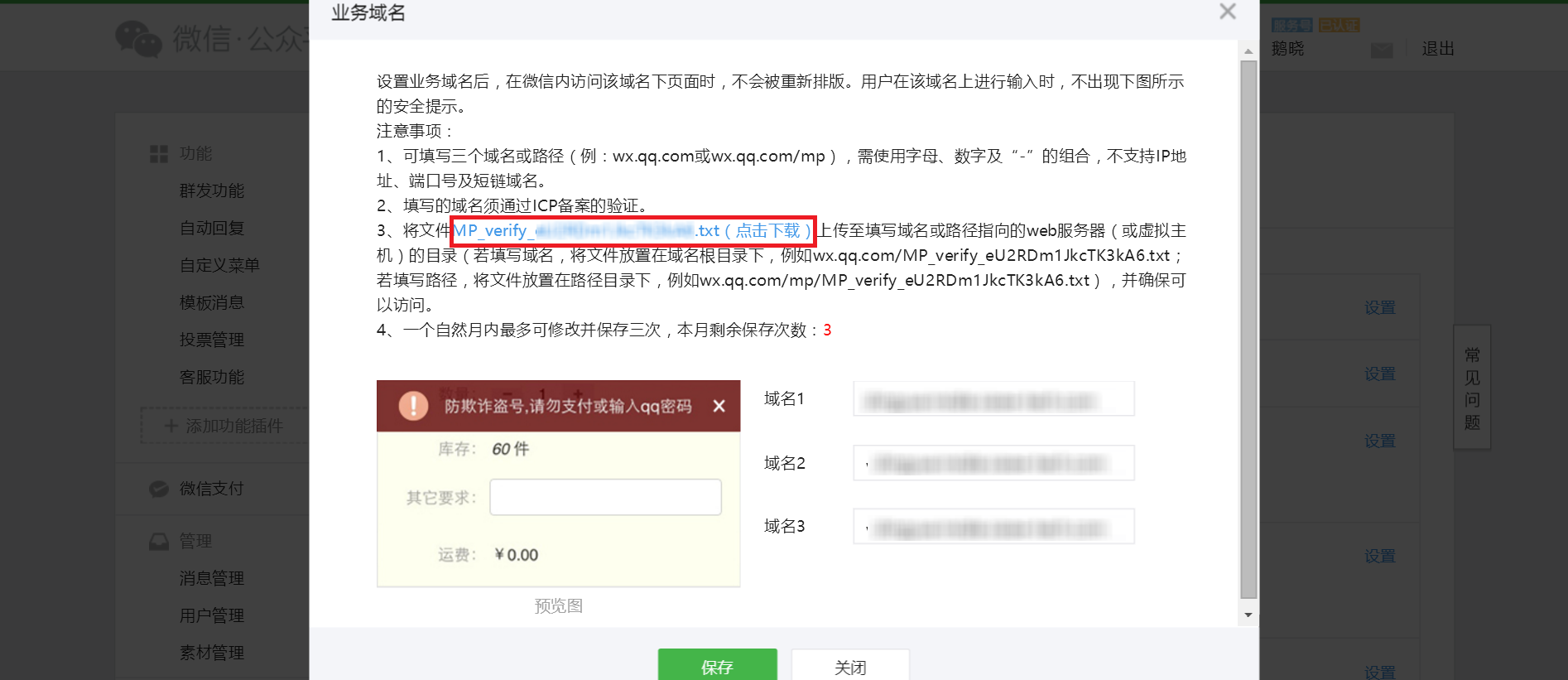
<span style="font-size:14px;font-family:'等线';color:rgb(43,43,43);">Step 2</span><span style="font-size:14px;font-family:'等线';color:rgb(43,43,43);">: Click to download the**WeChat Business Domain Name File**.**Do not close this business domain name page after completing this step.**</span>

<span style="font-size:14px;font-family:'等线';">Note: Do not download the WeChat Business Domain Name File repeatedly. Repeated downloads will automatically append number suffixes such as '-2' or '-3' to the file name, which may lead to configuration error prompts in subsequent operations due to file name mismatches.</span>

<span style="font-size:14px;font-family:'等线';"> ![image008.png](https://wechatapppro-1252524126.file.myqcloud.com/help_document/image/ueditor/38029800_1544250558.png ".png")</span>

<span style="font-family:'等线';font-size:14px;"> </span>

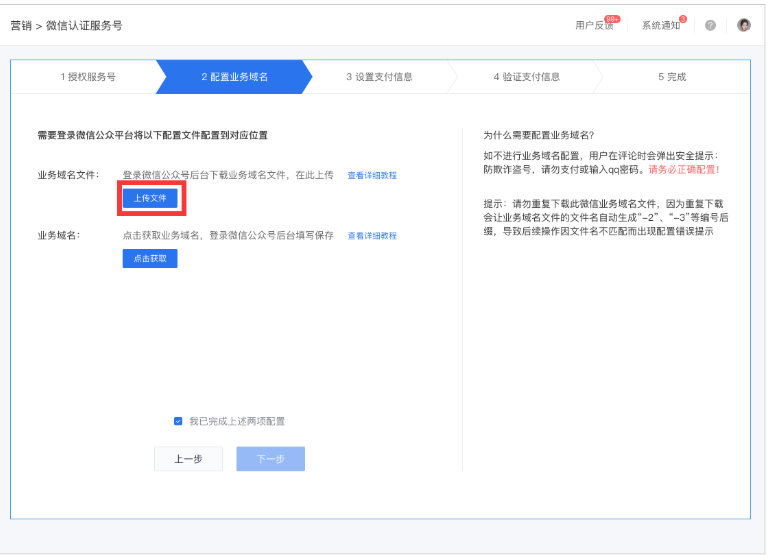
<span style="font-size:14px;font-family:'等线';color:rgb(43,43,43);">Step 3</span><span style="font-size:14px;font-family:'等线';color:rgb(43,43,43);">: Return to the**elink Management Console**. In the**\[Configure Business Domain Name\]**section, click on**\[Upload File\]**, and upload the .txt format WeChat Business Domain Name File you just downloaded (make sure there are no numbered suffixes connected by hyphens at the end of the file name). Then click on**\[Save\]**</span><span style="color:rgb(43,43,43);font-family:'等线';font-size:14px;"></span>

![](https://wechatapppro-1252524126.file.myqcloud.com/help_document/image/ueditor/55519100_1544250558.com/yws/public/resource/81ea9aa3d299b9919566978a20c2227e/xmlnote/4736dc10a81a409da002caa443a80359/6063)

<span style="font-size:14px;font-family:'等线';color:rgb(43,43,43);"></span>

<span style="font-size:14px;font-family:'等线';color:rgb(43,43,43);">Step 4</span><span style="font-size:14px;font-family:'等线';color:rgb(43,43,43);">: After the upload is complete, click on**\[Business Domain Name Configuration\]**section, click on**\[Click to Obtain\]**, and then copy the**\[Business Domain Name\]**</span>

<span style="font-family:'等线';font-size:14px;"></span>

![](http://note.youdao.com/yws/public/resource/81ea9aa3d299b9919566978a20c2227e/xmlnote/3CFF3554D16B40A8AA1D1D213E438F7A/6065)

<span style="font-family:'等线';font-size:14px;"></span>

<span style="font-family:'等线';font-size:14px;">  
</span>

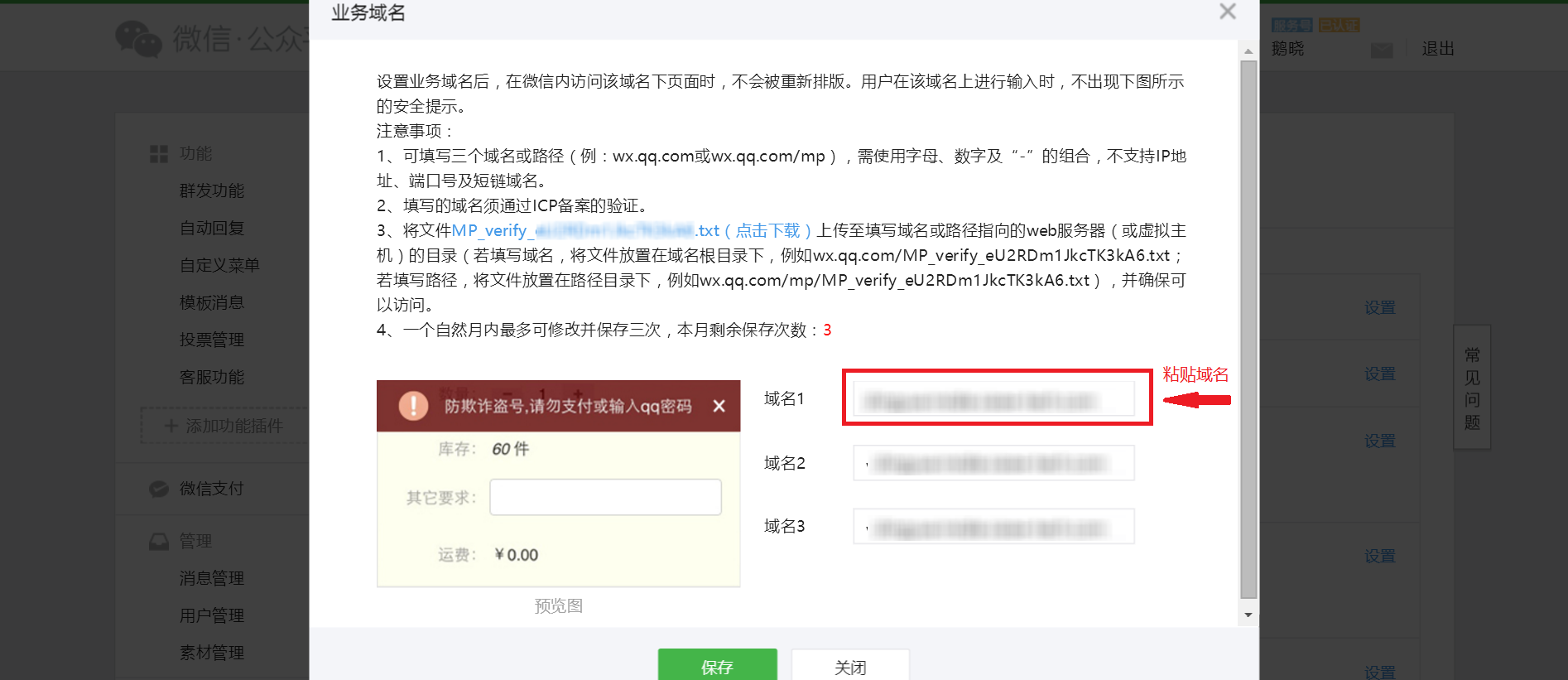
<span style="font-size:14px;font-family:'等线';color:rgb(43,43,43);">Step 5</span><span style="font-size:14px;font-family:'等线';color:rgb(43,43,43);">: Go back to the**WeChat Official Account Platform**'s**\[Business Domain Name\]**page. Paste the**elink Online Store's \[Business Domain Name\]**<a>you just copied in the domain name field (you can choose any one of the three domain name options to paste).</a></span><span style="font-size:14px;font-family:'等线';"> </span><span style="font-size:14px;font-family:'等线';color:rgb(43,43,43);">.</span>

![image014.png](https://wechatapppro-1252524126.file.myqcloud.com/help_document/image/ueditor/84232200_1544250558.png ".png")

<span style="font-size:14px;font-family:'等线';"></span>

<span style="font-size:14px;font-family:'等线';color:rgb(43,43,43);">Step 6</span><span style="font-size:14px;font-family:'等线';color:rgb(43,43,43);">: Click on**\[I have completed the above two configurations\]**, and then click \[Next\].</span>

<span style="font-size:14px;font-family:'等线';color:rgb(43,43,43);">  
</span>

# Computer-based store

# How to configure the TDK of a page?

<div data-elink-language-switch="1" id="bkmrk-%E4%B8%AD%E6%96%87" style="border:1px solid #d6d9de;border-radius:6px;padding:10px 12px;margin:0 0 18px 0;background:#f8fafc;font-size:14px;">[中文](/books/821fa/page/tdk)</div><span style="font-size:12pt;"></span>

###### <span style="font-size:12pt;">1. TDK Settings</span>

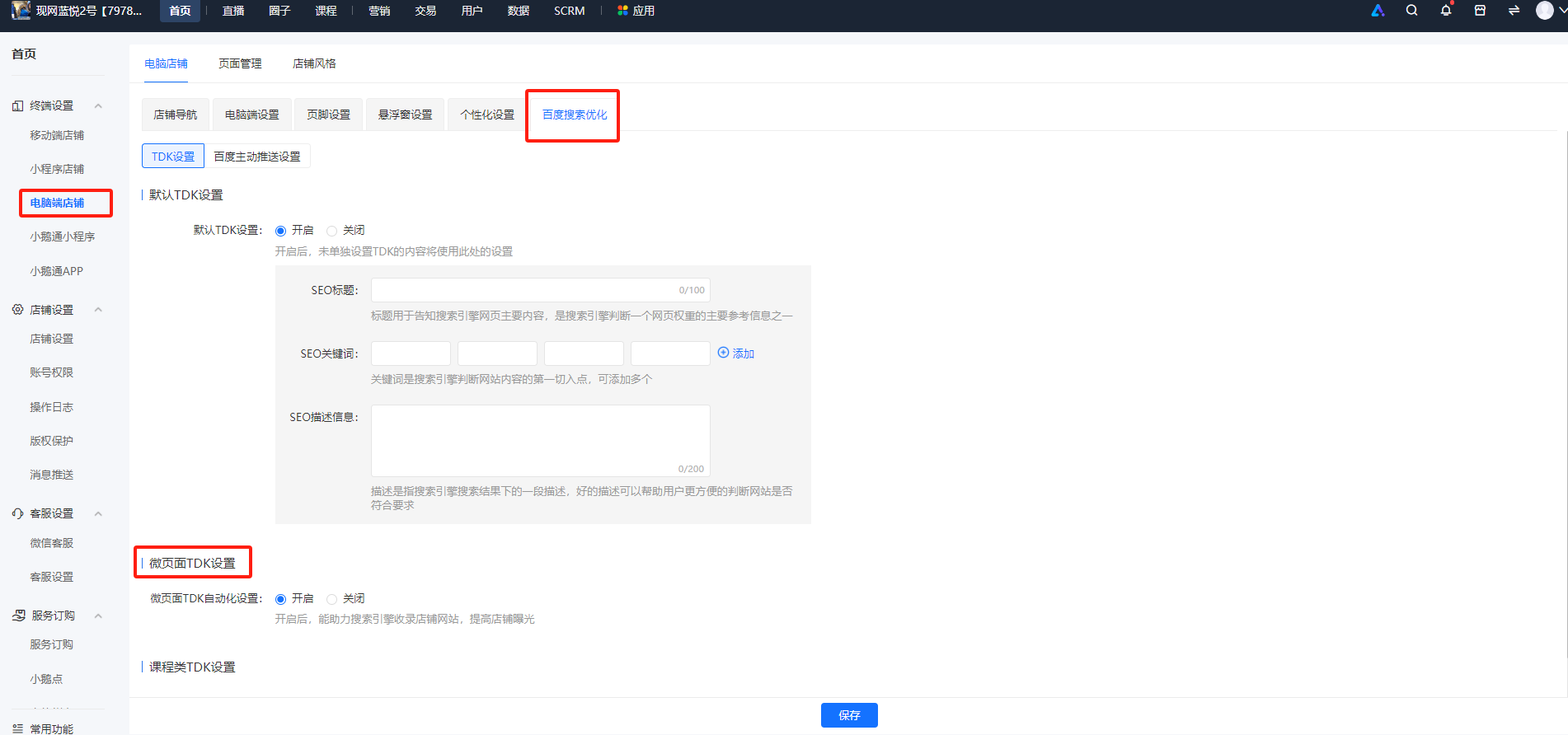
<span style="font-size:12pt;">TDK settings are divided into two categories: Mini Pages and courses. You need to turn on the TDK switch for Mini Pages/courses first.</span>

<span style="font-size:12pt;">Both switches are turned off by default and need to be manually turned on by merchants. For course TDK settings, once the switch is turned on, the page elements required for TDK (t: page title; d: page description; k: keywords) will be automatically collected. However, for Mini Pages, after turning on the switch, you also need to set the TDK for each Mini Page separately.</span>

<span style="font-size:12pt;">  
</span>

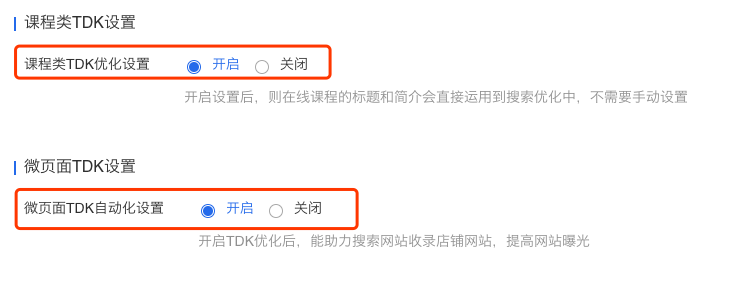
<span style="font-size:12pt;">Step 1: Turn on the TDK settings switch</span>

<span style="font-size:12pt;"><span style="font-size:14px;">Path: Home Page -&gt; Terminal Settings -&gt; Desktop Store<span style="font-size:14px;">-&gt;</span>Baidu Search Optimization</span></span>

<span style="font-size:14px;">![image.png](https://wechatapppro-1252524126.file.myqcloud.com/help_document/image/ueditor/86994300_1700204039.png ".png")</span>

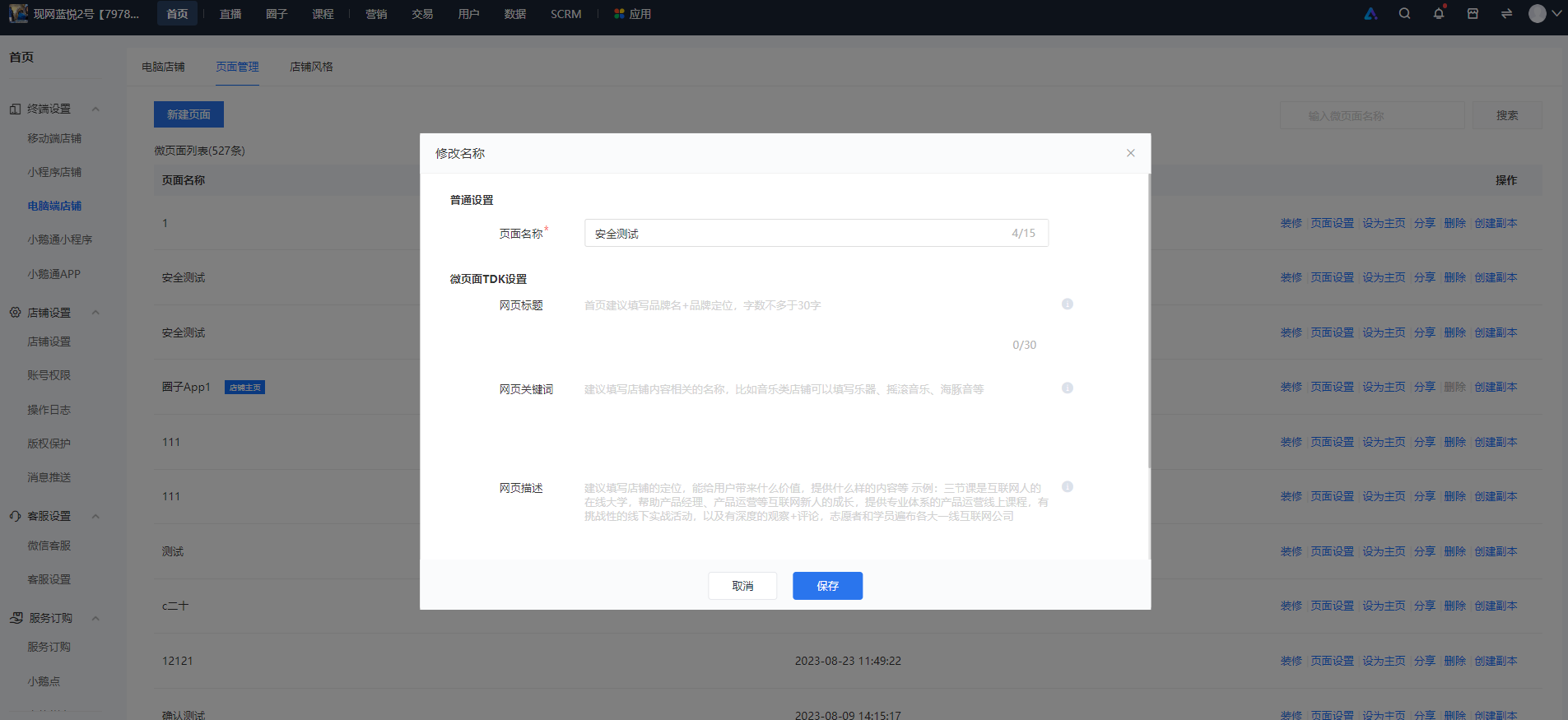
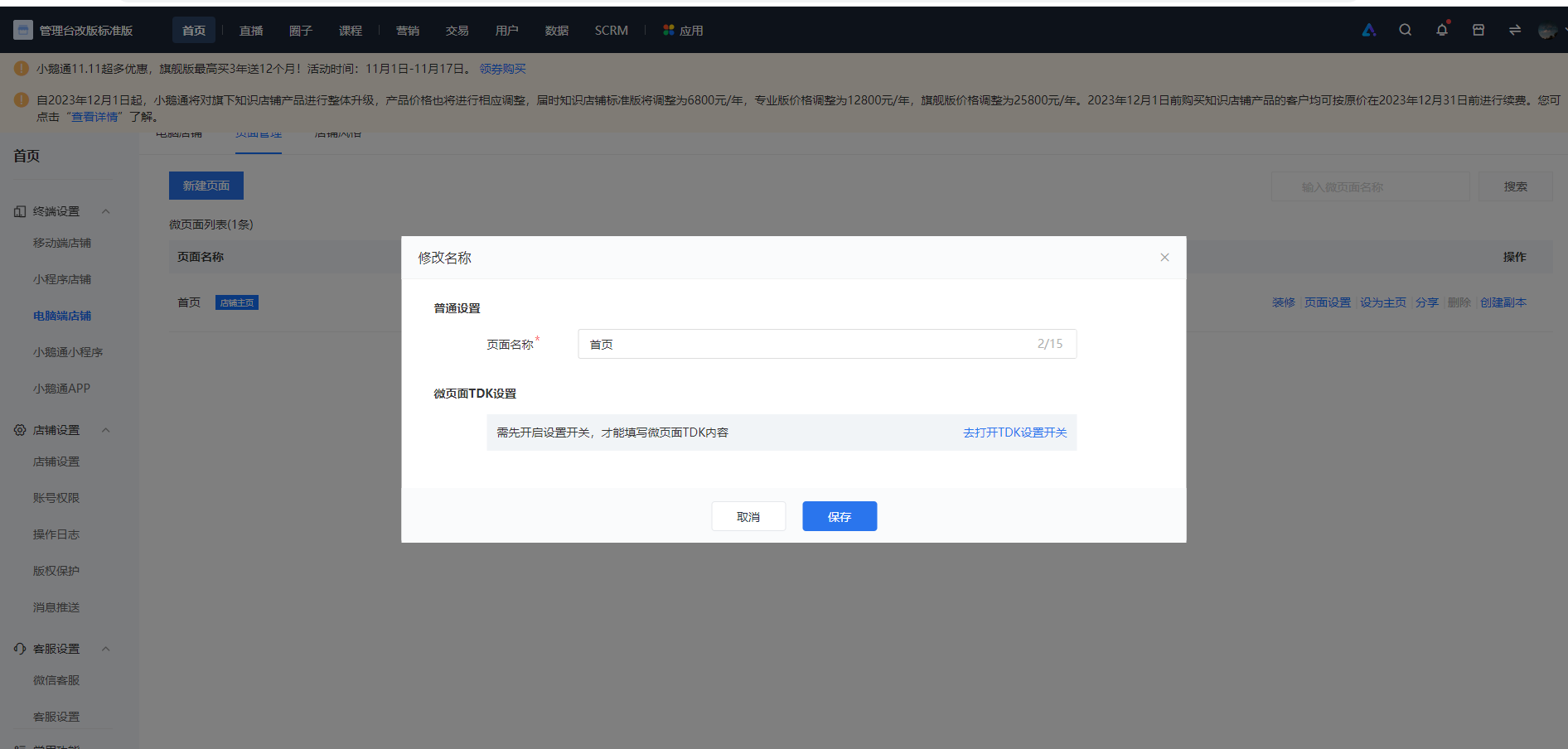
<span style="font-size:12pt;">Step 2: Fill in the TDK for Mini Pages</span>

<span style="font-size:14px;">Path: Home Page -&gt; Terminal Settings -&gt; Desktop Store<span style="font-size:14px;">-&gt;</span>Mini Page List<span style="font-size:14px;">-&gt; Operation Item: Select Page Settings<span style="font-size:14px;">-&gt; Fill in the pop-up window</span></span></span>

![image.png](https://wechatapppro-1252524126.file.myqcloud.com/help_document/image/ueditor/81335400_1700204135.png ".png")

<span class="image-wrapper" style="display:inline-block;overflow:hidden;width:1280px;height:992px;"> </span><span style="font-size:12pt;"></span>

# How to log in to the PC version of the online store to view courses?

<div data-elink-language-switch="1" id="bkmrk-%E4%B8%AD%E6%96%87" style="border:1px solid #d6d9de;border-radius:6px;padding:10px 12px;margin:0 0 18px 0;background:#f8fafc;font-size:14px;">[中文](/books/821fa/page/pc)</div>**<span style="font-size:15px;">Step 1:</span>**

<span style="font-size:15px;">Access the Online Store on WeChat to obtain the course link.</span>

![cb812fe3-efff-4075-986a-d77f62f5ef5f.jpg](https://wechatapppro-1252524126.file.myqcloud.com/help_document/image/ueditor/32385100_1608296275.jpg ".jpg")

**<span style="font-size:15px;">Step 2:</span>**

<span style="font-size:15px;">Copy the link, open it in a browser on your computer, click \[Start Learning Now\] or \[Log In\] in the top - right corner. After logging in via WeChat or using your mobile phone number, you can view the corresponding course.</span>

![a1.png](https://wechatapppro-1252524126.file.myqcloud.com/help_document/image/ueditor/79393200_1640329253.png ".png")

<span style="font-size:14px;">  
</span>

![a2.png](https://wechatapppro-1252524126.file.myqcloud.com/help_document/image/ueditor/47280400_1640329258.png ".png")

<span style="font-size:14px;">  
</span>

<span style="font-size:15px;">**Note:**For first - time users, after scanning the QR code with WeChat to log in, you need to enter your mobile phone number to get the verification code.</span>

<span style="font-size:14px;">  
</span>

# Tutorial on setting up and using the desktop version

<div data-elink-language-switch="1" id="bkmrk-%E4%B8%AD%E6%96%87" style="border:1px solid #d6d9de;border-radius:6px;padding:10px 12px;margin:0 0 18px 0;background:#f8fafc;font-size:14px;">[中文](/books/821fa/page/39461)</div>**<span style="font-size:17px;">I. Function Introduction</span>**

<span style="font-size:15px;">The PC - side settings allow merchants to independently set the browser logo for their online store, customize the domain name, set up pages, enable TDK for courses, and set the limit on the number of logged - in devices, which helps enhance the brand image.</span>

**<span style="font-size:17px;">II. Purpose of Use</span>**

<span style="font-size:15px;">Merchants can set the logo for the PC version of their online store, customize the domain name, enable/disable the TDK function, and set the limit on the number of logged - in devices. Through the above three steps, they can enhance the brand image of the store and prevent multiple people from using the merchant's courses simultaneously.</span>

**<span style="font-size:17px;">III. Scenario Examples</span>**

<span style="font-size:15px;">Scenario 1: If merchants have their own brand images for the store, they can set the images to enhance the brand image.</span>

<span style="font-size:15px;">Scenario 2: If merchants want more students to find their store through search, they can enable the TDK settings. This allows students to search for course titles and descriptions, and also enables search engines to index the store website, increasing website exposure.</span>

<span style="font-size:15px;">Scenario 3: If merchants have their own registered domain names, they can use them as the browsing address for the store, having a unique brand domain name.</span>

<span style="font-size:15px;">Scenario 4: If a student shares a single account with multiple people for simultaneous use, merchants can set in the management console that a single account can only be logged in on one device at a time. This prevents students from sharing accounts and avoids losses for merchants.</span>

**<span style="font-size:17px;">IV. Operation Path</span>**

<span style="font-size:15px;">Merchant side: PC - side backend → Store<span style="font-size:15px;"> →</span>Store decoration → PC - side store → PC - side settings</span>

<span style="font-size:17px;">**V. Usage Tutorial**</span>

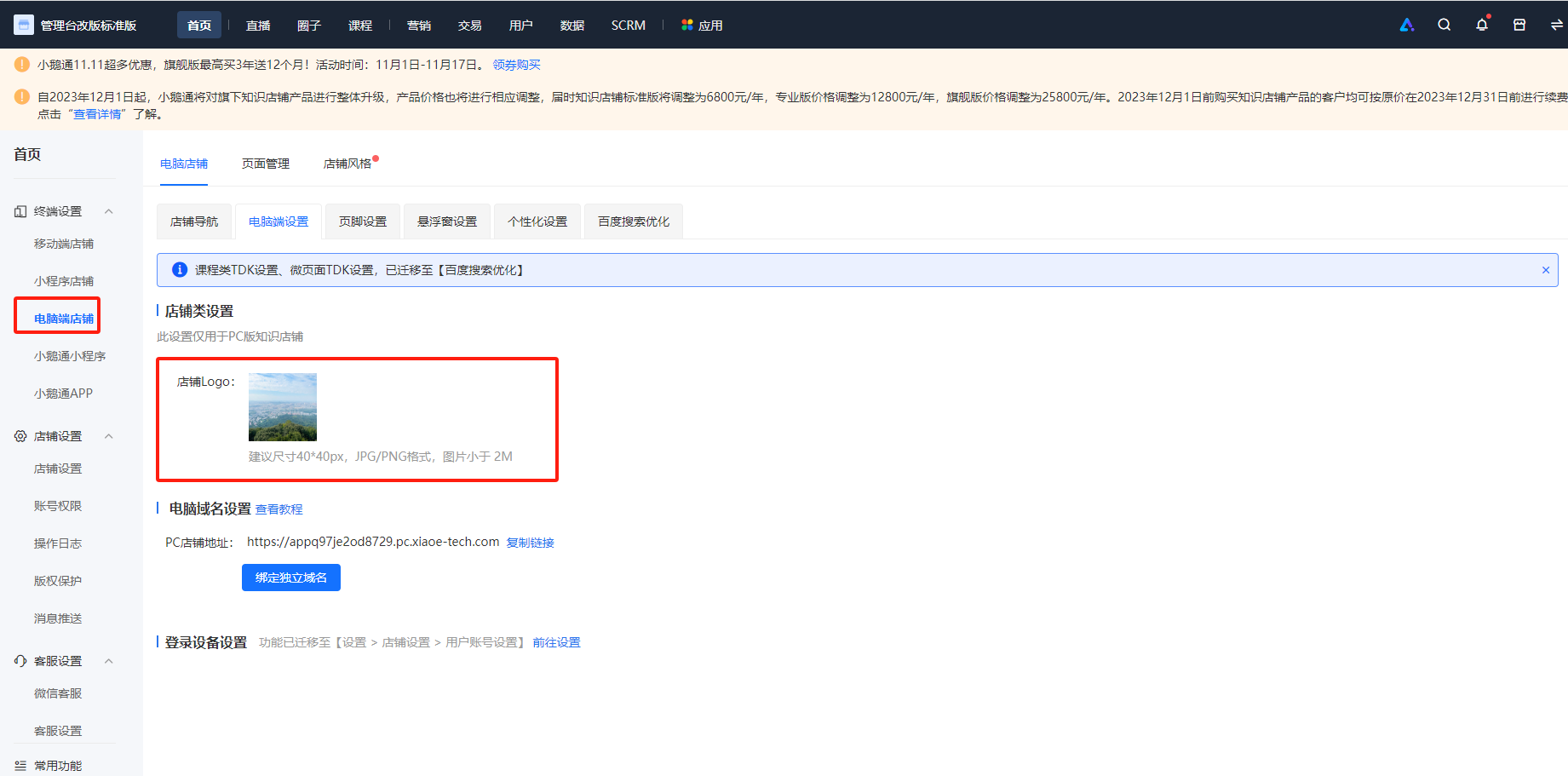
**<span style="font-size:15px;">Step 1</span>**<span style="font-size:15px;">: Click “Terminal settings” → <span style="font-size:15px;letter-spacing:0pt;">“PC - side store” →</span>“PC store” → “PC - side store” to enter the PC - side settings page. First, set the browser image.</span>

<span style="font-size:15px;">![image.png](https://wechatapppro-1252524126.file.myqcloud.com/help_document/image/ueditor/3951800_1699602152.png ".png")</span>

<span style="font-size:15px;">【Effect】</span>

![2.png](https://wechatapppro-1252524126.file.myqcloud.com/help_document/image/ueditor/32184000_1699602046.png ".png")

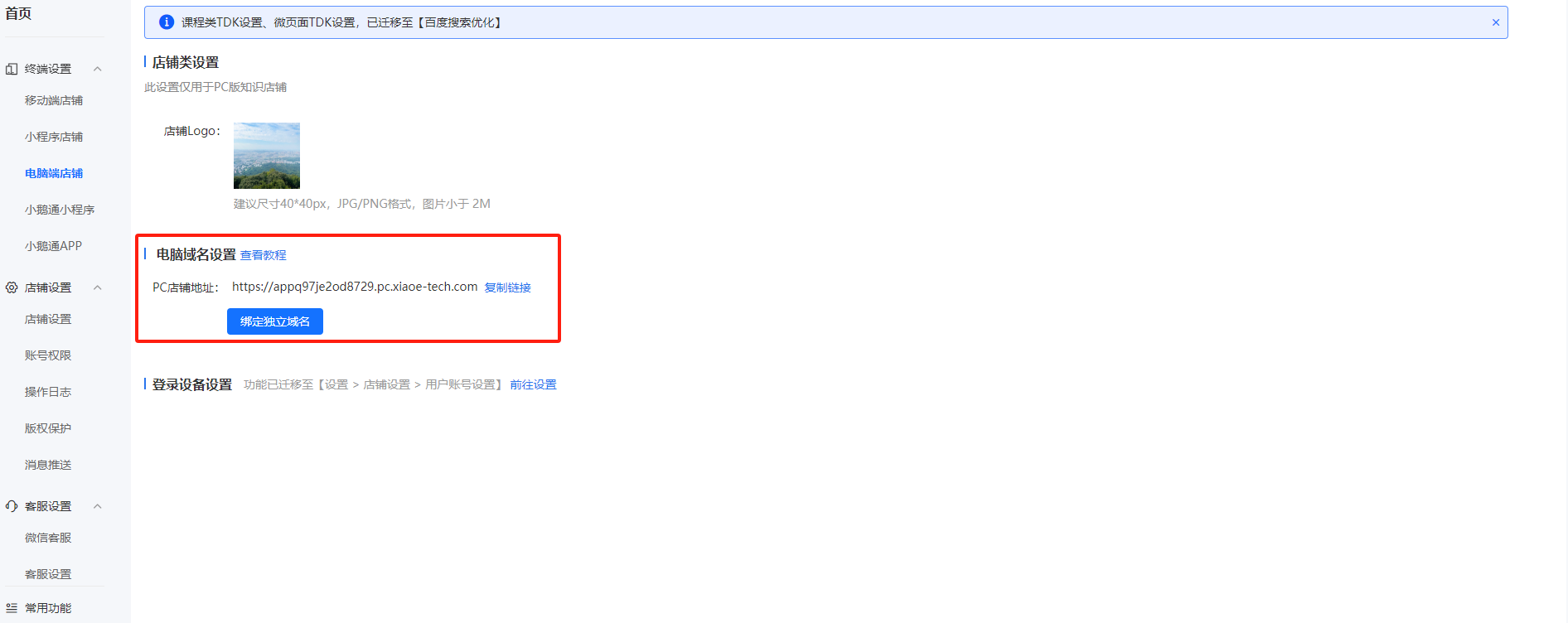
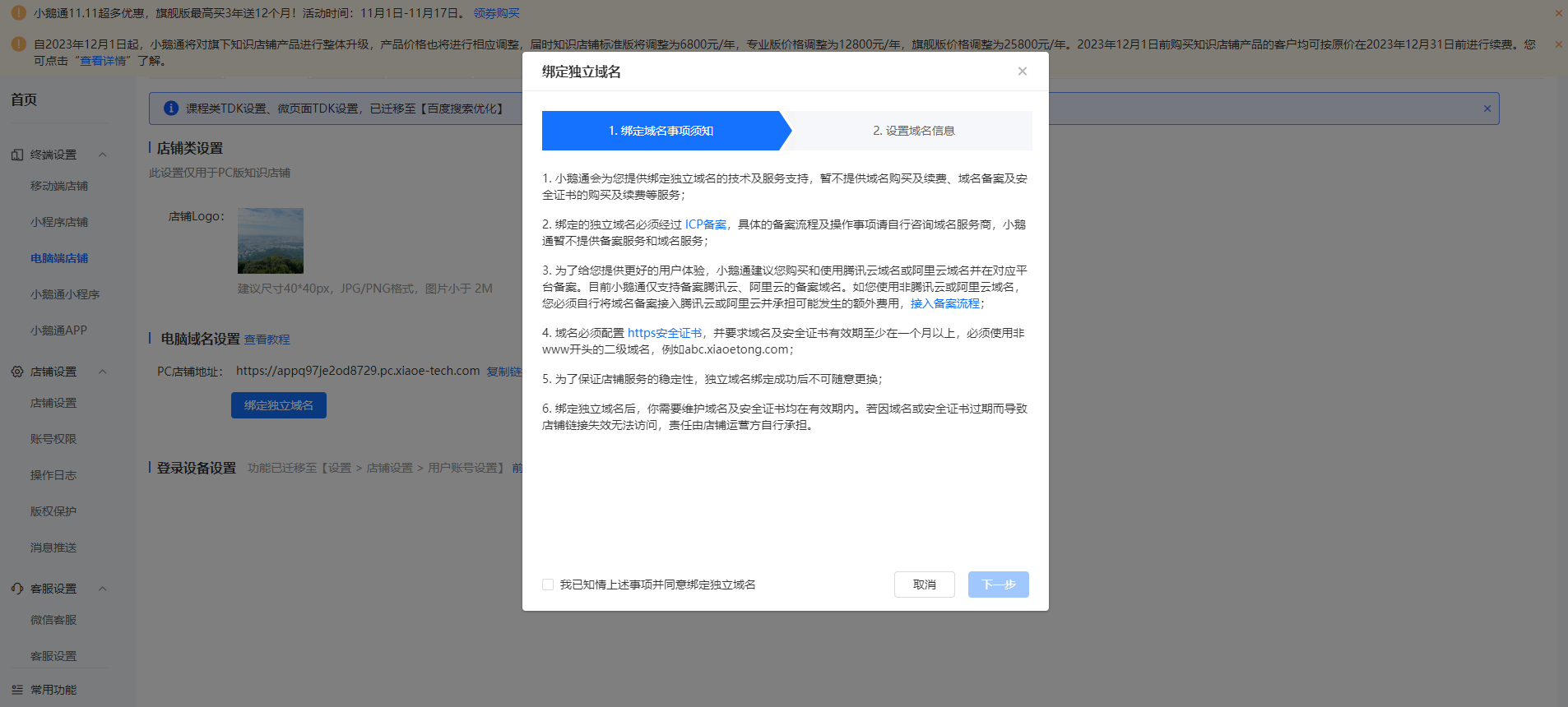
**<span style="font-size:15px;">Step 2:</span>**<span style="font-size:15px;">If merchants do not have their own registered domain names, they can use the default domain name provided by elink. To customize the domain name, fill in the information according to the requirements. After filling, the domain name will take effect only after passing the review.</span>

![image.png](https://wechatapppro-1252524126.file.myqcloud.com/help_document/image/ueditor/93504800_1699602185.png ".png")

![image.png](https://wechatapppro-1252524126.file.myqcloud.com/help_document/image/ueditor/63187900_1699602254.png ".png")

<span style="font-size:15px;">Click to view:</span>[<span style="font-size:15px;">Domain name customization usage tutorial</span>](https://helpcenter.xiaoe-tech.com/#/problem/detail?document_id=doc_5e5e1445001b1_ndVgc)

**<span style="font-size:15px;">Step 3:</span>**<span style="font-size:15px;">Enable the TDK settings for courses and mini - pages. If disabled, you cannot set them. After enabling, you need to set them in Mini - pages &gt; Page settings.</span>

![5.png](https://wechatapppro-1252524126.file.myqcloud.com/help_document/image/ueditor/90179700_1699602046.png ".png")

![image.png](https://wechatapppro-1252524126.file.myqcloud.com/help_document/image/ueditor/65237900_1699602314.png ".png")

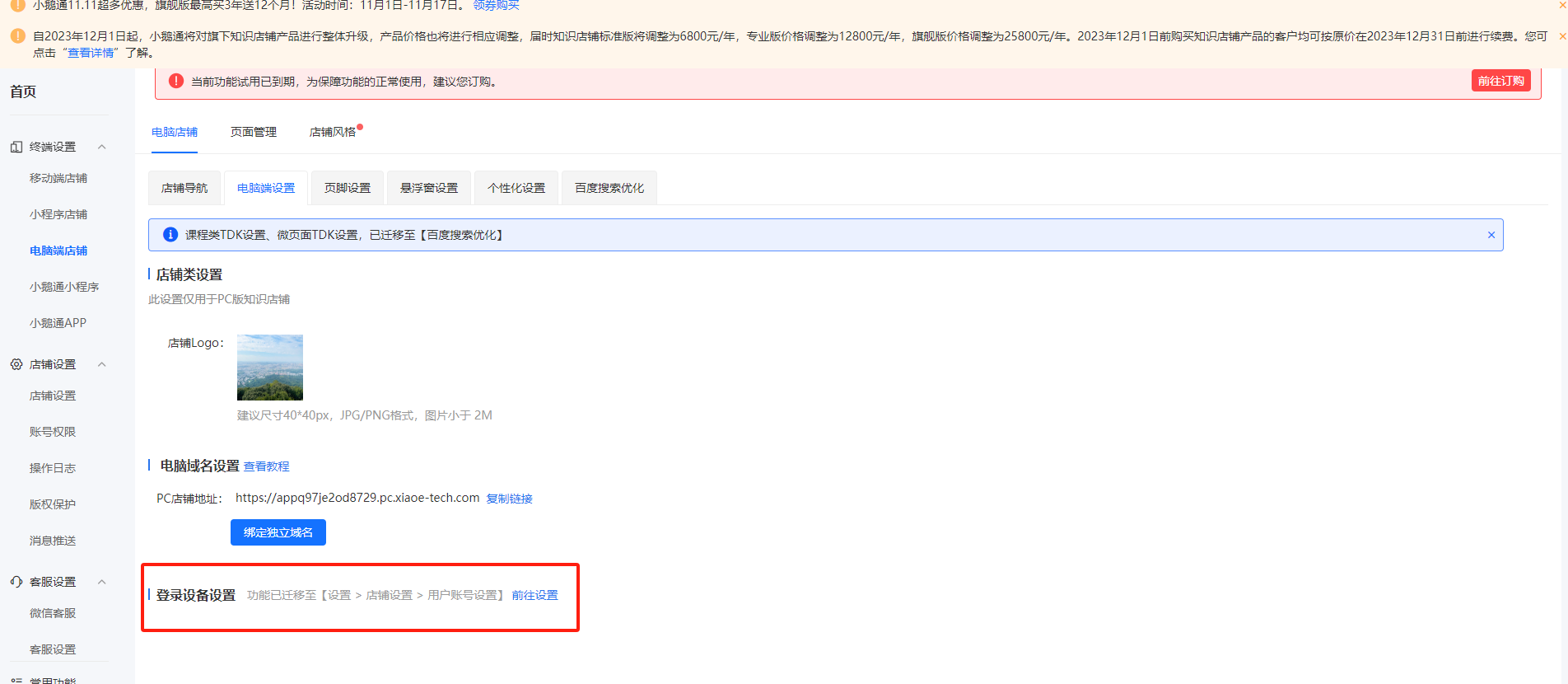
**<span style="font-size:15px;">Step 4:</span>**<span style="font-size:15px;">Limit the number of devices that can log in to the PC version of the store. By default, a single account can be logged in on up to 10 devices simultaneously. You can also customize the number, with a minimum of 1 and a maximum of 10.</span>

![image.png](https://wechatapppro-1252524126.file.myqcloud.com/help_document/image/ueditor/35827900_1699602314.png ".png")

# What are the differences between the PC version of the online store and the mobile version?

<div data-elink-language-switch="1" id="bkmrk-%E4%B8%AD%E6%96%87" style="border:1px solid #d6d9de;border-radius:6px;padding:10px 12px;margin:0 0 18px 0;background:#f8fafc;font-size:14px;">[中文](/books/821fa/page/pc-fZz)</div>![企业微信截图_16214192045063.png](https://wechatapppro-1252524126.file.myqcloud.com/help_document/image/ueditor/20504500_1621419236.png ".png")

# Tutorial on guiding users to bind mobile phone numbers

<div data-elink-language-switch="1" id="bkmrk-%E4%B8%AD%E6%96%87" style="border:1px solid #d6d9de;border-radius:6px;padding:10px 12px;margin:0 0 18px 0;background:#f8fafc;font-size:14px;">[中文](/books/821fa/page/9fd81)</div><span style="font-size:17px;">**I. Feature Introduction**</span>

<span style="font-size:14px;">The feature of guiding users to bind their mobile phone numbers enables merchants to quickly obtain users' mobile phone numbers.</span>

<span style="font-size:14px;">  
</span>

**<span style="font-size:17px;">II. Purpose of Use</span>**

<span style="font-size:14px;">After merchants set up the guidance for users to bind their mobile phone numbers, they can obtain the users' mobile phone numbers, send text messages to users, or quickly contact them.</span>

<span style="font-size:14px;">  
</span>

**<span style="font-size:17px;">III. Scenario Examples</span>**

<span style="font-size:14px;">Scenario 1: Situations where merchants need to obtain users' mobile phone numbers.</span>

**<span style="font-size:17px;">  
</span>**

**<span style="font-size:17px;">IV. Operation Path</span>**

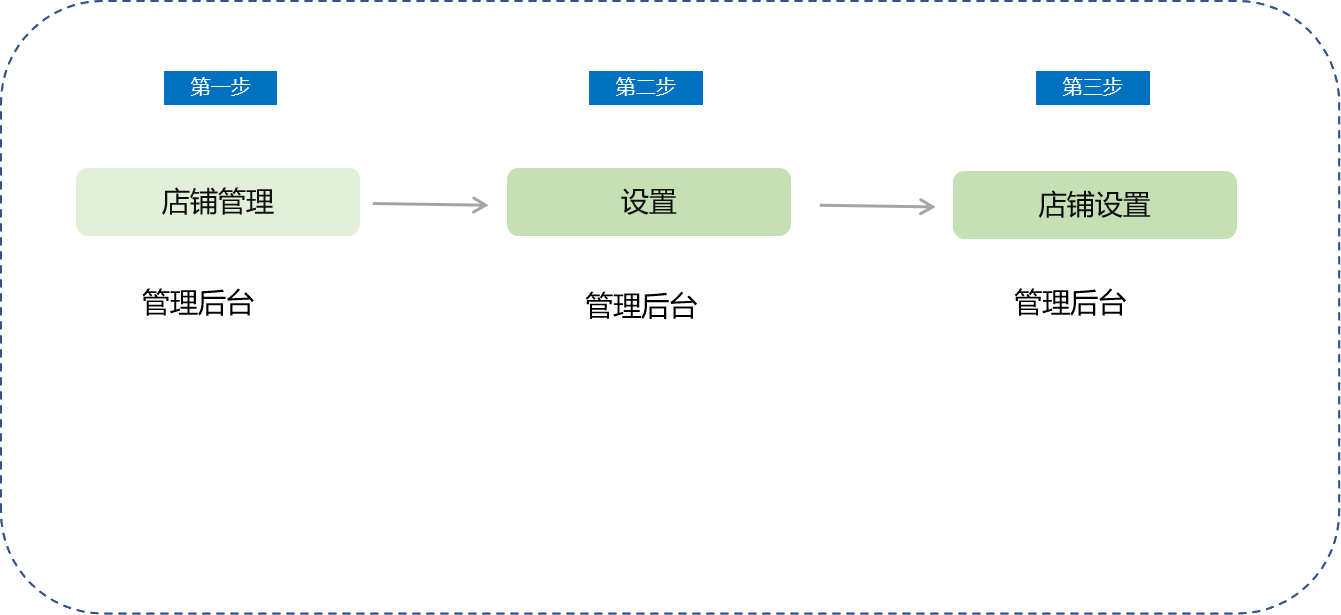
<span style="font-size:14px;">Merchant side: Merchant backend → Settings → Store settings</span>

**<span style="font-size:17px;">  
</span>**

**<span style="font-size:17px;">V. Usage Tutorial</span>**

<span style="font-size:14px;"> ![1.png](https://wechatapppro-1252524126.file.myqcloud.com/help_document/image/ueditor/58466200_1603705492.png ".png")</span>

**<span style="font-size:14px;">  
</span>**

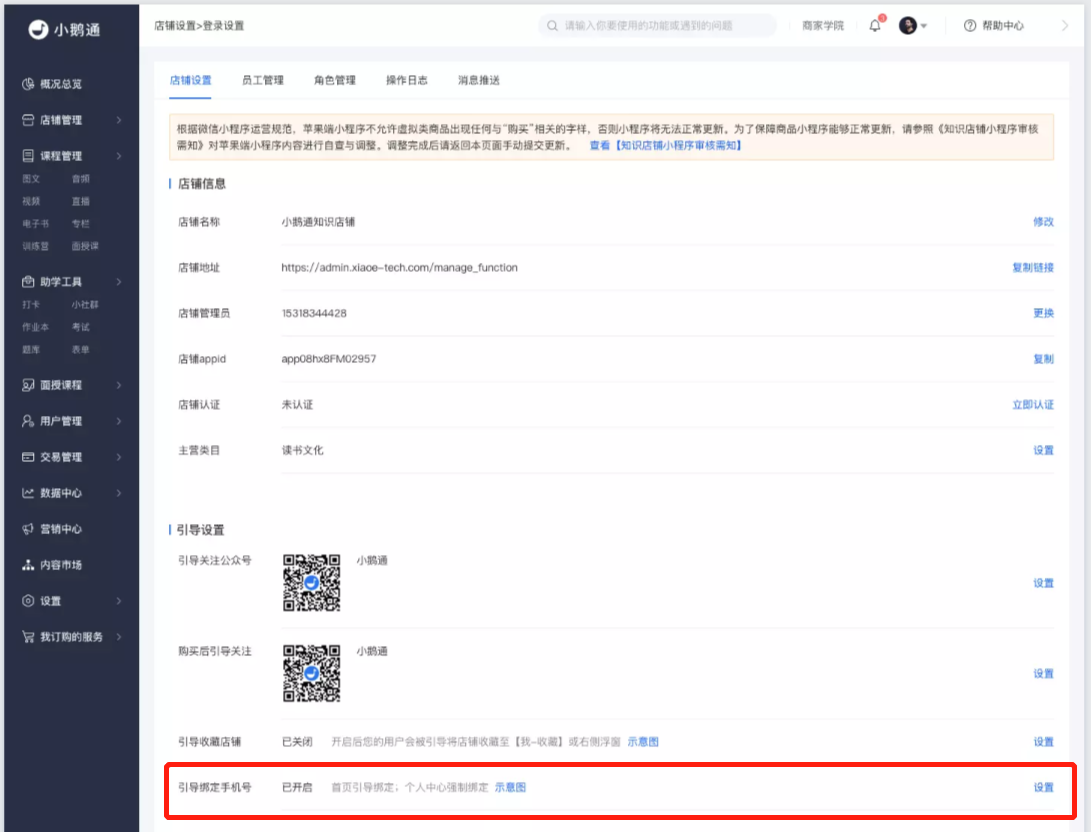
**<span style="font-size:14px;">Step 1:</span>**<span style="font-size:14px;">Click “Settings” - “Store settings” - “Guide to bind mobile phone number - Settings button” to enter the settings pop - up page.</span>

<span style="font-size:14px;">![2.png](https://wechatapppro-1252524126.file.myqcloud.com/help_document/image/ueditor/89229500_1603705705.png ".png")</span>

**<span style="font-size:14px;">  
</span>**

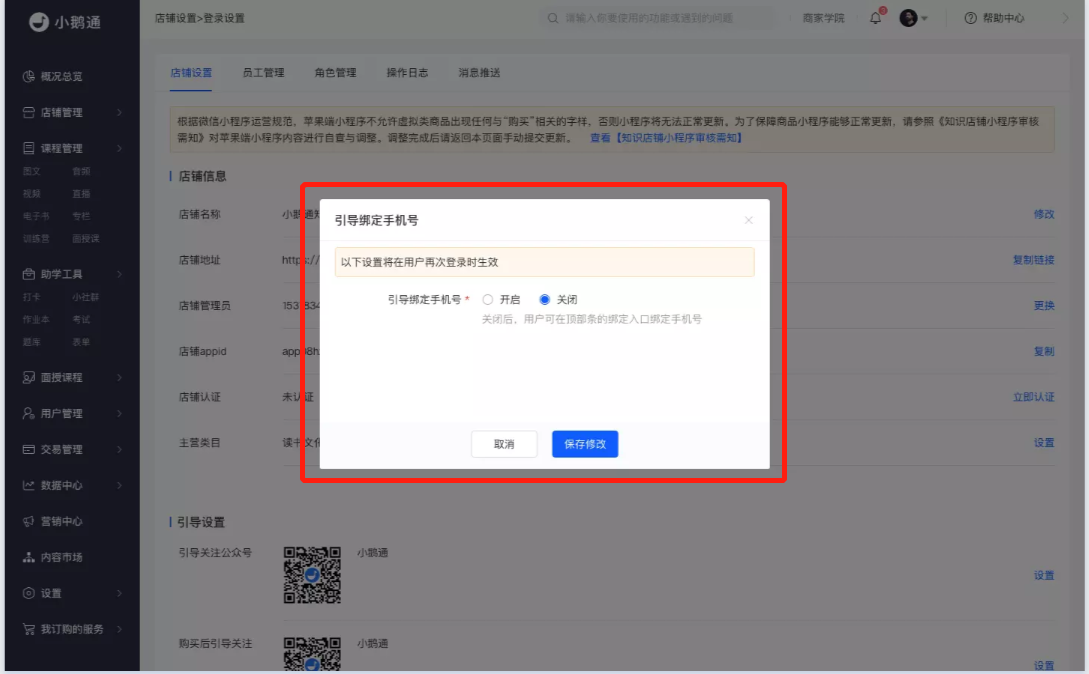
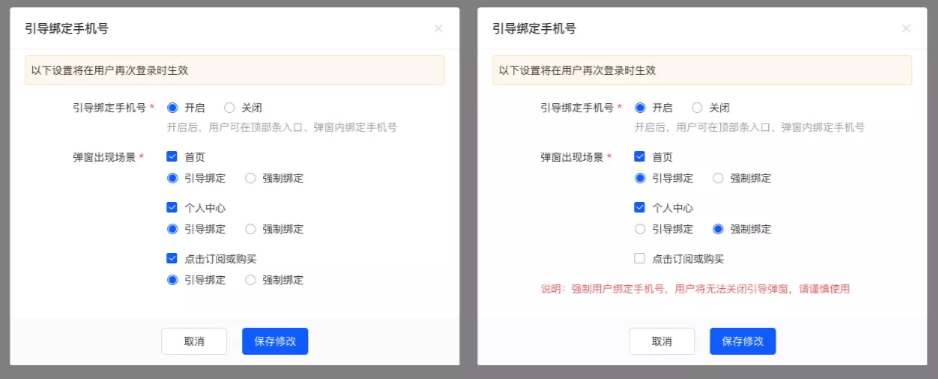
**<span style="font-size:14px;">Step 2:</span>**<span style="font-size:14px;">Set the rules for binding mobile phone numbers in the pop - up window. The default setting is off. Enabling the function supports guiding binding and mandatory binding. It can be set in 3 locations: the home page, the personal center, and when clicking the subscribe/purchase button.</span>

<span style="font-size:14px;">![3.png](https://wechatapppro-1252524126.file.myqcloud.com/help_document/image/ueditor/18356500_1603705529.png ".png")</span>

![4.png](https://wechatapppro-1252524126.file.myqcloud.com/help_document/image/ueditor/90945200_1603705537.png ".png")**<span style="font-size:14px;">  
</span>**

**<span style="font-size:14px;">  
</span>**

**<span style="font-size:14px;">Step 3:</span>**<span style="font-size:14px;">After the settings are completed, save the settings. Then return to the list to view the corresponding settings.</span>

**<span style="font-size:14px;">![5.png](https://wechatapppro-1252524126.file.myqcloud.com/help_document/image/ueditor/31712100_1603705815.png ".png")</span>**

**<span style="font-size:14px;">  
</span>**

**<span style="font-size:14px;">Step 4:</span>**<span style="font-size:14px;">If you need to make modifications, click the “Settings” button to enter the pop - up window for modification. You can also click the schematic diagram to view the style.</span>

![6.png](https://wechatapppro-1252524126.file.myqcloud.com/help_document/image/ueditor/71672800_1603705547.png ".png")

# APP embedded SDK

# Access Guide

<div data-elink-language-switch="1" id="bkmrk-%E4%B8%AD%E6%96%87" style="border:1px solid #d6d9de;border-radius:6px;padding:10px 12px;margin:0 0 18px 0;background:#f8fafc;font-size:14px;">[中文](/books/821fa/page/d6459)</div>## I. Development Requirements

Activate an elink store of the Basic Edition or higher

Own a personal App

Have certain development capabilities

## <a class="reference-link" style="color:rgb(65,131,196);background-position:0px 0px;"></a>II. SDK Integration Process

1\. Navigate to Applications - Business Channels - SDK Services

![1.png](https://wechatapppro-1252524126.file.myqcloud.com/help_document/image/ueditor/52189300_1640568649.png ".png")

2\. After purchasing the service, you need to fill in relevant information about the mobile application

![2.png](https://wechatapppro-1252524126.file.myqcloud.com/help_document/image/ueditor/13339600_1640568655.png ".png")

3\. Fill in the package name information for app development. For the iOS platform, you need to fill in the app download address (optional), bundle id, and test bundle id; for the Android platform, you need to fill in the app download address (optional), app signature, and app package name

![3.png](https://wechatapppro-1252524126.file.myqcloud.com/help_document/image/ueditor/3759600_1640568665.png ".png")

4\. After filling in the platform - related information, enter the SDK integration service information page

![4.png](https://wechatapppro-1252524126.file.myqcloud.com/help_document/image/ueditor/97495600_1640568671.png ".png")

Here, you can set the IP whitelist. Add the IP addresses of the access sources that need to be set as the whitelist

Finally, after obtaining the relevant developer keys, you can start development. The developer keys are used to verify the information of elink developers. Please record the information. If you forget, please reset the keys

## <a class="reference-link" style="color:rgb(65,131,196);background-position:0px 0px;"></a>III. Store Decoration

![5.png](https://wechatapppro-1252524126.file.myqcloud.com/help_document/image/ueditor/31631400_1640568677.png ".png")

On the micro - page, you can set the micro - page as the SDK home page. The option is 'APP Home Page'.

## <a class="reference-link" style="color:rgb(65,131,196);background-position:0px 0px;"></a>IV. Order Asset Explanation

The payment for the in - App SDK service actually uses the payment function of the elink Merchant Assistant. Therefore, the order handling fees are consistent with the rules of the elink Merchant Assistant

Orders generated through the in - App SDK service will simultaneously generate corresponding order information and fund flow information; self - owned merchant accounts are not supported for now

# WeChat Mini Programs

# Why do some users receive a prompt indicating that they are unable to make a purchase when entering the Mini Program page?

<div data-elink-language-switch="1" id="bkmrk-%E4%B8%AD%E6%96%87" style="border:1px solid #d6d9de;border-radius:6px;padding:10px 12px;margin:0 0 18px 0;background:#f8fafc;font-size:14px;">[中文](/books/821fa/page/a0a08)</div><span style="font-size:14px;">Currently<span style="font-family:'Monospaced Number', 'Chinese Quote', '-apple-system', BlinkMacSystemFont, 'Segoe UI', Roboto, 'PingFang SC', 'Microsoft YaHei', 'Helvetica Neue', 'Hiragino Sans GB', Arial, sans-serif;white-space:pre-wrap;background-color:rgb(255,255,255);">On mobile phones with the iOS system, users can only view the course details page in the Mini Program and cannot make purchases.</span></span>

# Why don't the purchased courses appear in the [My Purchases] section when users enter the Mini Program page?

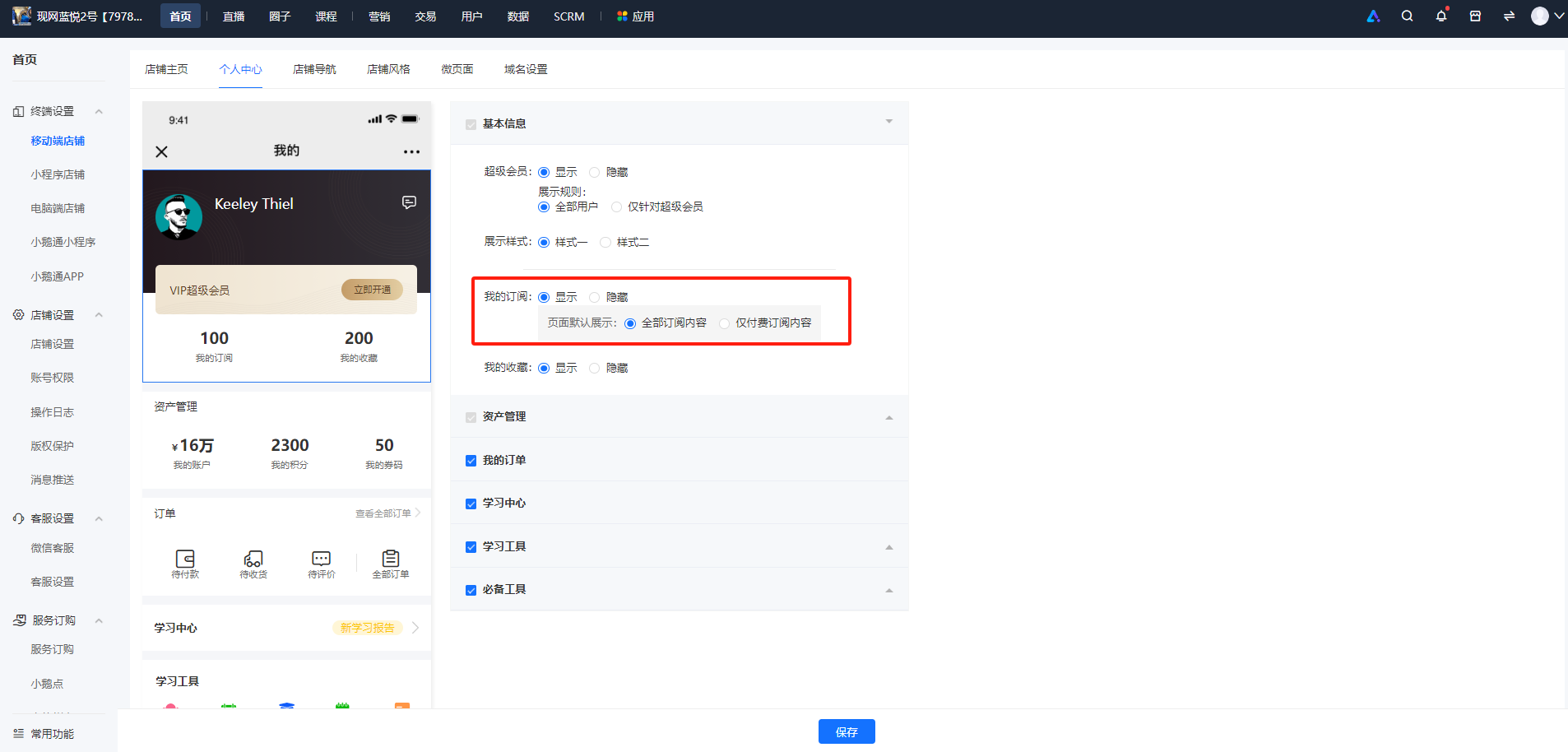
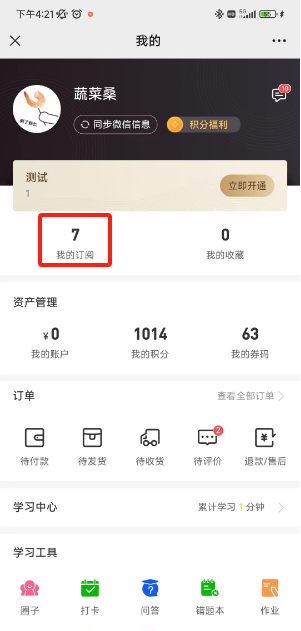
<div data-elink-language-switch="1" id="bkmrk-%E4%B8%AD%E6%96%87" style="border:1px solid #d6d9de;border-radius:6px;padding:10px 12px;margin:0 0 18px 0;background:#f8fafc;font-size:14px;">[中文](/books/821fa/page/37bc2)</div><span style="font-size:15px;color:rgb(51,51,51);background-image:initial;background-position:initial;background-size:initial;background-repeat:initial;background-attachment:initial;letter-spacing:0pt;vertical-align:baseline;">Due to the requirements of WeChat, the \[My Purchases\] in the Mini Program has been renamed to \[My Subscriptions\]. You can configure it in Terminal Settings - Mobile Store - Personal Center - Basic Information, with support for display or hiding.</span>

<span style="font-size:15px;color:rgb(51,51,51);background-image:initial;background-position:initial;background-size:initial;background-repeat:initial;background-attachment:initial;letter-spacing:0pt;vertical-align:baseline;">1. Configuration on the PC management console:</span>

<span style="font-size:15px;color:rgb(51,51,51);background-image:initial;background-position:initial;background-size:initial;background-repeat:initial;background-attachment:initial;letter-spacing:0pt;vertical-align:baseline;">![image.png](https://wechatapppro-1252524126.file.myqcloud.com/help_document/image/ueditor/31018300_1700209312.png ".png")</span>

2\. User page:

![1700209301986.png](https://wechatapppro-1252524126.file.myqcloud.com/help_document/image/ueditor/84768800_1700209311.png ".png")