# Computer-based store

# How to configure the TDK of a page?

<div data-elink-language-switch="1" id="bkmrk-%E4%B8%AD%E6%96%87" style="border:1px solid #d6d9de;border-radius:6px;padding:10px 12px;margin:0 0 18px 0;background:#f8fafc;font-size:14px;">[中文](/books/821fa/page/tdk)</div><span style="font-size:12pt;"></span>

###### <span style="font-size:12pt;">1. TDK Settings</span>

<span style="font-size:12pt;">TDK settings are divided into two categories: Mini Pages and courses. You need to turn on the TDK switch for Mini Pages/courses first.</span>

<span style="font-size:12pt;">Both switches are turned off by default and need to be manually turned on by merchants. For course TDK settings, once the switch is turned on, the page elements required for TDK (t: page title; d: page description; k: keywords) will be automatically collected. However, for Mini Pages, after turning on the switch, you also need to set the TDK for each Mini Page separately.</span>

<span style="font-size:12pt;">  
</span>

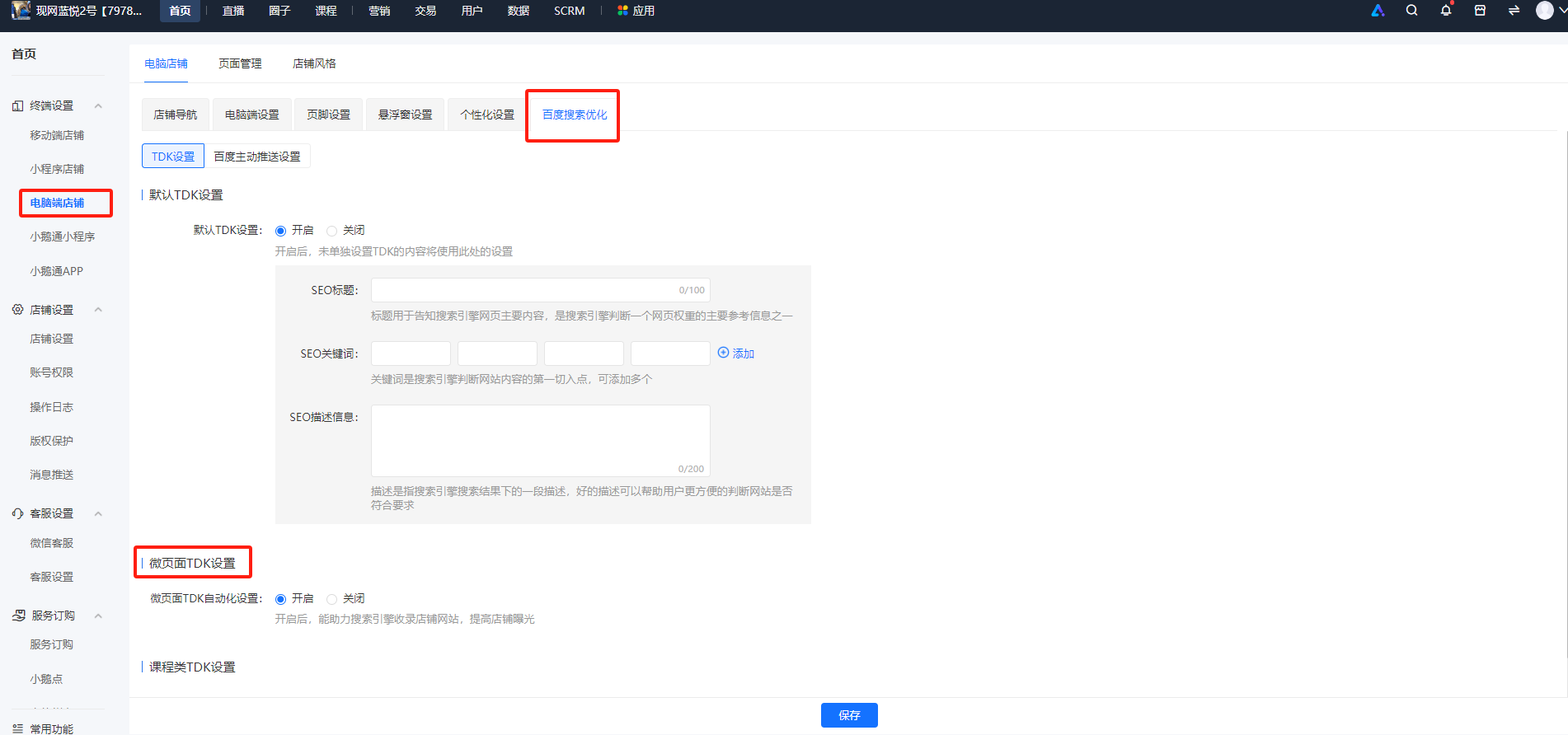
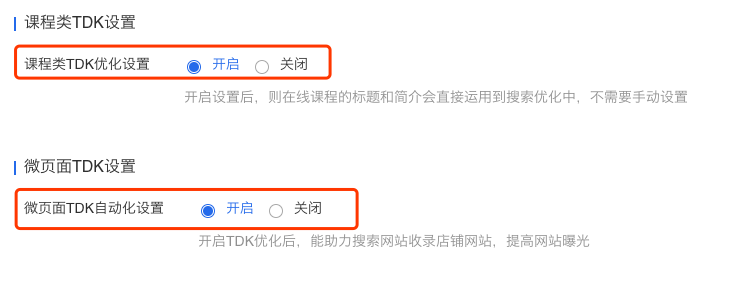
<span style="font-size:12pt;">Step 1: Turn on the TDK settings switch</span>

<span style="font-size:12pt;"><span style="font-size:14px;">Path: Home Page -&gt; Terminal Settings -&gt; Desktop Store<span style="font-size:14px;">-&gt;</span>Baidu Search Optimization</span></span>

<span style="font-size:14px;">![image.png](https://wechatapppro-1252524126.file.myqcloud.com/help_document/image/ueditor/86994300_1700204039.png ".png")</span>

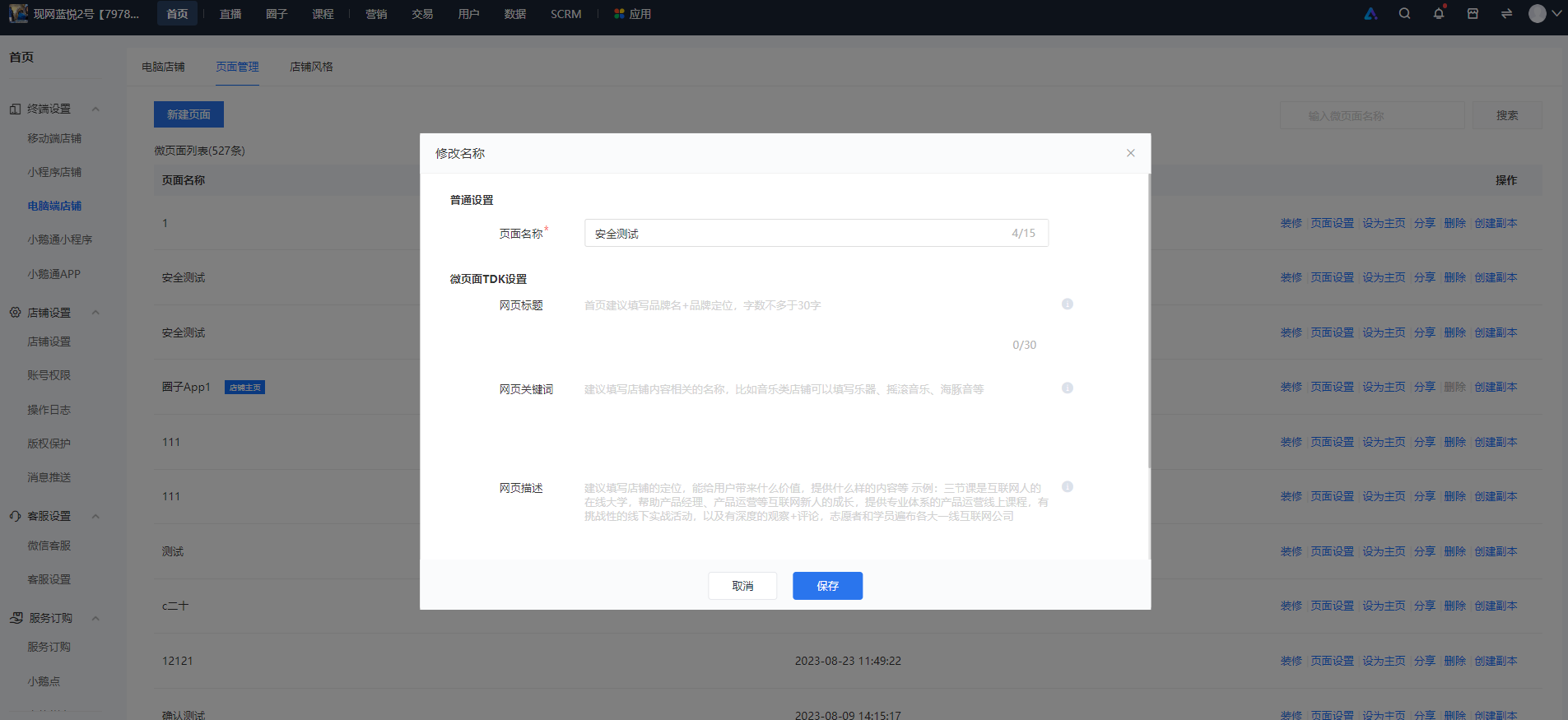
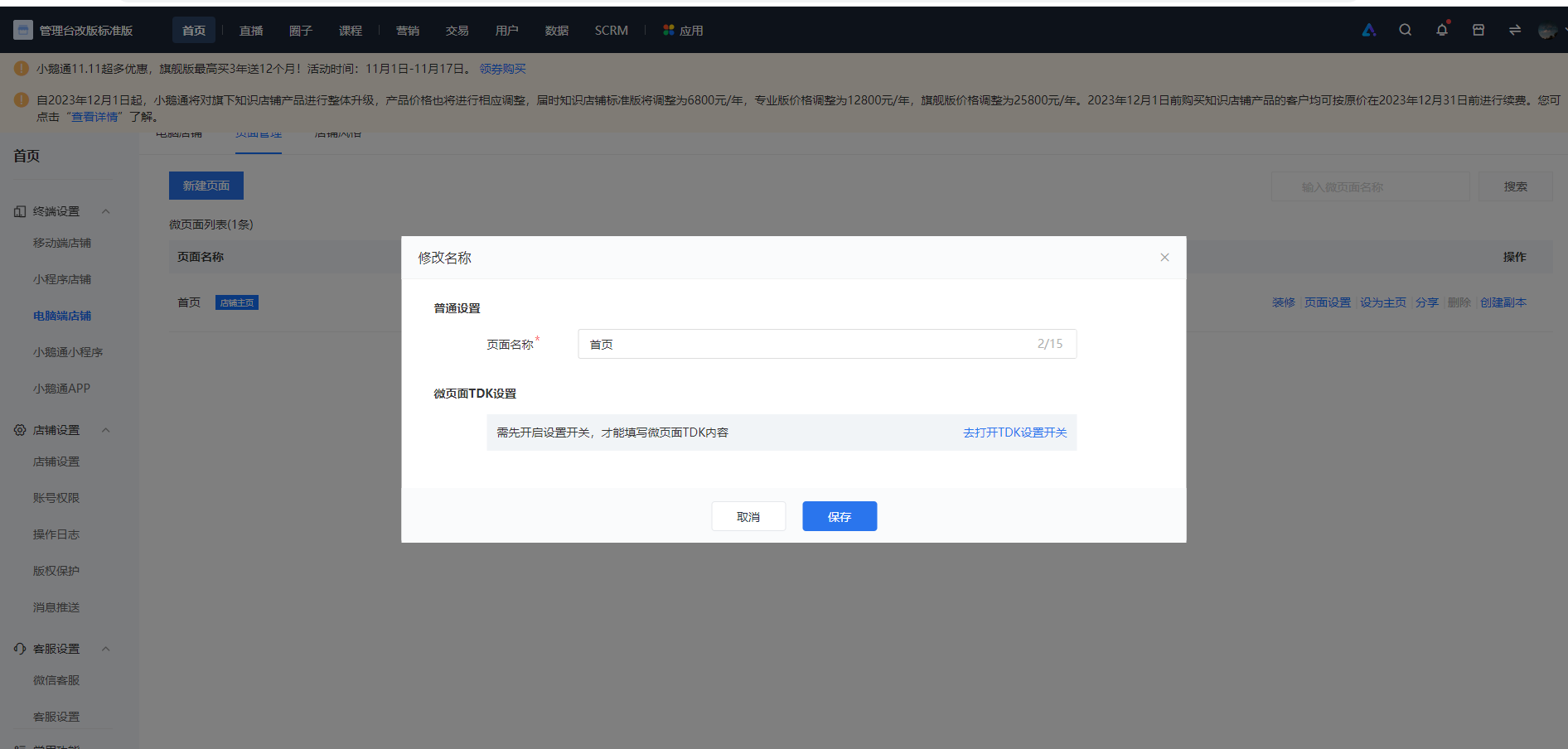
<span style="font-size:12pt;">Step 2: Fill in the TDK for Mini Pages</span>

<span style="font-size:14px;">Path: Home Page -&gt; Terminal Settings -&gt; Desktop Store<span style="font-size:14px;">-&gt;</span>Mini Page List<span style="font-size:14px;">-&gt; Operation Item: Select Page Settings<span style="font-size:14px;">-&gt; Fill in the pop-up window</span></span></span>

![image.png](https://wechatapppro-1252524126.file.myqcloud.com/help_document/image/ueditor/81335400_1700204135.png ".png")

<span class="image-wrapper" style="display:inline-block;overflow:hidden;width:1280px;height:992px;"> </span><span style="font-size:12pt;"></span>

# How to log in to the PC version of the online store to view courses?

<div data-elink-language-switch="1" id="bkmrk-%E4%B8%AD%E6%96%87" style="border:1px solid #d6d9de;border-radius:6px;padding:10px 12px;margin:0 0 18px 0;background:#f8fafc;font-size:14px;">[中文](/books/821fa/page/pc)</div>**<span style="font-size:15px;">Step 1:</span>**

<span style="font-size:15px;">Access the Online Store on WeChat to obtain the course link.</span>

![cb812fe3-efff-4075-986a-d77f62f5ef5f.jpg](https://wechatapppro-1252524126.file.myqcloud.com/help_document/image/ueditor/32385100_1608296275.jpg ".jpg")

**<span style="font-size:15px;">Step 2:</span>**

<span style="font-size:15px;">Copy the link, open it in a browser on your computer, click \[Start Learning Now\] or \[Log In\] in the top - right corner. After logging in via WeChat or using your mobile phone number, you can view the corresponding course.</span>

![a1.png](https://wechatapppro-1252524126.file.myqcloud.com/help_document/image/ueditor/79393200_1640329253.png ".png")

<span style="font-size:14px;">  
</span>

![a2.png](https://wechatapppro-1252524126.file.myqcloud.com/help_document/image/ueditor/47280400_1640329258.png ".png")

<span style="font-size:14px;">  
</span>

<span style="font-size:15px;">**Note:**For first - time users, after scanning the QR code with WeChat to log in, you need to enter your mobile phone number to get the verification code.</span>

<span style="font-size:14px;">  
</span>

# Tutorial on setting up and using the desktop version

<div data-elink-language-switch="1" id="bkmrk-%E4%B8%AD%E6%96%87" style="border:1px solid #d6d9de;border-radius:6px;padding:10px 12px;margin:0 0 18px 0;background:#f8fafc;font-size:14px;">[中文](/books/821fa/page/39461)</div>**<span style="font-size:17px;">I. Function Introduction</span>**

<span style="font-size:15px;">The PC - side settings allow merchants to independently set the browser logo for their online store, customize the domain name, set up pages, enable TDK for courses, and set the limit on the number of logged - in devices, which helps enhance the brand image.</span>

**<span style="font-size:17px;">II. Purpose of Use</span>**

<span style="font-size:15px;">Merchants can set the logo for the PC version of their online store, customize the domain name, enable/disable the TDK function, and set the limit on the number of logged - in devices. Through the above three steps, they can enhance the brand image of the store and prevent multiple people from using the merchant's courses simultaneously.</span>

**<span style="font-size:17px;">III. Scenario Examples</span>**

<span style="font-size:15px;">Scenario 1: If merchants have their own brand images for the store, they can set the images to enhance the brand image.</span>

<span style="font-size:15px;">Scenario 2: If merchants want more students to find their store through search, they can enable the TDK settings. This allows students to search for course titles and descriptions, and also enables search engines to index the store website, increasing website exposure.</span>

<span style="font-size:15px;">Scenario 3: If merchants have their own registered domain names, they can use them as the browsing address for the store, having a unique brand domain name.</span>

<span style="font-size:15px;">Scenario 4: If a student shares a single account with multiple people for simultaneous use, merchants can set in the management console that a single account can only be logged in on one device at a time. This prevents students from sharing accounts and avoids losses for merchants.</span>

**<span style="font-size:17px;">IV. Operation Path</span>**

<span style="font-size:15px;">Merchant side: PC - side backend → Store<span style="font-size:15px;"> →</span>Store decoration → PC - side store → PC - side settings</span>

<span style="font-size:17px;">**V. Usage Tutorial**</span>

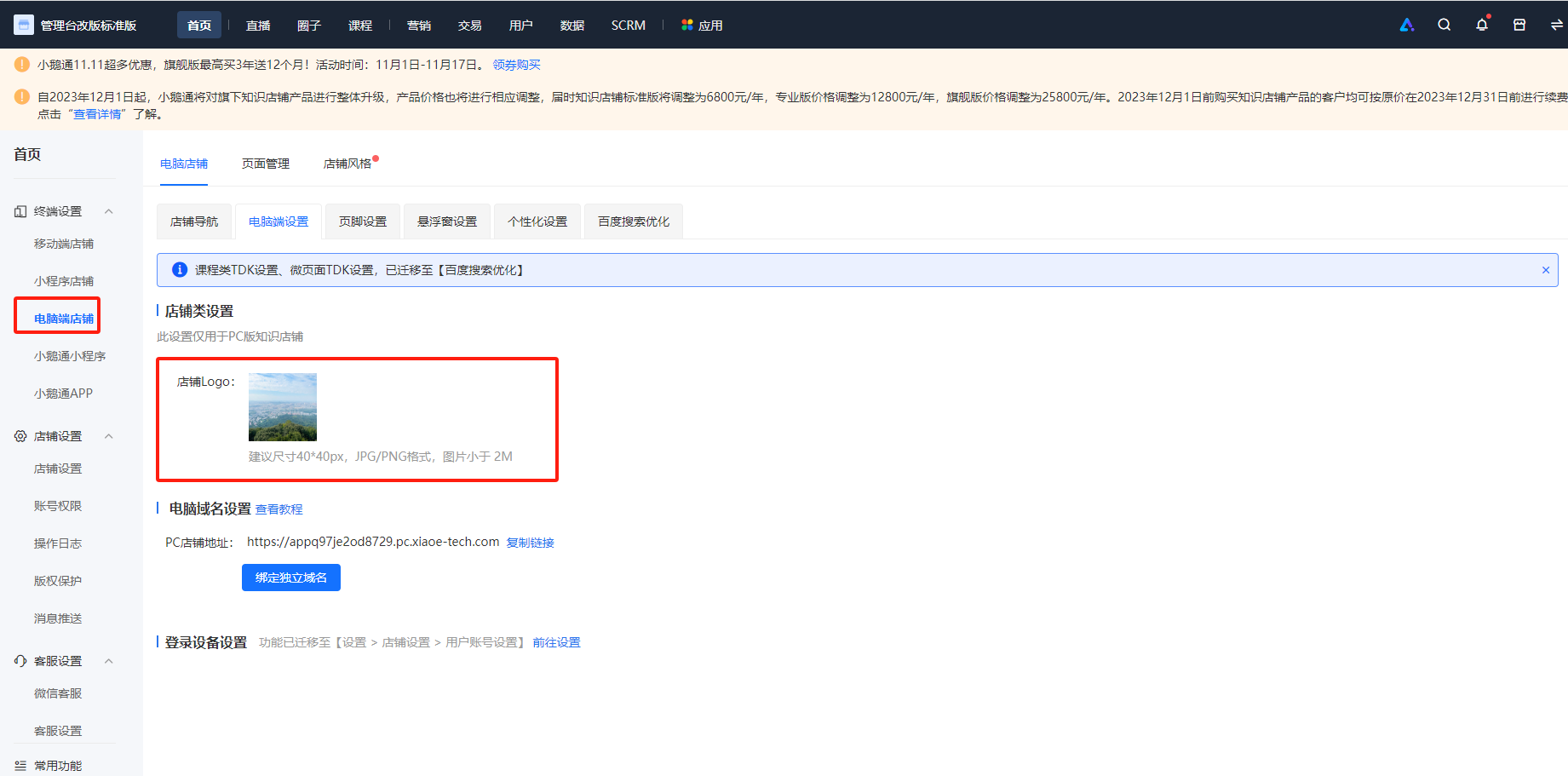
**<span style="font-size:15px;">Step 1</span>**<span style="font-size:15px;">: Click “Terminal settings” → <span style="font-size:15px;letter-spacing:0pt;">“PC - side store” →</span>“PC store” → “PC - side store” to enter the PC - side settings page. First, set the browser image.</span>

<span style="font-size:15px;">![image.png](https://wechatapppro-1252524126.file.myqcloud.com/help_document/image/ueditor/3951800_1699602152.png ".png")</span>

<span style="font-size:15px;">【Effect】</span>

![2.png](https://wechatapppro-1252524126.file.myqcloud.com/help_document/image/ueditor/32184000_1699602046.png ".png")

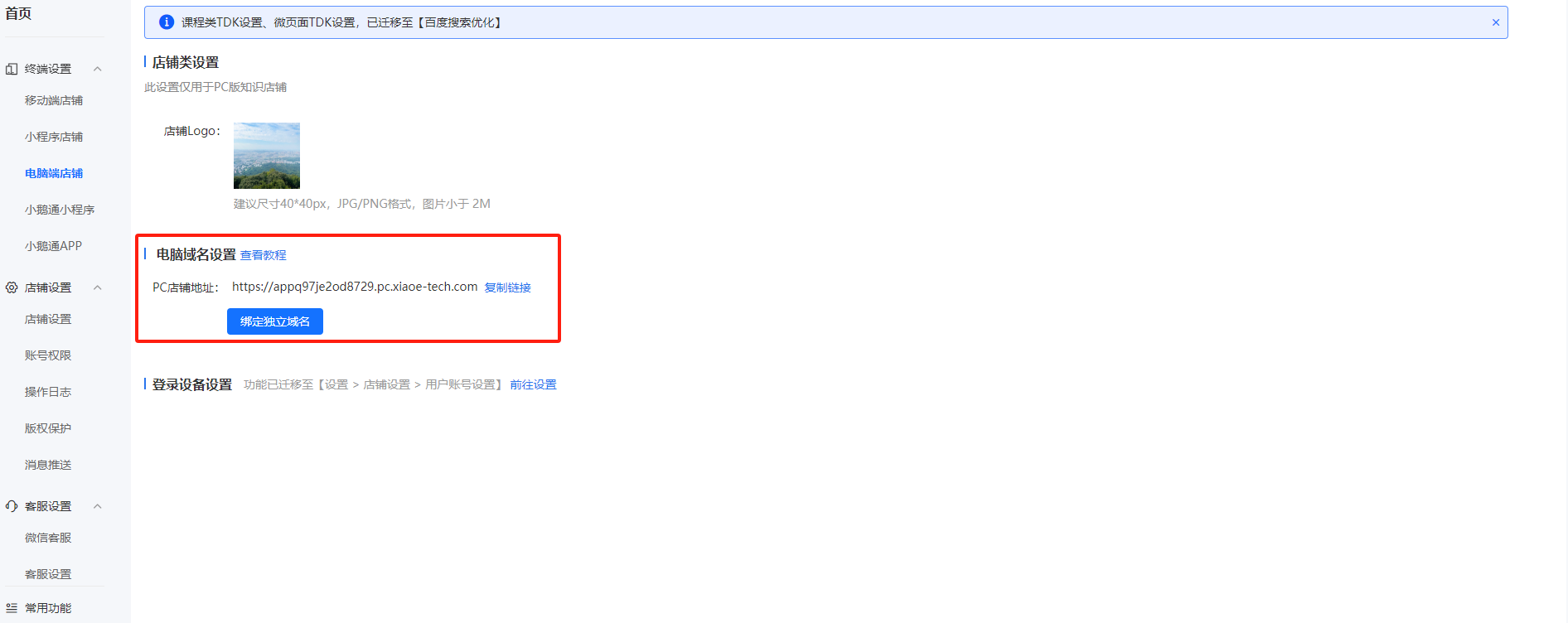
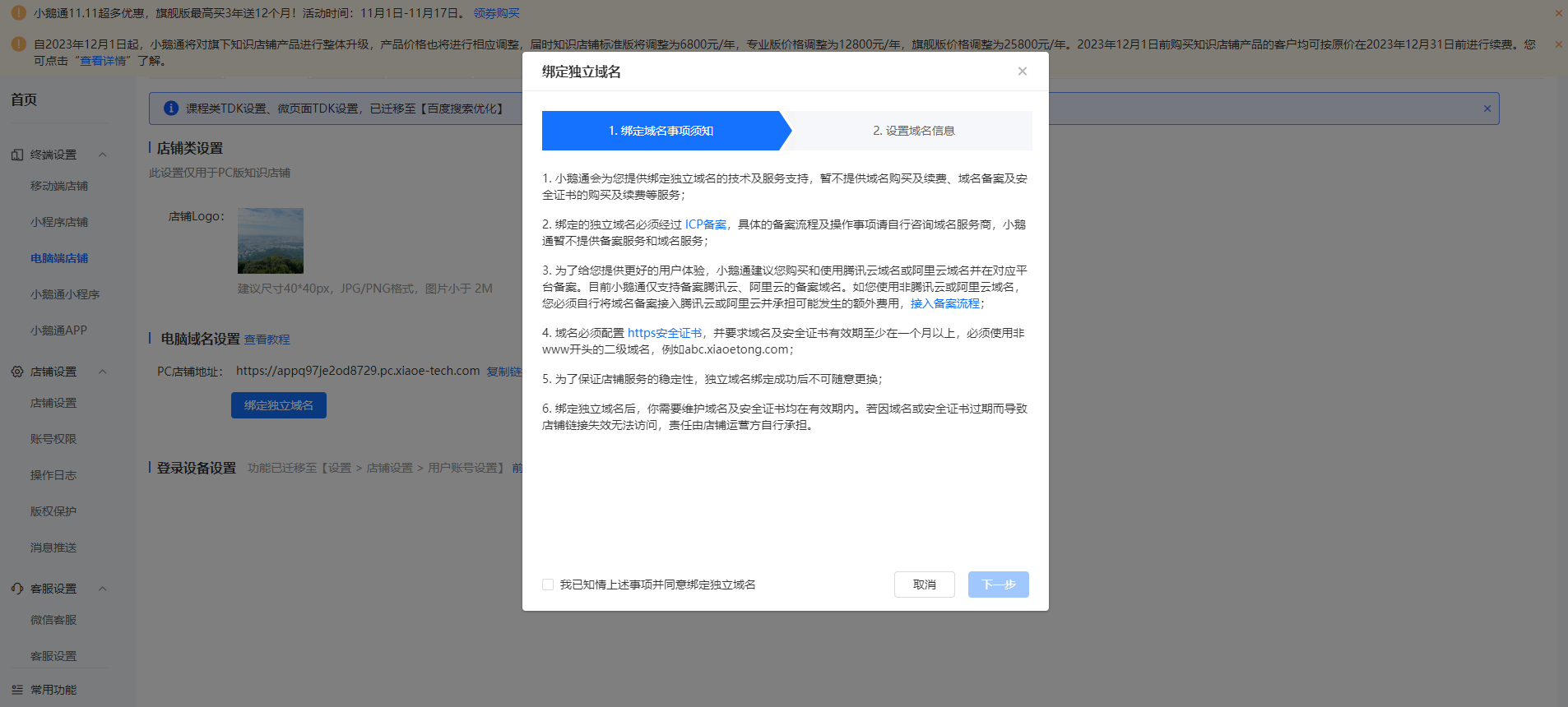
**<span style="font-size:15px;">Step 2:</span>**<span style="font-size:15px;">If merchants do not have their own registered domain names, they can use the default domain name provided by elink. To customize the domain name, fill in the information according to the requirements. After filling, the domain name will take effect only after passing the review.</span>

![image.png](https://wechatapppro-1252524126.file.myqcloud.com/help_document/image/ueditor/93504800_1699602185.png ".png")

![image.png](https://wechatapppro-1252524126.file.myqcloud.com/help_document/image/ueditor/63187900_1699602254.png ".png")

<span style="font-size:15px;">Click to view:</span>[<span style="font-size:15px;">Domain name customization usage tutorial</span>](https://helpcenter.xiaoe-tech.com/#/problem/detail?document_id=doc_5e5e1445001b1_ndVgc)

**<span style="font-size:15px;">Step 3:</span>**<span style="font-size:15px;">Enable the TDK settings for courses and mini - pages. If disabled, you cannot set them. After enabling, you need to set them in Mini - pages &gt; Page settings.</span>

![5.png](https://wechatapppro-1252524126.file.myqcloud.com/help_document/image/ueditor/90179700_1699602046.png ".png")

![image.png](https://wechatapppro-1252524126.file.myqcloud.com/help_document/image/ueditor/65237900_1699602314.png ".png")

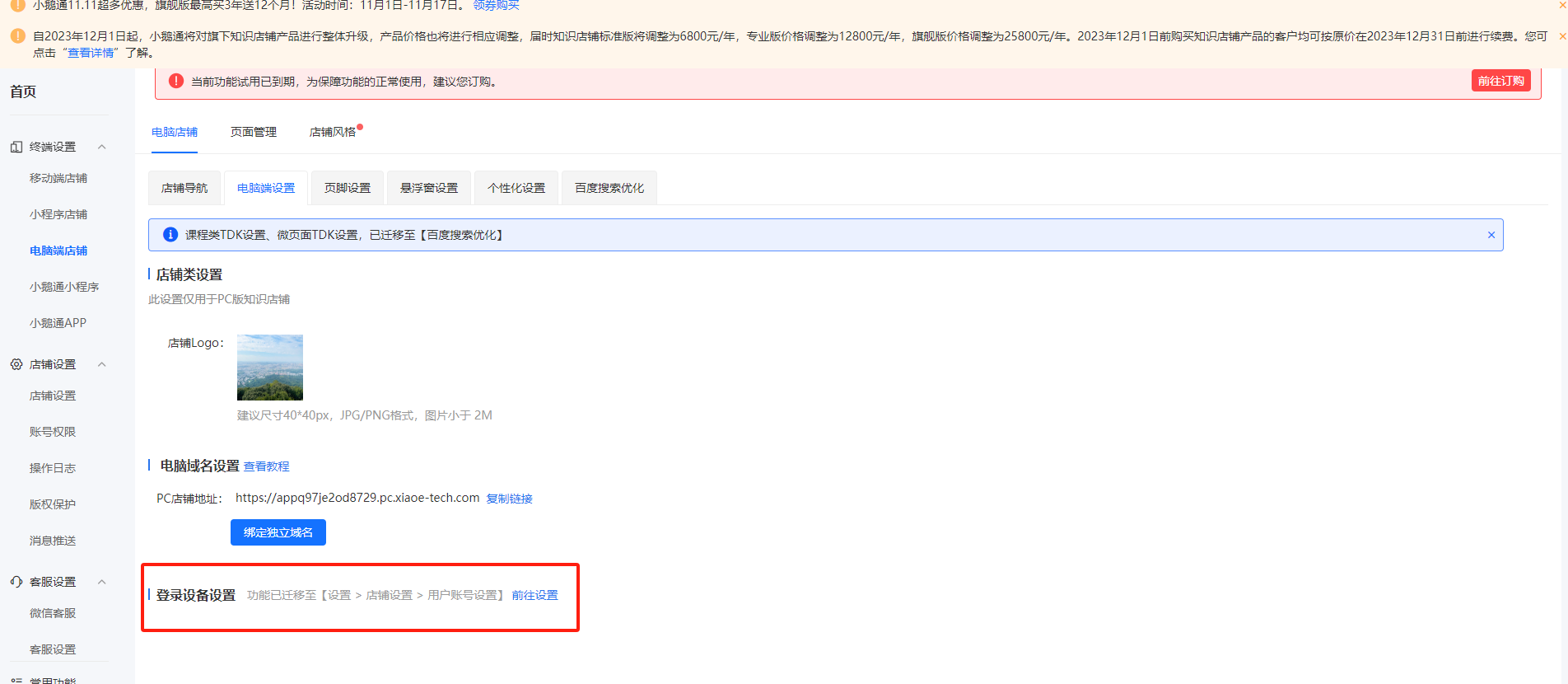
**<span style="font-size:15px;">Step 4:</span>**<span style="font-size:15px;">Limit the number of devices that can log in to the PC version of the store. By default, a single account can be logged in on up to 10 devices simultaneously. You can also customize the number, with a minimum of 1 and a maximum of 10.</span>

![image.png](https://wechatapppro-1252524126.file.myqcloud.com/help_document/image/ueditor/35827900_1699602314.png ".png")

# What are the differences between the PC version of the online store and the mobile version?

<div data-elink-language-switch="1" id="bkmrk-%E4%B8%AD%E6%96%87" style="border:1px solid #d6d9de;border-radius:6px;padding:10px 12px;margin:0 0 18px 0;background:#f8fafc;font-size:14px;">[中文](/books/821fa/page/pc-fZz)</div>![企业微信截图_16214192045063.png](https://wechatapppro-1252524126.file.myqcloud.com/help_document/image/ueditor/20504500_1621419236.png ".png")

# Tutorial on guiding users to bind mobile phone numbers

<div data-elink-language-switch="1" id="bkmrk-%E4%B8%AD%E6%96%87" style="border:1px solid #d6d9de;border-radius:6px;padding:10px 12px;margin:0 0 18px 0;background:#f8fafc;font-size:14px;">[中文](/books/821fa/page/9fd81)</div><span style="font-size:17px;">**I. Feature Introduction**</span>

<span style="font-size:14px;">The feature of guiding users to bind their mobile phone numbers enables merchants to quickly obtain users' mobile phone numbers.</span>

<span style="font-size:14px;">  
</span>

**<span style="font-size:17px;">II. Purpose of Use</span>**

<span style="font-size:14px;">After merchants set up the guidance for users to bind their mobile phone numbers, they can obtain the users' mobile phone numbers, send text messages to users, or quickly contact them.</span>

<span style="font-size:14px;">  
</span>

**<span style="font-size:17px;">III. Scenario Examples</span>**

<span style="font-size:14px;">Scenario 1: Situations where merchants need to obtain users' mobile phone numbers.</span>

**<span style="font-size:17px;">  
</span>**

**<span style="font-size:17px;">IV. Operation Path</span>**

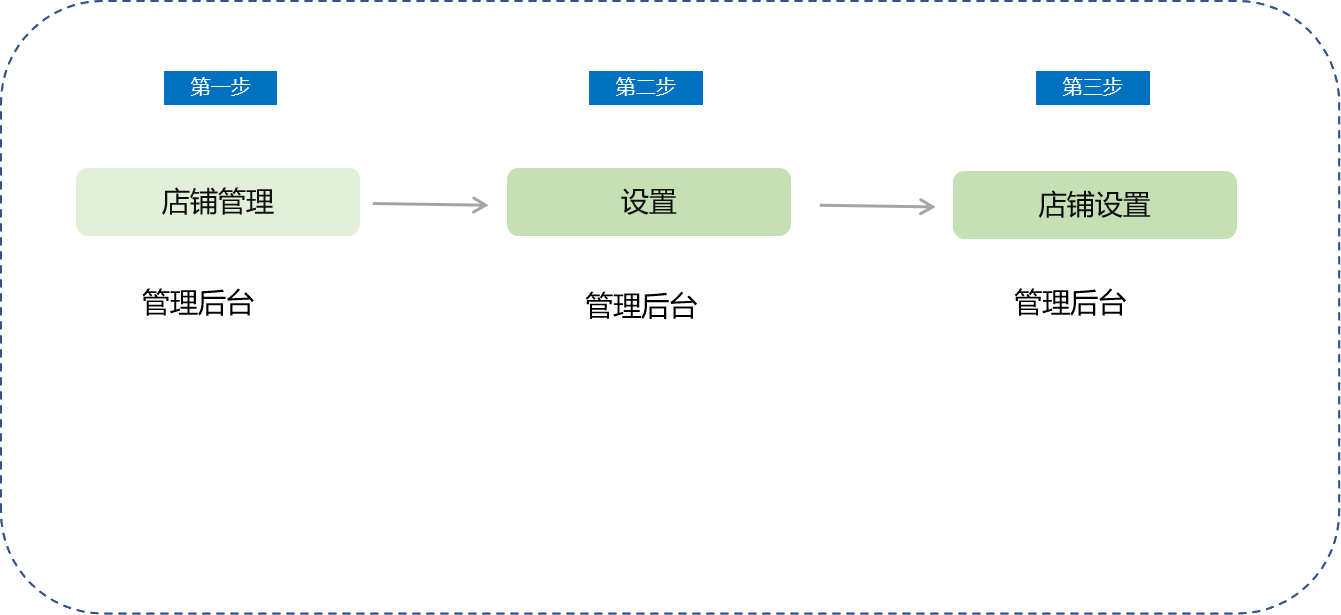
<span style="font-size:14px;">Merchant side: Merchant backend → Settings → Store settings</span>

**<span style="font-size:17px;">  
</span>**

**<span style="font-size:17px;">V. Usage Tutorial</span>**

<span style="font-size:14px;"> ![1.png](https://wechatapppro-1252524126.file.myqcloud.com/help_document/image/ueditor/58466200_1603705492.png ".png")</span>

**<span style="font-size:14px;">  
</span>**

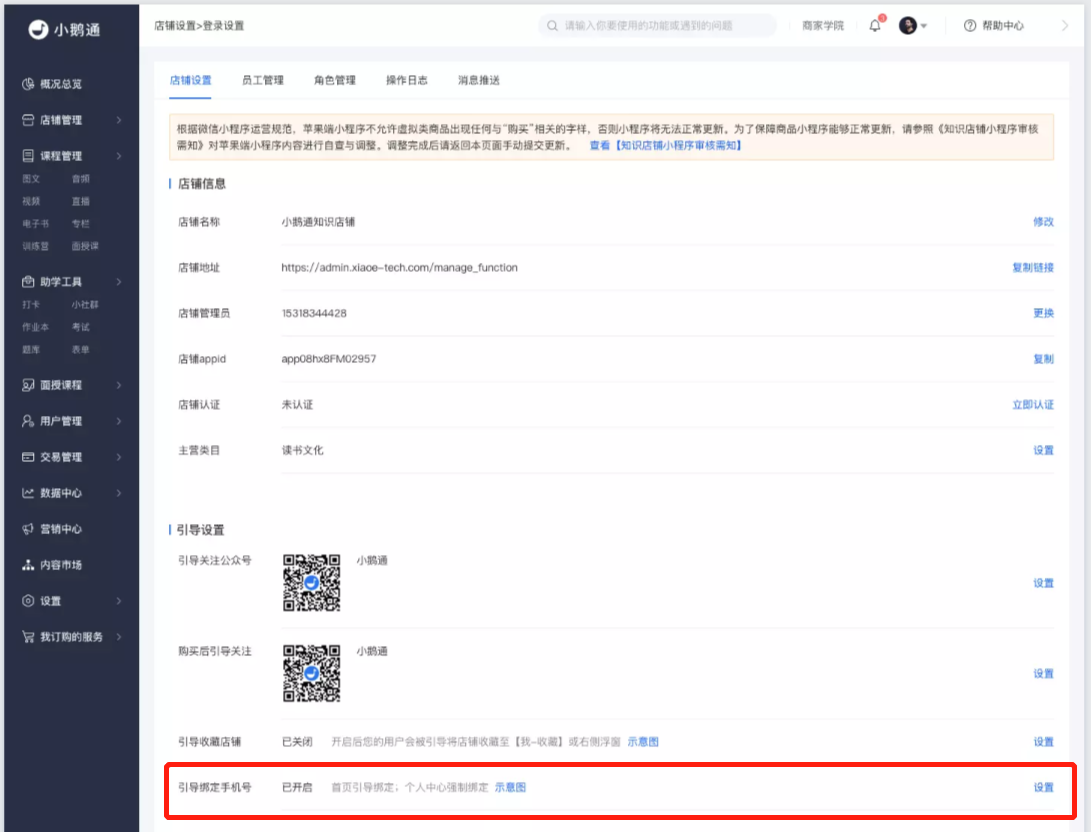
**<span style="font-size:14px;">Step 1:</span>**<span style="font-size:14px;">Click “Settings” - “Store settings” - “Guide to bind mobile phone number - Settings button” to enter the settings pop - up page.</span>

<span style="font-size:14px;">![2.png](https://wechatapppro-1252524126.file.myqcloud.com/help_document/image/ueditor/89229500_1603705705.png ".png")</span>

**<span style="font-size:14px;">  
</span>**

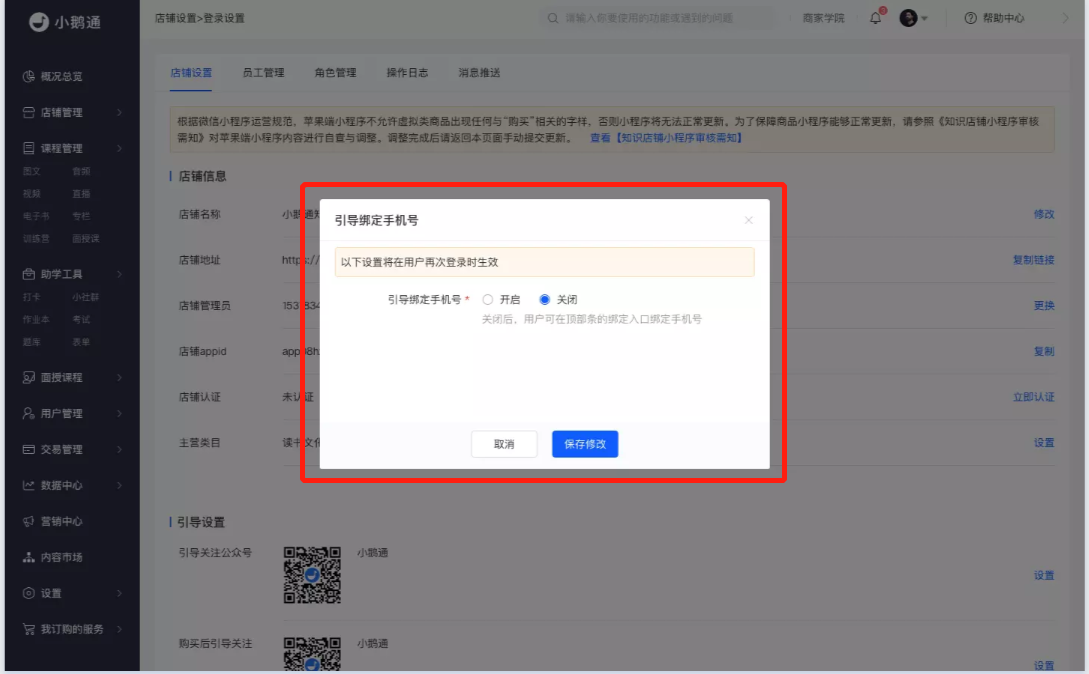
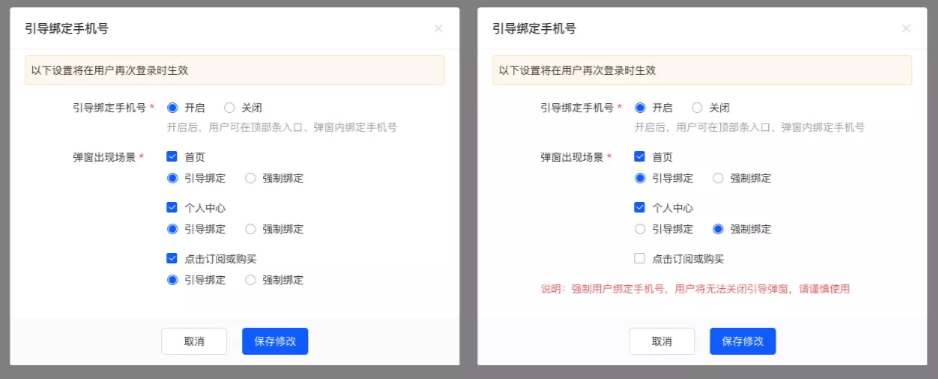
**<span style="font-size:14px;">Step 2:</span>**<span style="font-size:14px;">Set the rules for binding mobile phone numbers in the pop - up window. The default setting is off. Enabling the function supports guiding binding and mandatory binding. It can be set in 3 locations: the home page, the personal center, and when clicking the subscribe/purchase button.</span>

<span style="font-size:14px;">![3.png](https://wechatapppro-1252524126.file.myqcloud.com/help_document/image/ueditor/18356500_1603705529.png ".png")</span>

![4.png](https://wechatapppro-1252524126.file.myqcloud.com/help_document/image/ueditor/90945200_1603705537.png ".png")**<span style="font-size:14px;">  
</span>**

**<span style="font-size:14px;">  
</span>**

**<span style="font-size:14px;">Step 3:</span>**<span style="font-size:14px;">After the settings are completed, save the settings. Then return to the list to view the corresponding settings.</span>

**<span style="font-size:14px;">![5.png](https://wechatapppro-1252524126.file.myqcloud.com/help_document/image/ueditor/31712100_1603705815.png ".png")</span>**

**<span style="font-size:14px;">  
</span>**

**<span style="font-size:14px;">Step 4:</span>**<span style="font-size:14px;">If you need to make modifications, click the “Settings” button to enter the pop - up window for modification. You can also click the schematic diagram to view the style.</span>

![6.png](https://wechatapppro-1252524126.file.myqcloud.com/help_document/image/ueditor/71672800_1603705547.png ".png")