# 如何将编码不匹配视频转为H264编码格式？

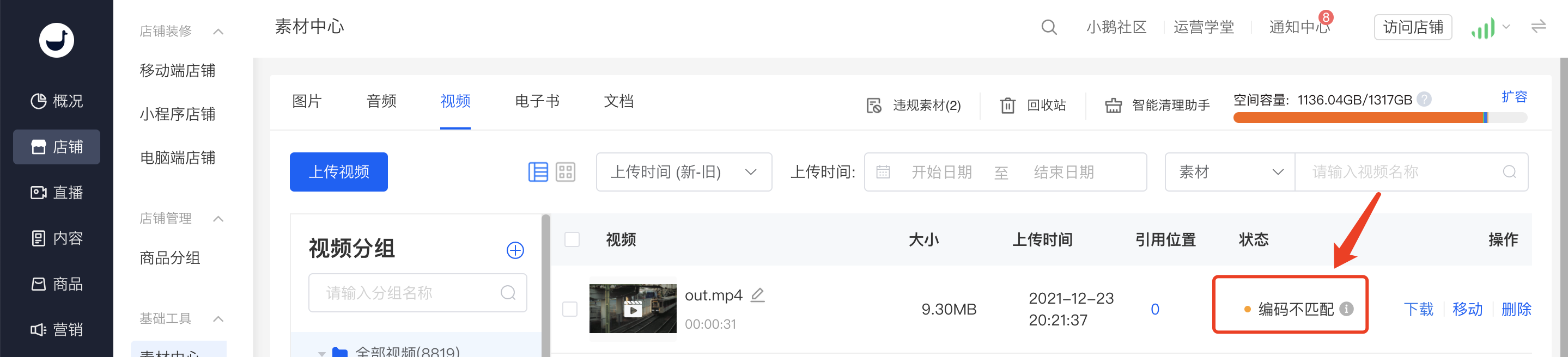
<div data-elink-language-switch="1" id="bkmrk-english" style="border:1px solid #d6d9de;border-radius:6px;padding:10px 12px;margin:0 0 18px 0;background:#f8fafc;font-size:14px;">[English](/books/settings-store/page/how-to-convert-videos-with-mismatched-encoding-to-the-h264-encoding-format)</div><span style="font-size:15px;">由于浏览器对于不同编码视频兼容原因，小鹅通平台仅支持H264编码格式视频。非H264编码格式视频上传到素材中心页面后，视频状态显示为橙色提醒状态（如下图），视频文件无法在B端管理台预览，但不影响C端学员观看。</span>

<span style="font-size:15px;">![image.png](https://wechatapppro-1252524126.file.myqcloud.com/help_document/image/ueditor/60090300_1640351881.png ".png")</span>

<span style="font-size:15px;">  
</span>

<span style="font-size:15px;">针对此类编码不匹配视频文件，商家可以使用第三方视频格式转换工具进行视频编码转换。以下提供以Windows和mac为例提供两个工具例子以及操作流程：</span>

**<span style="font-size:15px;">一、 Windows系统：推荐使用「格式工厂」软件</span>**

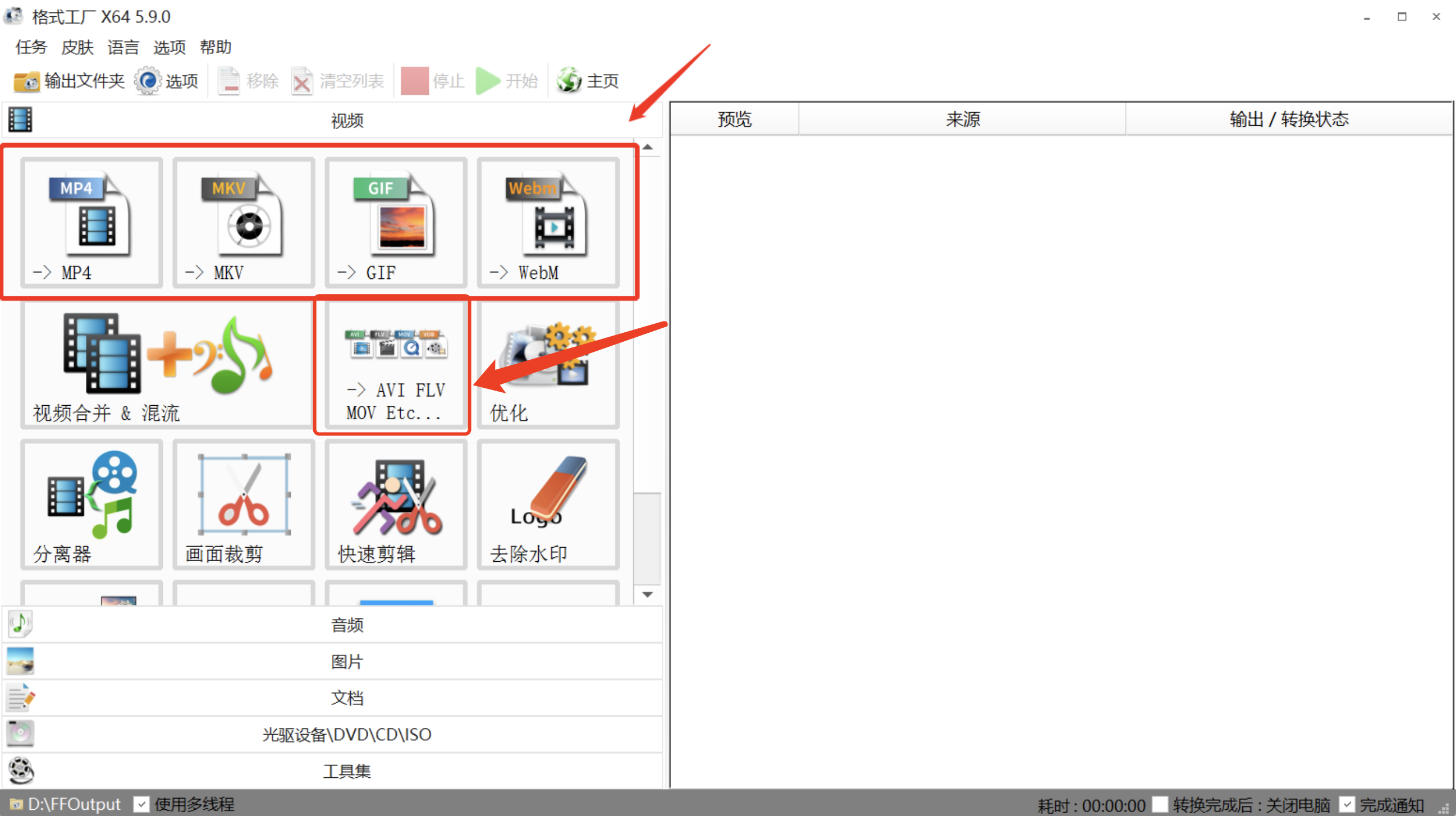
<span style="font-size:15px;">1、下载「格式工厂」客户端软件，进入到「格式工厂」页面，选取想要导出的视频格式；</span>

![image (1).png](https://wechatapppro-1252524126.file.myqcloud.com/help_document/image/ueditor/87995800_1640351940.png ".png")

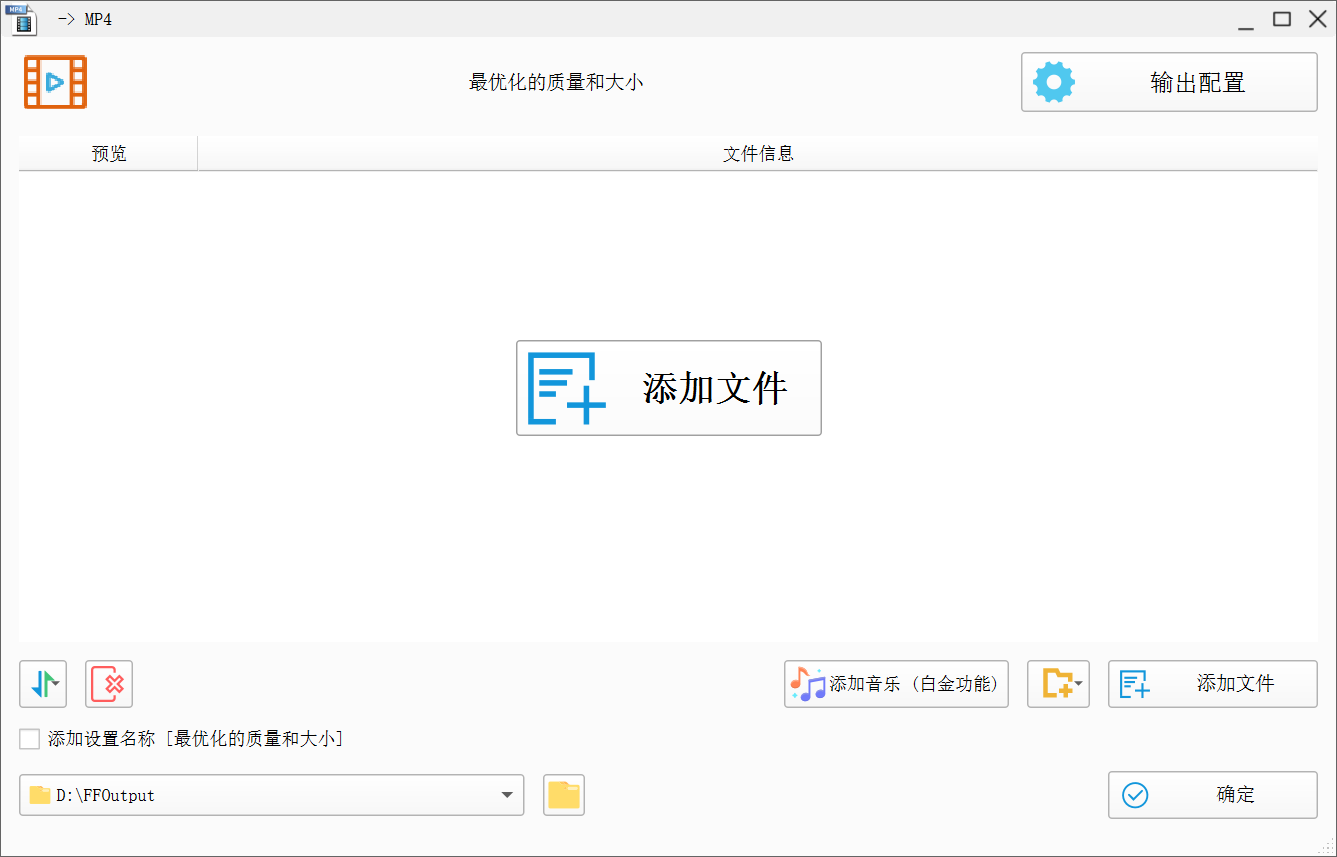
<span style="font-size:15px;">2、进入到格式转换压面，点击【添加文件】；</span>

![image (2).png](https://wechatapppro-1252524126.file.myqcloud.com/help_document/image/ueditor/60484900_1640351977.png ".png")

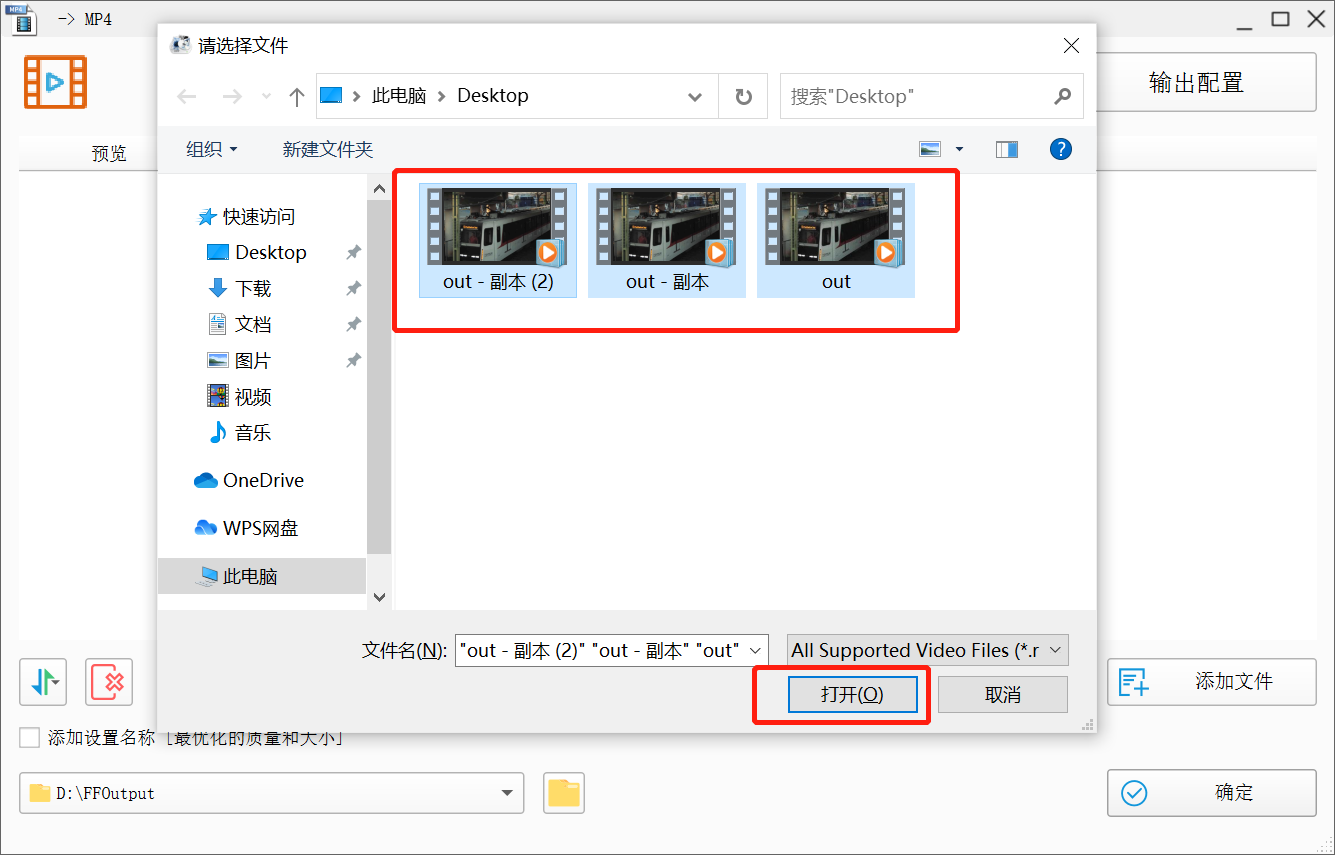
<span style="font-size:15px;">3、选取想要转换的文件，支持选择多个文件，点击【打开】;</span>

![image (3).png](https://wechatapppro-1252524126.file.myqcloud.com/help_document/image/ueditor/24614000_1640352027.png ".png")

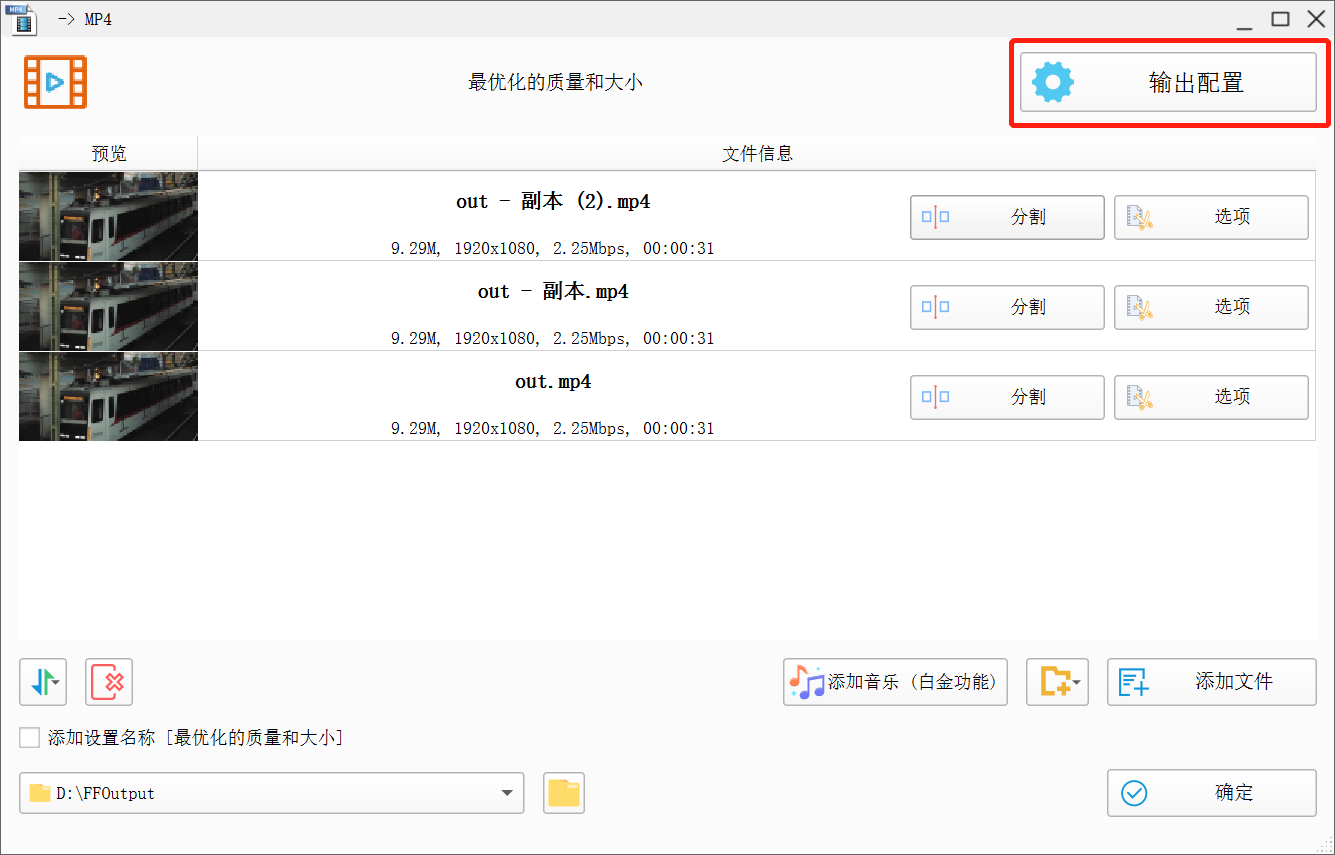
<span style="font-size:15px;">4、点击【输出配置】，弹出配置弹窗；</span>

![image (4).png](https://wechatapppro-1252524126.file.myqcloud.com/help_document/image/ueditor/25754300_1640352040.png ".png")

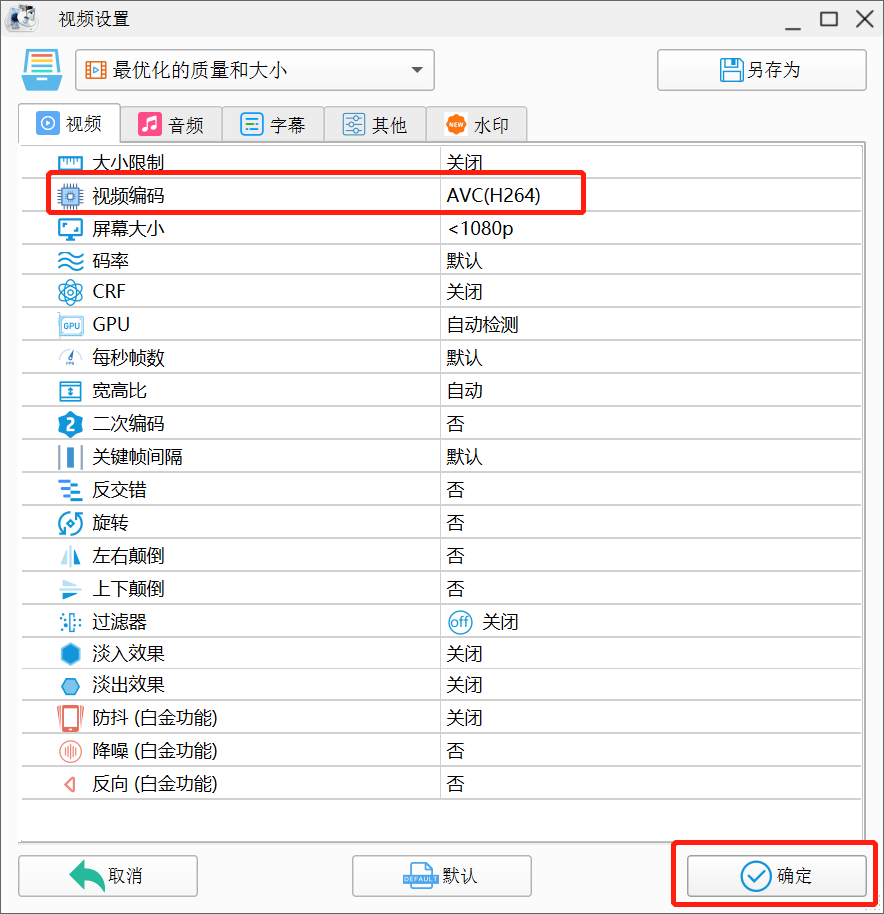
<span style="font-size:15px;">5、选择【视频编码：AVC(H264）】，点击【确定】；</span>

![image (5).png](https://wechatapppro-1252524126.file.myqcloud.com/help_document/image/ueditor/96280700_1640352055.png ".png")

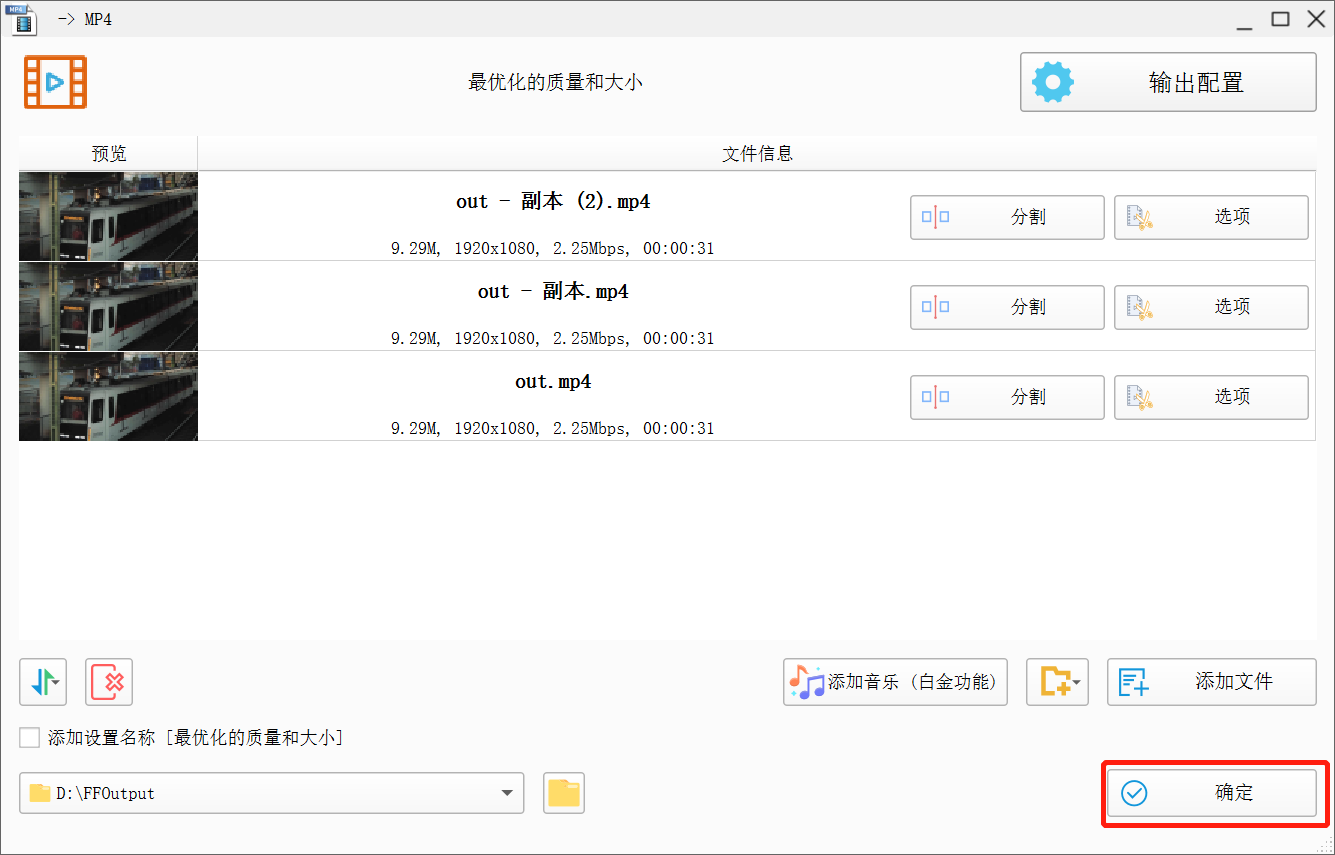
<span style="font-size:15px;">6、点击【确定】；</span>

![image (6).png](https://wechatapppro-1252524126.file.myqcloud.com/help_document/image/ueditor/4469700_1640352069.png ".png")

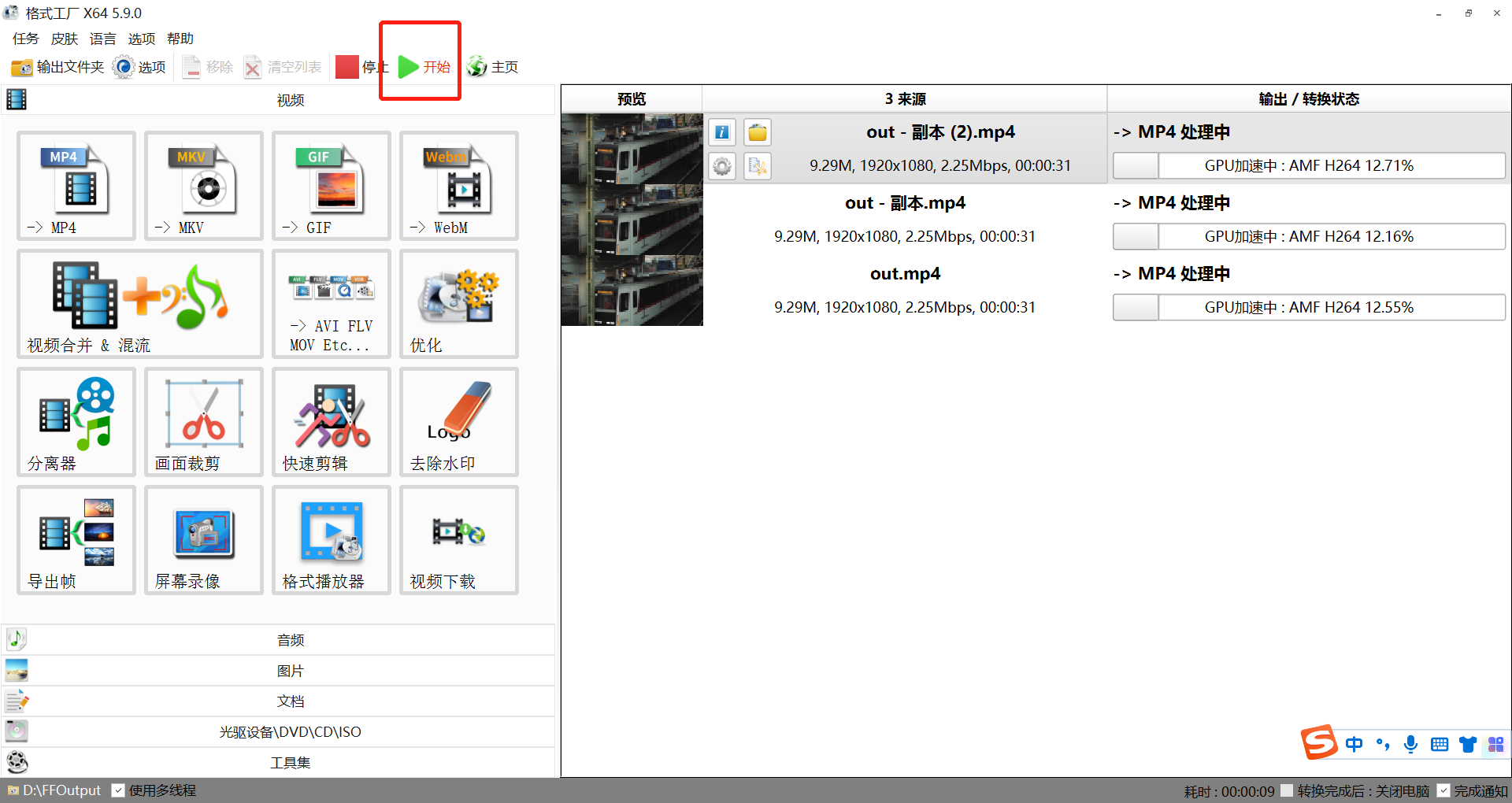
<span style="font-size:15px;">7、点击【开始】，视频开转码；</span>

![image (7).png](https://wechatapppro-1252524126.file.myqcloud.com/help_document/image/ueditor/43069100_1640352082.png ".png")

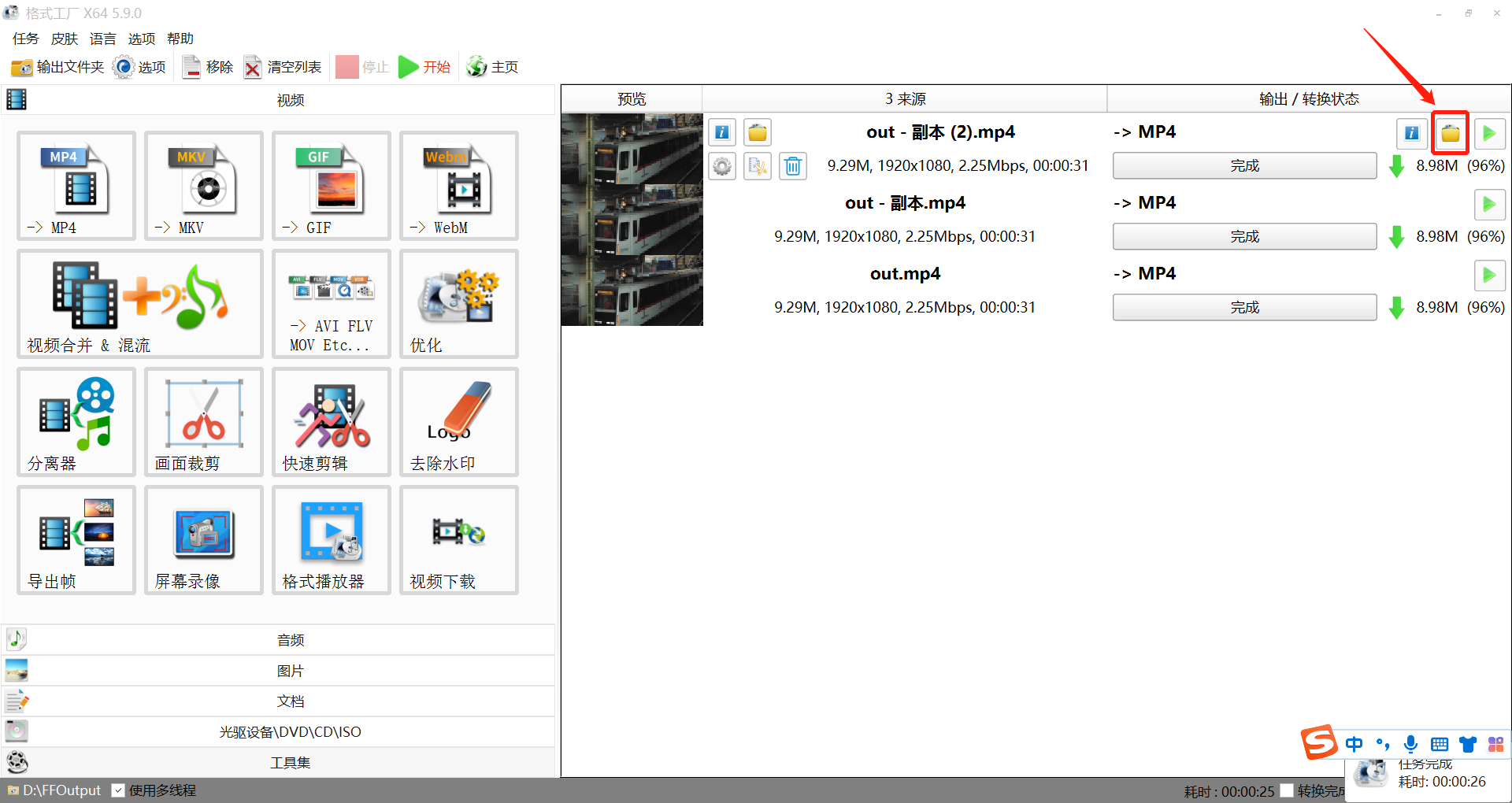
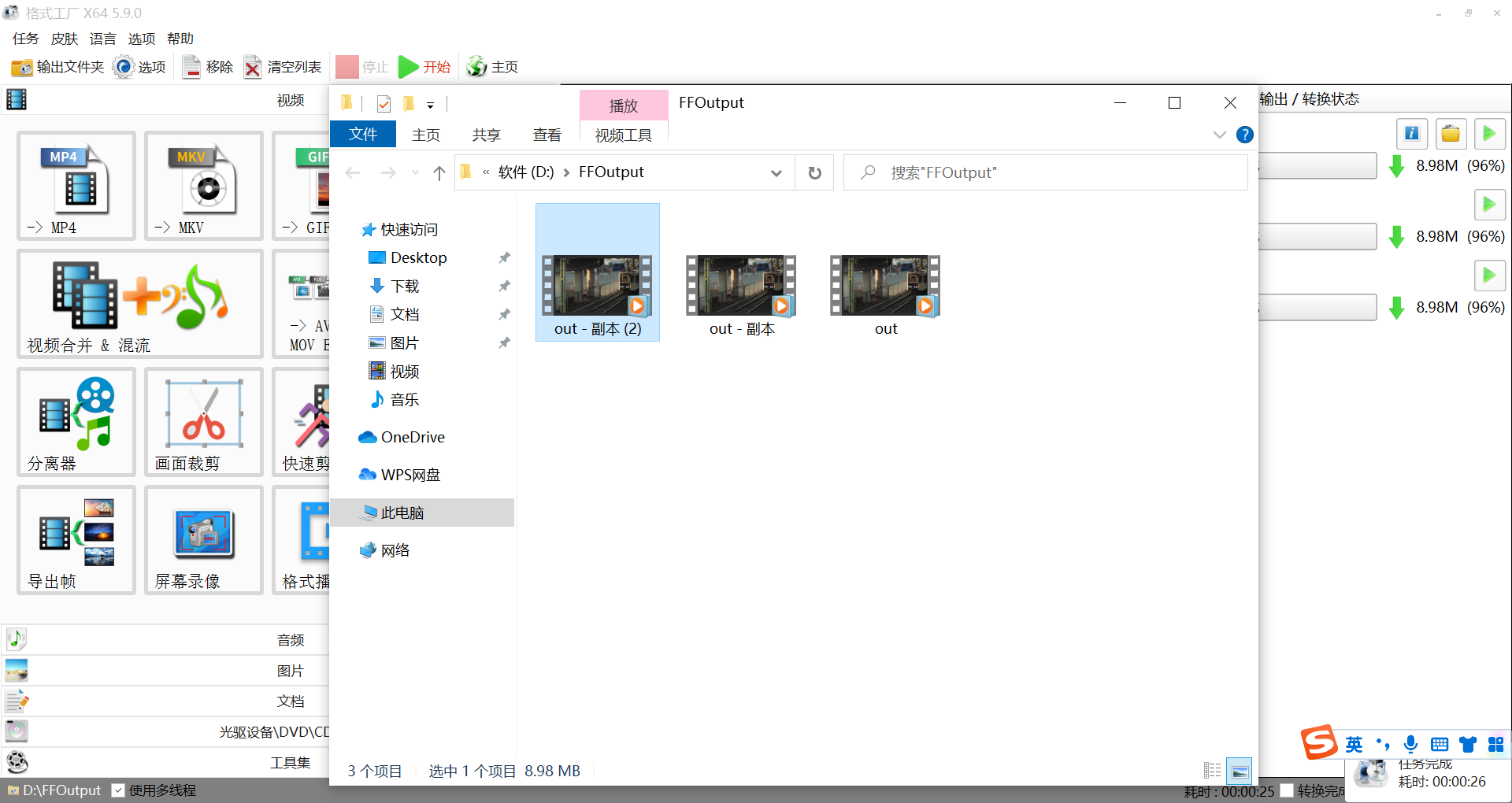
<span style="font-size:15px;">8、转码完成后，点击【文件夹】查看转码完成后视频存储位置；</span>

![image (8).png](https://wechatapppro-1252524126.file.myqcloud.com/help_document/image/ueditor/32586700_1640352090.png ".png")

![image (9).png](https://wechatapppro-1252524126.file.myqcloud.com/help_document/image/ueditor/81393800_1640352120.png ".png")

**<span style="font-size:15px;">二、 Mac系统：推荐使用「剪映专业版」客户端软件</span>**

<span style="font-size:15px;">提醒：目前剪映只支持MP4和MOV视频文件转编H264编码，</span>

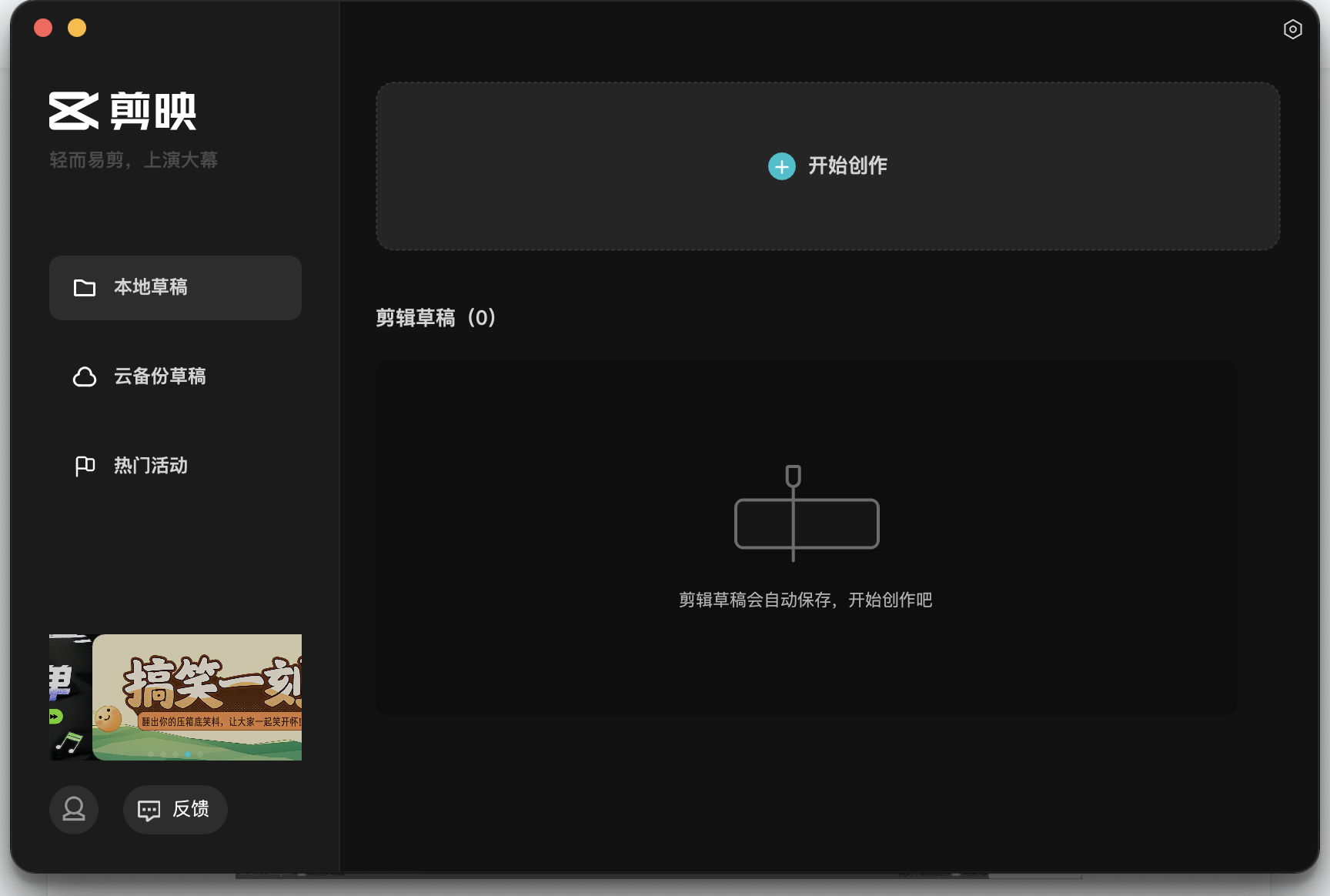
<span style="font-size:15px;">1、下载「剪映专业版」客户端软件，进入到「剪映专业版」页面，点击【开始制作】；</span>

![image (10).png](https://wechatapppro-1252524126.file.myqcloud.com/help_document/image/ueditor/228800_1640352199.png ".png")

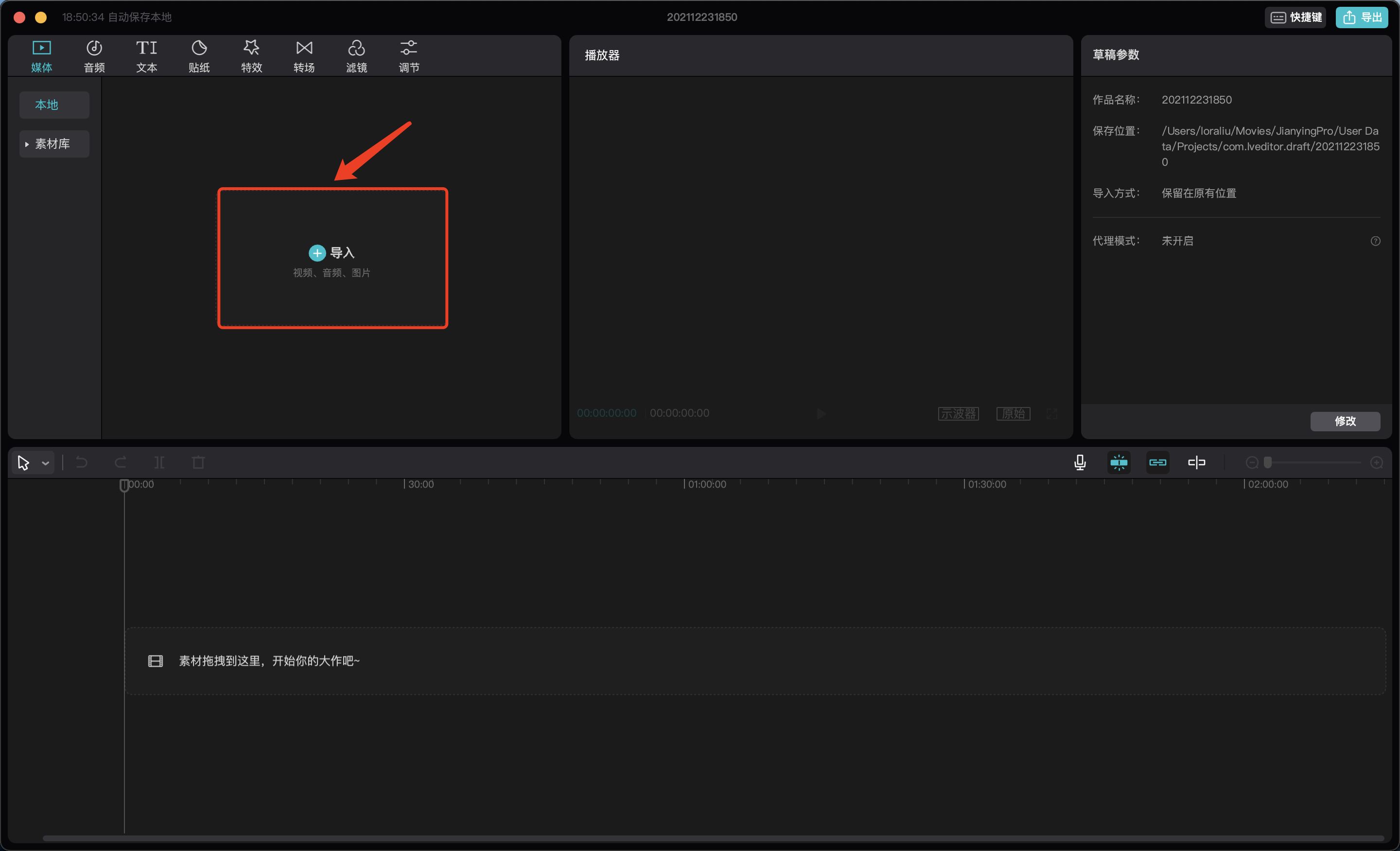
<span style="font-size:15px;">2、进入制作页面，点击【导入】；</span>

![image (11).png](https://wechatapppro-1252524126.file.myqcloud.com/help_document/image/ueditor/27038800_1640352206.png ".png")

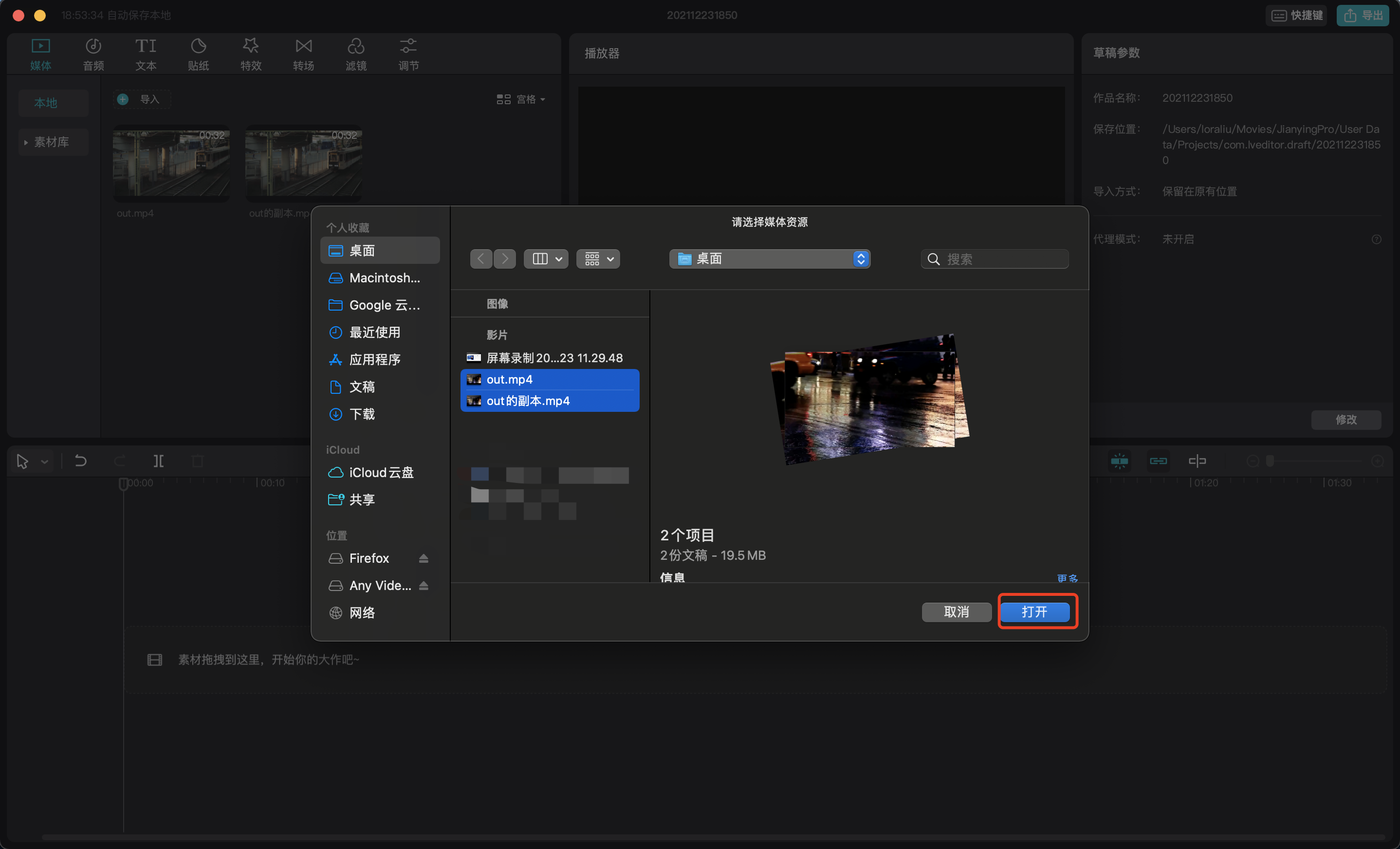
<span style="font-size:15px;">3、选择想要转换格式的文件，支持导入多个视频文件，点击【打开】将文件导入；</span>

![image (12).png](https://wechatapppro-1252524126.file.myqcloud.com/help_document/image/ueditor/10925200_1640352213.png ".png")

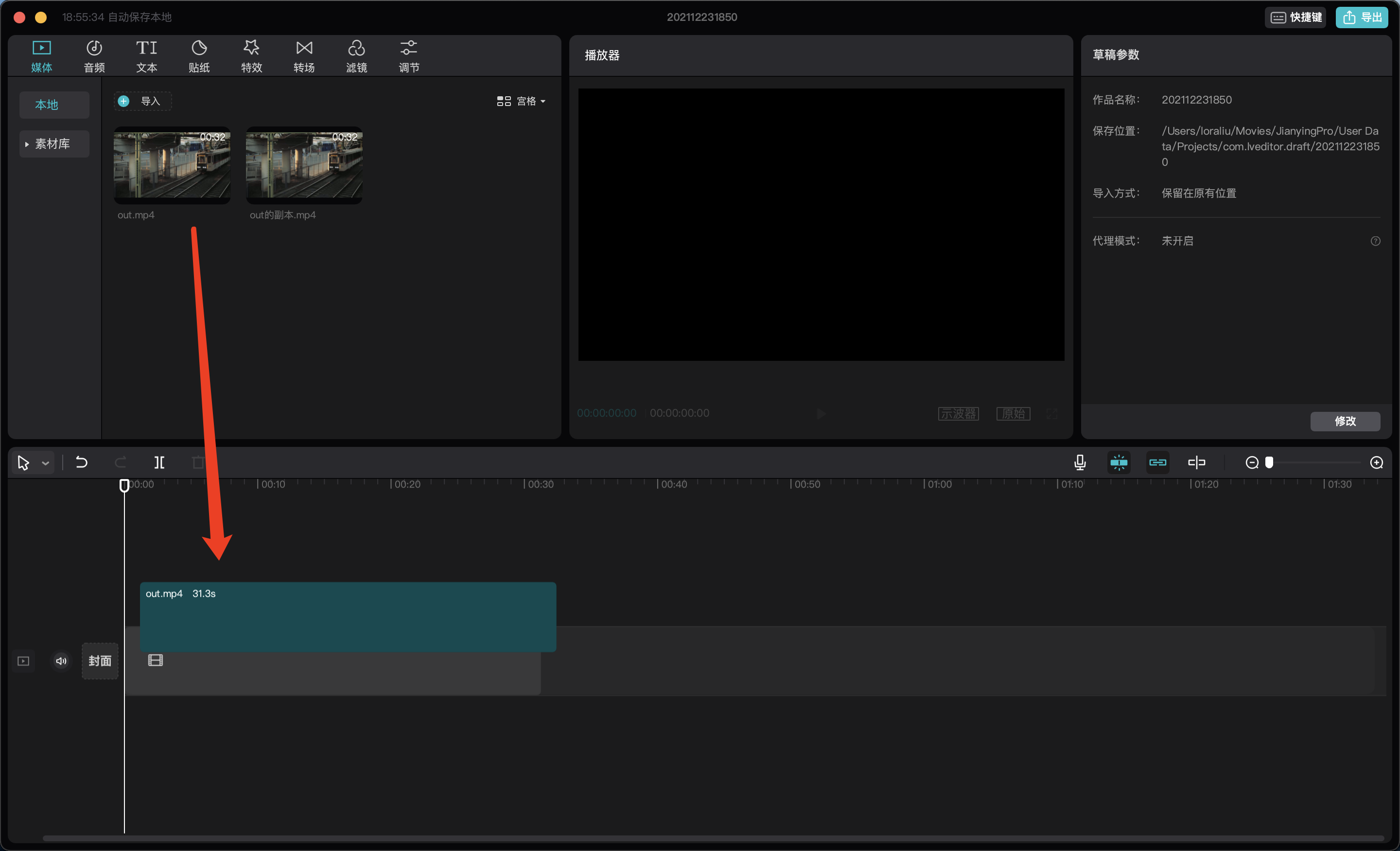
<span style="font-size:15px;">4、将其中一个文件拖拽到编辑区域，剪映目前仅支持单个文件转码，多个文件需分多次操作；</span>

![image (13).png](https://wechatapppro-1252524126.file.myqcloud.com/help_document/image/ueditor/68193700_1640352257.png ".png")

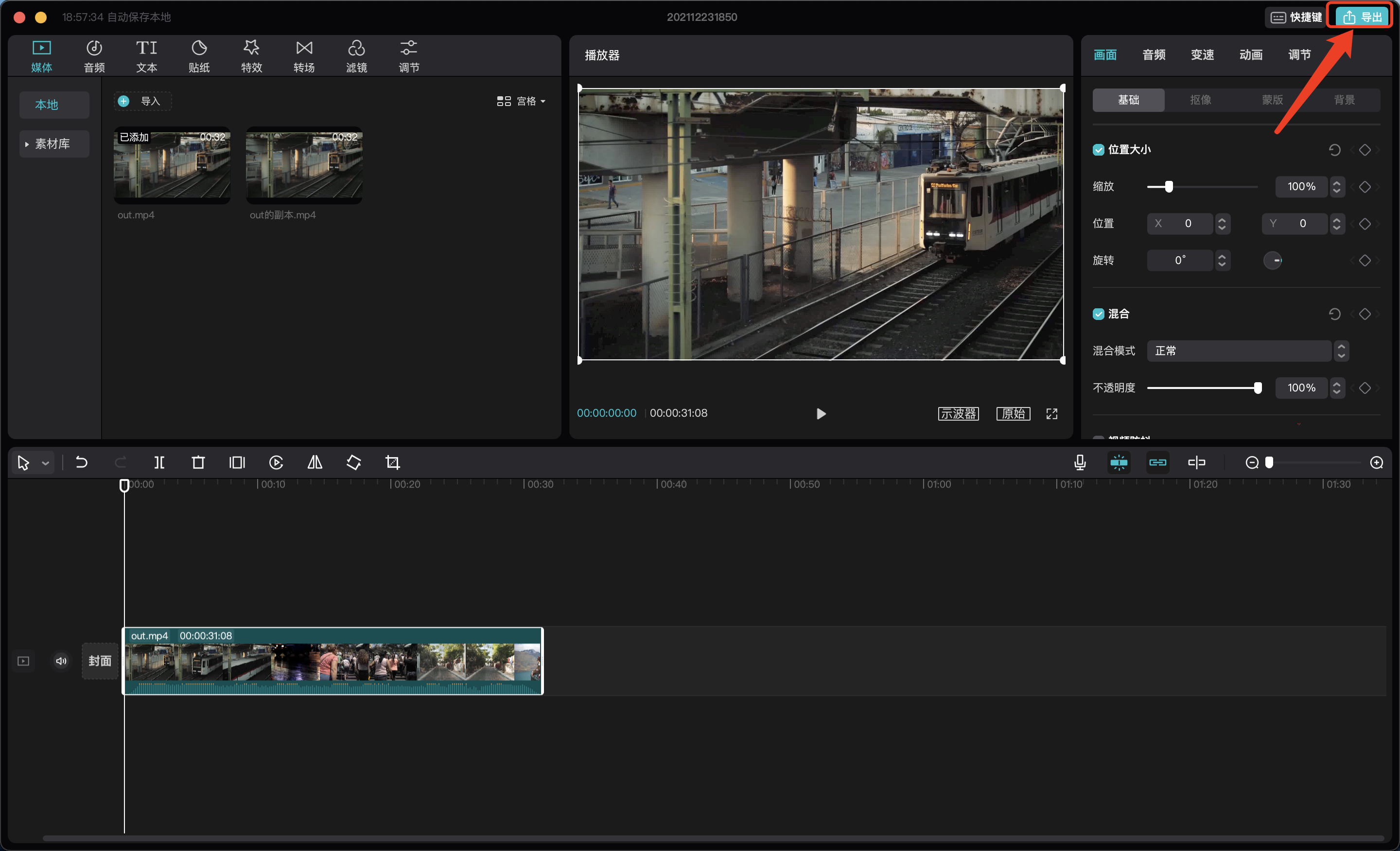
<span style="font-size:15px;">5、点击【导出】弹出配置窗口；</span>

![image (14).png](https://wechatapppro-1252524126.file.myqcloud.com/help_document/image/ueditor/35601100_1640352287.png ".png")

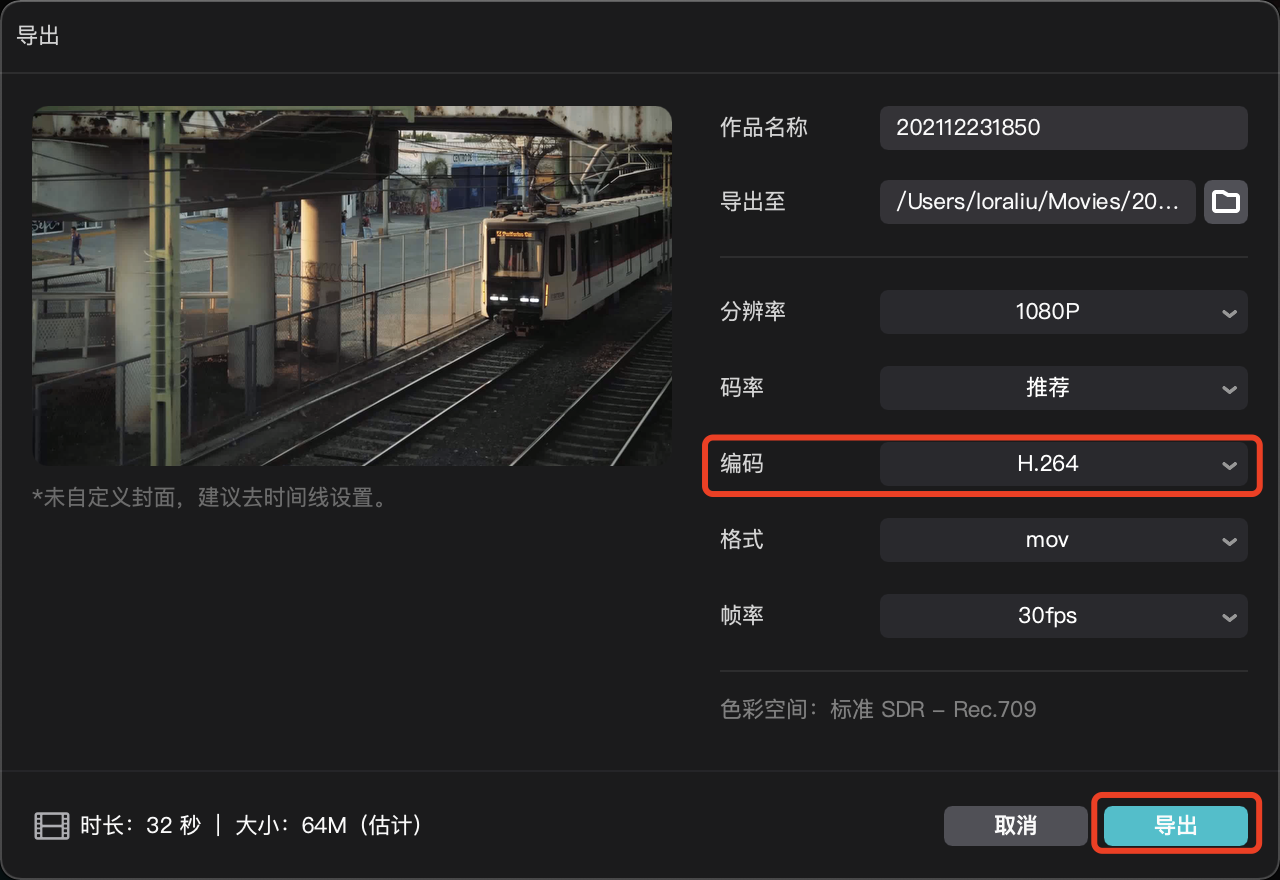
<span style="font-size:15px;">6、选择【编码格式为H264】，点击【导出】；</span>

![image (15).png](https://wechatapppro-1252524126.file.myqcloud.com/help_document/image/ueditor/36335100_1640352296.png ".png")

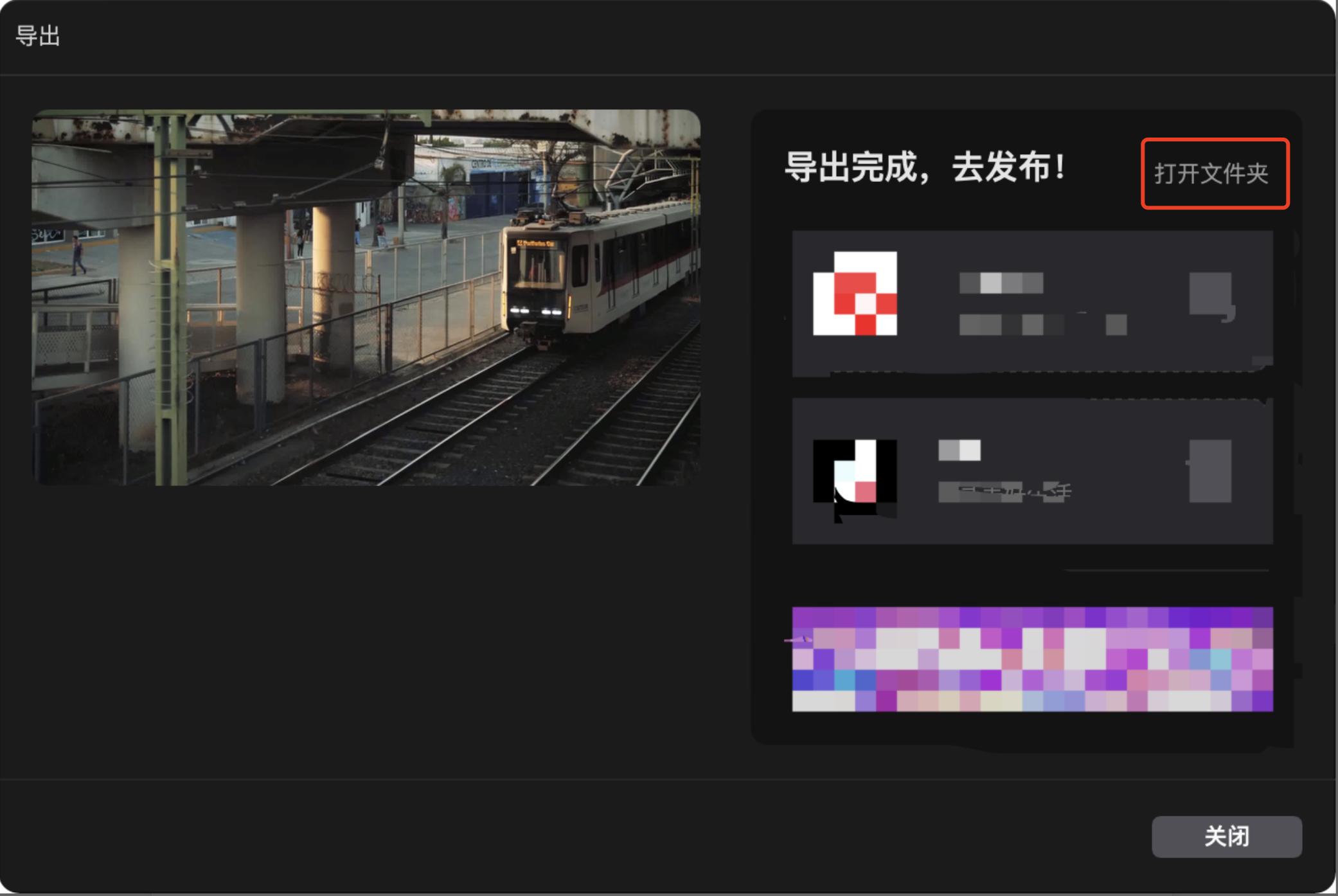
<span style="font-size:15px;">7、上传完成后点击【打开文件夹】查看转码完成视频存储位置；</span>

<span style="font-size:15px;">![image (16).png](https://wechatapppro-1252524126.file.myqcloud.com/help_document/image/ueditor/51067300_1640352307.png ".png")</span>

<span style="font-size:15px;">  
</span>