# OBS推流

# 【OBS】如何下载OBS推流的视频？

<div data-elink-language-switch="1" id="bkmrk-english" style="border:1px solid #d6d9de;border-radius:6px;padding:10px 12px;margin:0 0 18px 0;background:#f8fafc;font-size:14px;">[English](/books/live-broadcast/page/obshow-to-download-the-video-streamed-by-obs)</div><span style="font-size:14px;"><span style="font-family:'Microsoft YaHei', '微软雅黑';white-space:pre-wrap;background-color:rgb(255,255,255);">商户在使用OBS过程中，可使用OBS软件将推流过程中的视频进行录制，录制完成后即可查看使用</span>  
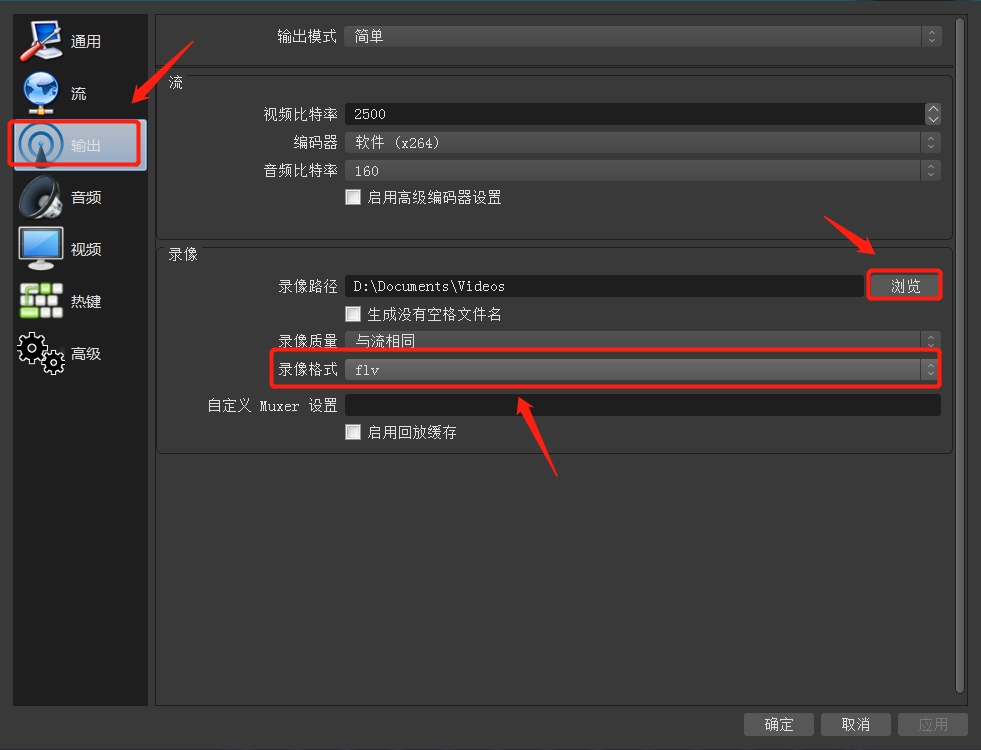
<span style="font-family:'Microsoft YaHei', '微软雅黑';white-space:pre-wrap;background-color:rgb(255,255,255);">1、选择录制视频的保存地址和格式:</span>  
<span style="font-family:'Microsoft YaHei', '微软雅黑';white-space:pre-wrap;background-color:rgb(255,255,255);">1）打开OBS软件，点击右下角设置按钮，进入设置页面</span>  
<span style="font-family:'Microsoft YaHei', '微软雅黑';white-space:pre-wrap;background-color:rgb(255,255,255);">2）在设置页面左侧功能栏中选择“输出”，在输出页面点击“录像”</span>  
<span style="font-family:'Microsoft YaHei', '微软雅黑';white-space:pre-wrap;background-color:rgb(255,255,255);">3）可在录像路径后点击“浏览”按钮修改录像保存路径</span>  
<span style="font-family:'Microsoft YaHei', '微软雅黑';white-space:pre-wrap;background-color:rgb(255,255,255);">4）可点击录像格式切换录像的视频格式</span></span>

<span style="font-size:14px;"><span style="font-family:'Microsoft YaHei', '微软雅黑';white-space:pre-wrap;background-color:rgb(255,255,255);">![如何下载OBS推流的视频？1.png](https://wechatapppro-1252524126.file.myqcloud.com/help_document/image/ueditor/60824000_1587902798.png ".png")</span></span>

<span style="font-size:14px;"><span style="font-family:'Microsoft YaHei', '微软雅黑';white-space:pre-wrap;background-color:rgb(255,255,255);">2、录制视频的步骤：开始推流后，点击“开始录制”按钮，录制视频开始，结束推流时，点击“停止录制”即可完成直播视频录制，录制完成后，用户打开选择保存视频的文件夹，就可以查看录制视频了.</span></span>

<span style="font-size:14px;"><span style="font-family:'Microsoft YaHei', '微软雅黑';white-space:pre-wrap;background-color:rgb(255,255,255);">![如何下载OBS推流的视频？2.png](https://wechatapppro-1252524126.file.myqcloud.com/help_document/image/ueditor/17755700_1587902849.png ".png")</span></span>

# 【OBS】直播遇到卡顿？

<div data-elink-language-switch="1" id="bkmrk-english" style="border:1px solid #d6d9de;border-radius:6px;padding:10px 12px;margin:0 0 18px 0;background:#f8fafc;font-size:14px;">[English](/books/live-broadcast/page/obs-experiencing-lag-during-live-streaming)</div><span style="font-family:'Microsoft YaHei', '微软雅黑';white-space:pre-wrap;background-color:rgb(255,255,255);font-size:15px;">可能有4种原因：</span>

<span style="font-size:15px;">**<span style="font-family:'Microsoft YaHei', '微软雅黑';white-space:pre-wrap;background-color:rgb(255,255,255);">1. 可能原因当前电脑网络上行速太低。</span>**  
<span style="font-family:'Microsoft YaHei', '微软雅黑';white-space:pre-wrap;background-color:rgb(255,255,255);">解决方案：请更换更高上行速度的网络,或采用4G网进行直播。使用OBS直播最低需要10M/s的上行带宽。</span></span>

<span style="font-family:'Microsoft YaHei', '微软雅黑';white-space:pre-wrap;background-color:rgb(255,255,255);font-size:15px;">网速测试：http://www.speedtest.cn/</span><span style="font-size:14px;"><span style="font-family:'Microsoft YaHei', '微软雅黑';white-space:pre-wrap;background-color:rgb(255,255,255);"></span>  
  
<span style="font-size:15px;">**<span style="font-family:'Microsoft YaHei', '微软雅黑';white-space:pre-wrap;background-color:rgb(255,255,255);">2. 可能原因二：OBS软件比特率设置太高。</span>**  
<span style="font-family:'Microsoft YaHei', '微软雅黑';white-space:pre-wrap;background-color:rgb(255,255,255);">如想调整为适合自己的视频比特率，可以在推流测试时查看右下角的状态标示，如网速标示为绿色，丢帧为0，则标示网络流畅；</span>  
<span style="font-family:'Microsoft YaHei', '微软雅黑';white-space:pre-wrap;background-color:rgb(255,255,255);">如网络标示为橙色或红色，丢帧较多，则表示网络卡顿，此时需要将视频比特率调低。下图为网络流畅的情况。</span></span></span>

<span style="font-size:14px;font-family:'Microsoft YaHei', '微软雅黑';white-space:pre-wrap;">![OBS直播遇到卡顿？1.png](https://wechatapppro-1252524126.file.myqcloud.com/help_document/image/ueditor/251900_1587903280.png ".png")</span>

<span style="font-family:'Microsoft YaHei', '微软雅黑';white-space:pre-wrap;background-color:rgb(255,255,255);font-size:15px;">解决方案：修改比特率方法：打开OBS推流软件，点击【设置-&gt;输出】设置比特率为500（备注：比特率越高，则视频越清晰，但对应的也就越容易卡顿，且直播的延迟会提高）。</span><span style="font-size:14px;font-family:'Microsoft YaHei', '微软雅黑';white-space:pre-wrap;background-color:rgb(255,255,255);">  
</span>

![1.png](https://wechatapppro-1252524126.file.myqcloud.com/help_document/image/ueditor/58982300_1640571096.png ".png")

<span style="font-size:15px;">**<span style="font-family:'Microsoft YaHei', '微软雅黑';white-space:pre-wrap;background-color:rgb(255,255,255);">3.可能原因三：用户设置的OBS软件中分辨率或FPS过高</span>**  
<span style="font-family:'Microsoft YaHei', '微软雅黑';white-space:pre-wrap;background-color:rgb(255,255,255);">解决方案：请降低分辨率或降低FPS值。推荐分辨率：1280×720。推荐FPS值：30</span>  
<span style="font-family:'Microsoft YaHei', '微软雅黑';white-space:pre-wrap;background-color:rgb(255,255,255);">修改分辨率和FPS设置：</span></span><span style="font-size:14px;"><span style="font-family:'Microsoft YaHei', '微软雅黑';white-space:pre-wrap;background-color:rgb(255,255,255);"></span>  
![2.png](https://wechatapppro-1252524126.file.myqcloud.com/help_document/image/ueditor/29184400_1640571147.png ".png")</span>

<span style="font-size:14px;">  
</span>

<span style="font-size:15px;">**<span style="font-family:'Microsoft YaHei', '微软雅黑';white-space:pre-wrap;background-color:rgb(255,255,255);">4.可能原因四：电脑配置过低</span>**  
<span style="font-family:'Microsoft YaHei', '微软雅黑';white-space:pre-wrap;background-color:rgb(255,255,255);">解决方案：请提高电脑配置或关闭除小鹅通和OBS以外的其他软件。</span>  
<span style="font-family:'Microsoft YaHei', '微软雅黑';white-space:pre-wrap;background-color:rgb(255,255,255);">推荐电脑配置：</span>  
<span style="font-family:'Microsoft YaHei', '微软雅黑';white-space:pre-wrap;background-color:rgb(255,255,255);">CPU：i5-6400及以上（i5-6500）</span>  
<span style="font-family:'Microsoft YaHei', '微软雅黑';white-space:pre-wrap;background-color:rgb(255,255,255);">显卡：GTX1050 及以上（1050Ti）</span>  
<span style="font-family:'Microsoft YaHei', '微软雅黑';white-space:pre-wrap;background-color:rgb(255,255,255);">如果不是录制游戏可以直接使用CPU的集显，可忽略此项</span>  
<span style="font-family:'Microsoft YaHei', '微软雅黑';white-space:pre-wrap;background-color:rgb(255,255,255);">内存：8G及以上（16G）</span>  
<span style="font-family:'Microsoft YaHei', '微软雅黑';white-space:pre-wrap;background-color:rgb(255,255,255);">显示器：1080</span>  
<span style="font-family:'Microsoft YaHei', '微软雅黑';white-space:pre-wrap;background-color:rgb(255,255,255);">电脑配置查看：在桌面右键点击电脑，点击属性进入系统页面。在系统中处理器出展示电脑CPU，在已安装的内存处显示内存。在设备管理器中点击显示适配器查看内存。</span></span><span style="font-size:14px;font-family:'Microsoft YaHei', '微软雅黑';white-space:pre-wrap;background-color:rgb(255,255,255);">  
  
</span>

# 【OBS】直播遇到直播延时的问题，怎么解决？

<div data-elink-language-switch="1" id="bkmrk-english" style="border:1px solid #d6d9de;border-radius:6px;padding:10px 12px;margin:0 0 18px 0;background:#f8fafc;font-size:14px;">[English](/books/live-broadcast/page/obshow-to-solve-the-live-streaming-latency-issue)</div><span style="font-size:14px;"><span style="font-family:'Microsoft YaHei', '微软雅黑';white-space:pre-wrap;background-color:rgb(255,255,255);">直播延时原因及解决方式：</span>  
**<span style="font-family:'Microsoft YaHei', '微软雅黑';white-space:pre-wrap;background-color:rgb(255,255,255);">1. 当前电脑网络上行速太低。</span>**  
<span style="font-family:'Microsoft YaHei', '微软雅黑';white-space:pre-wrap;background-color:rgb(255,255,255);">解决方案：请更换更高上行速度的网络,或采用4G网进行直播。使用OBS直播最低需要10M/s的上行带宽。网速测试：http://www.speedtest.cn/</span>  
![OBS直播遇到直播延时的问题，怎么解决？1.png](https://wechatapppro-1252524126.file.myqcloud.com/help_document/image/ueditor/76397600_1587903674.png ".png")</span>

<span style="font-size:14px;">**<span style="font-family:'Microsoft YaHei', '微软雅黑';white-space:pre-wrap;background-color:rgb(255,255,255);">2. 通过调节OBS参数来进行提升</span>**  
<span style="font-family:'Microsoft YaHei', '微软雅黑';white-space:pre-wrap;background-color:rgb(255,255,255);">解决方案（优选）：打开OBS推流软件，点击【设置-&gt;输出】设置比特率为500～1000，（备注：比特率越高，则视频越清晰，但对应的也就越容易卡顿，且直播的延迟会提高），看一下直播延时有没有得到改善</span>  
<span style="font-family:'Microsoft YaHei', '微软雅黑';white-space:pre-wrap;background-color:rgb(255,255,255);">如果直播延时还是没有得到解决</span>  
<span style="font-family:'Microsoft YaHei', '微软雅黑';white-space:pre-wrap;background-color:rgb(255,255,255);">点击【设置-&gt;输出】,设置输出模式为高级，然后设置比特率为500～1000，关键帧间隔为1</span></span>

<span style="font-size:14px;"><span style="font-family:'Microsoft YaHei', '微软雅黑';white-space:pre-wrap;background-color:rgb(255,255,255);">![OBS直播遇到直播延时的问题，怎么解决？2.png](https://wechatapppro-1252524126.file.myqcloud.com/help_document/image/ueditor/23996900_1587903741.png ".png")</span></span>

# 【OBS】推流画面与实际画面不一致？

<div data-elink-language-switch="1" id="bkmrk-english" style="border:1px solid #d6d9de;border-radius:6px;padding:10px 12px;margin:0 0 18px 0;background:#f8fafc;font-size:14px;">[English](/books/live-broadcast/page/obsis-the-streaming-screen-inconsistent-with-the-actual-screen)</div><span style="font-size:14px;"><span style="font-family:'Microsoft YaHei', '微软雅黑';white-space:pre-wrap;background-color:rgb(255,255,255);">使用OBS推流直播，推流出去的画面显示异常，一般出现两种情况：1、只显示部分画面 2、画面太小</span>  
<span style="font-family:'Microsoft YaHei', '微软雅黑';white-space:pre-wrap;background-color:rgb(255,255,255);">第一种问题处理方式：在屏幕右键画面-&gt;变换-&gt;屏幕居中。</span>  
<span style="font-family:'Microsoft YaHei', '微软雅黑';white-space:pre-wrap;background-color:rgb(255,255,255);">第二种问题处理方式：在屏幕右键画面-&gt;变换-&gt;比例适应屏幕。</span></span>

# 怎么获得服务器和串流密钥？

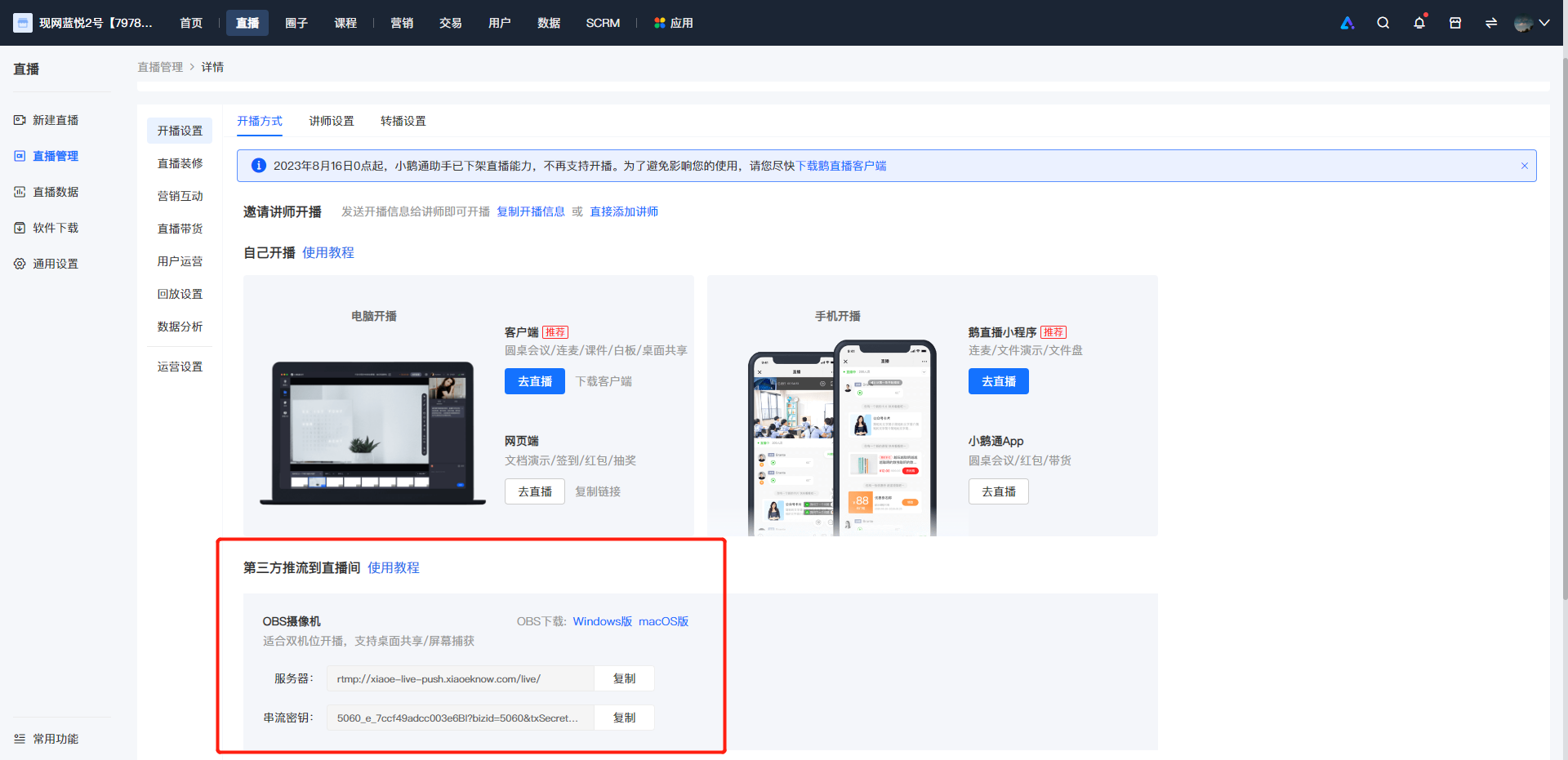
<div data-elink-language-switch="1" id="bkmrk-english" style="border:1px solid #d6d9de;border-radius:6px;padding:10px 12px;margin:0 0 18px 0;background:#f8fafc;font-size:14px;">[English](/books/live-broadcast/page/how-to-obtain-the-server-and-streaming-key)</div><span style="white-space:pre-wrap;background-color:rgb(255,255,255);font-size:15px;">1、<span style="white-space:pre-line;background-color:rgb(255,255,255);">可进入到小鹅通商家后台点击【直播】，找到相应的课程后点击【更多&gt;去直播&gt;开播设置】复制“服务器”和“串流密钥"</span></span>

<span style="font-size:14px;">![image.png](https://wechatapppro-1252524126.file.myqcloud.com/help_document/image/ueditor/74995200_1699236913.png ".png")</span>

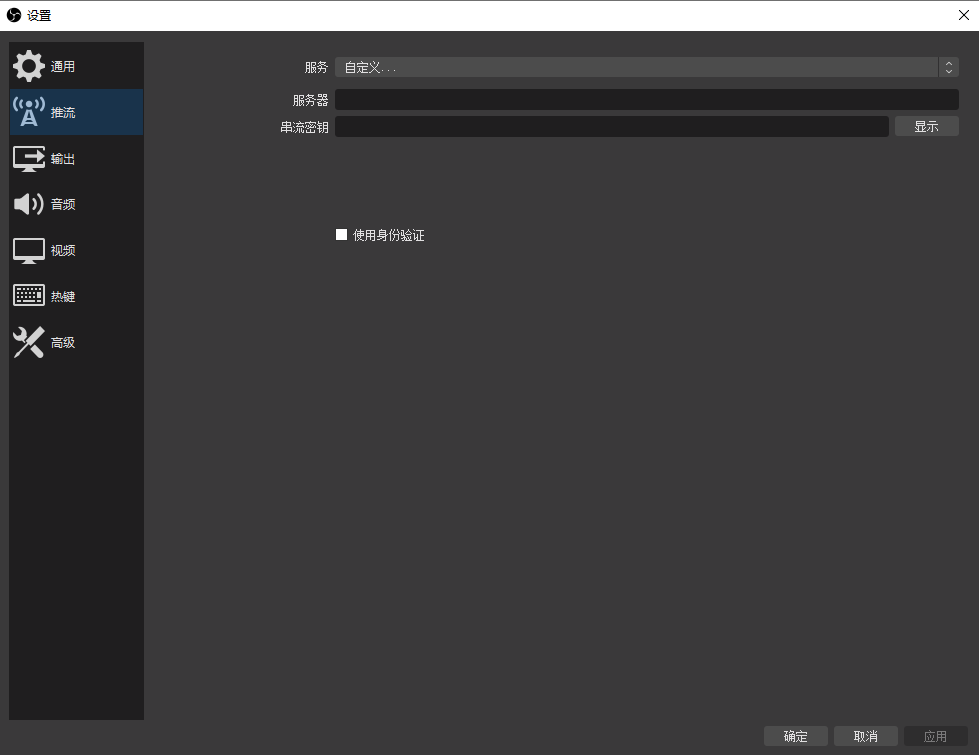
<span style="font-family:'Microsoft YaHei', '微软雅黑';white-space:pre-wrap;background-color:rgb(255,255,255);font-size:15px;">2、获取“服务器”和“串流密码"后打开OBS，点击右下角设置按钮，进入设置页面左侧功能栏中选择“推流”，在推流的设置页面点击“服务”下拉菜单选择“自定义”，<span style="font-family:'PingFang SC', 'Microsoft YaHei', '黑体', '宋体', sans-serif;white-space:pre-line;background-color:rgb(255,255,255);">并在“服务器”和“串流密钥”中填写对应信息</span></span>

![2.png](https://wechatapppro-1252524126.file.myqcloud.com/help_document/image/ueditor/11791600_1699236914.png ".png")

# 【OBS】在哪里下载？

<div data-elink-language-switch="1" id="bkmrk-english" style="border:1px solid #d6d9de;border-radius:6px;padding:10px 12px;margin:0 0 18px 0;background:#f8fafc;font-size:14px;">[English](/books/live-broadcast/page/where-can-i-download-obs)</div><span style="font-size:14px;"><span style="font-family:'Microsoft YaHei', '微软雅黑';white-space:pre-wrap;background-color:rgb(255,255,255);">1、 可前往obs官网进行下载： https://obsproject.com/</span>  
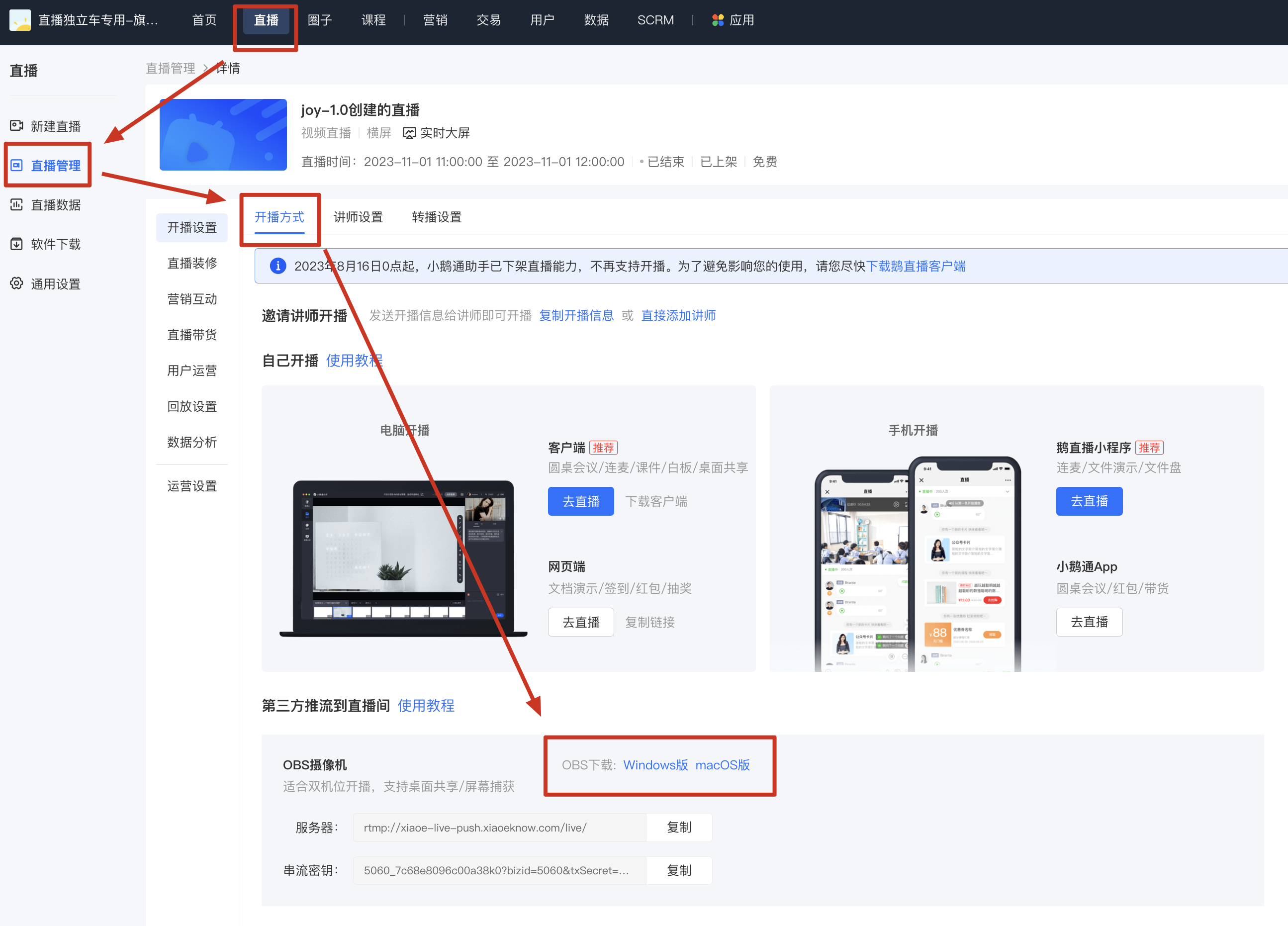
<span style="font-family:'Microsoft YaHei', '微软雅黑';white-space:pre-wrap;background-color:rgb(255,255,255);">2、 可进入到小鹅通商家店铺管理台：【直播—直播管理<span style="font-family:'Microsoft YaHei', '微软雅黑';font-size:14px;white-space:pre-wrap;background-color:rgb(255,255,255);">—直播详情</span>—开播设置—开播方式—第三方推流到直播间—OBS下载】，点击相应的电脑系统进入下载页面。</span></span>

<span style="font-size:14px;"><span style="font-family:'Microsoft YaHei', '微软雅黑';white-space:pre-wrap;background-color:rgb(255,255,255);">![image.png](https://wechatapppro-1252524126.file.myqcloud.com/help_document/image/ueditor/39407000_1698823805.png ".png")</span></span>

# 配置推流直播成功之后，为什么学员端看不到画面？

<div data-elink-language-switch="1" id="bkmrk-english" style="border:1px solid #d6d9de;border-radius:6px;padding:10px 12px;margin:0 0 18px 0;background:#f8fafc;font-size:14px;">[English](/books/live-broadcast/page/after-successfully-configuring-live-streaming-why-cant-students-see-the-video)</div><span class="author-p-144115212610417001 font-size:12pt" style="font-size:12pt;">推流后，学员端并不是马上就可以看到推流画面的，大概延时12s，如果长时间没有看到推流画面，请确定obs软件中的设置是否正确：</span>

<span style="font-size:12pt;">1、确认推流的串流密钥和服务器地址都已填写正确（即填写在OBS中的目标直播间的URL和流名称），大部分客户的情况都是没有填写 对应直播间的串流密钥导致直播画面推流到其他直播间去了；</span>

<span class="author-p-144115212610417001 font-size:12pt" style="font-size:12pt;">2、在obs操作区是否点击了开启推流按钮进行推流；</span>

<span class="author-p-144115212610417001 font-size:12pt" style="font-size:12pt;">3、obs右下角推流质量检测是否是绿色，如果不是请降低直播推流质量。</span>

# 【OBS】如何调节讲师画面尺寸？

<div data-elink-language-switch="1" id="bkmrk-english" style="border:1px solid #d6d9de;border-radius:6px;padding:10px 12px;margin:0 0 18px 0;background:#f8fafc;font-size:14px;">[English](/books/live-broadcast/page/obs-how-to-adjust-the-size-of-the-instructors-video)</div><span style="font-family:'Microsoft YaHei', '微软雅黑';white-space:pre-wrap;background-color:rgb(255,255,255);font-size:15px;">点击视频画面的右下角进行拖动位置，也可以缩小放大讲师的画面。</span>

# 流名称设置一次就可以永久使用了吗？

<div data-elink-language-switch="1" id="bkmrk-english" style="border:1px solid #d6d9de;border-radius:6px;padding:10px 12px;margin:0 0 18px 0;background:#f8fafc;font-size:14px;">[English](/books/live-broadcast/page/can-the-stream-name-be-used-permanently-after-being-set-once)</div><span class="author-p-144115212610417001">一个直播匹配一个流地址，不可以永久使用。</span>

# 【OBS】推流显示服务器无链接（某些办公网络限制）

<div data-elink-language-switch="1" id="bkmrk-english" style="border:1px solid #d6d9de;border-radius:6px;padding:10px 12px;margin:0 0 18px 0;background:#f8fafc;font-size:14px;">[English](/books/live-broadcast/page/obs-streaming-shows-no-connection-to-the-server-some-office-networks-may-have-restrictions)</div><span style="font-size:20px;">**<span style="font-family:'Microsoft YaHei', '微软雅黑';white-space:pre-wrap;background-color:rgb(255,255,255);">问题现象</span>**</span><span style="font-size:14px;font-family:'Microsoft YaHei', '微软雅黑';white-space:pre-wrap;background-color:rgb(255,255,255);">  
</span>

<span style="font-family:'Microsoft YaHei', '微软雅黑';font-size:14px;white-space:pre-wrap;background-color:rgb(255,255,255);">OBS显示服务无链接，请参考以下方式解决：</span>

<span style="font-size:14px;font-family:'Microsoft YaHei', '微软雅黑';white-space:pre-wrap;background-color:rgb(255,255,255);">  
</span>

<span style="font-size:20px;">**<span style="font-family:'Microsoft YaHei', '微软雅黑';white-space:pre-wrap;background-color:rgb(255,255,255);">方式一：检查推流地址</span>**</span>

<span style="font-family:'Microsoft YaHei', '微软雅黑';font-size:14px;white-space:pre-wrap;background-color:rgb(255,255,255);">① 检查设置中的推流链接设置是否正确</span>

<span style="font-family:'Microsoft YaHei', '微软雅黑';font-size:14px;white-space:pre-wrap;background-color:rgb(255,255,255);">② 点击OBS页面的右下角设置按钮，进入设置页面左侧功能栏中选择“流”，查看推流信息是否与直播间推流地址一致</span>

<span style="font-family:'Microsoft YaHei', '微软雅黑';font-size:14px;white-space:pre-wrap;background-color:rgb(255,255,255);">  
</span>

<span style="font-size:20px;">**<span style="font-family:'Microsoft YaHei', '微软雅黑';white-space:pre-wrap;background-color:rgb(255,255,255);">方式二：切换网络</span>**</span>

<span style="font-size:16px;">**<span style="font-family:'Microsoft YaHei', '微软雅黑';white-space:pre-wrap;background-color:rgb(255,255,255);">① 更换网络（4G热点等）尝试</span>**</span>

<span style="font-size:16px;">**② 如切换网络后依然存在问题，请进行DNS更改**</span>

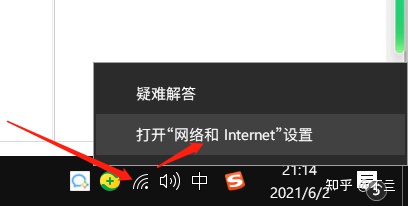
<span style="background-color:rgb(255,255,255);color:rgb(18,18,18);font-family:'-apple-system', BlinkMacSystemFont, 'Helvetica Neue', 'PingFang SC', 'Microsoft YaHei', 'Source Han Sans SC', 'Noto Sans CJK SC', 'WenQuanYi Micro Hei', sans-serif;font-size:14px;">&lt;1&gt;右键点击右下角的网络图标，选择“打开网络和Internet设置”。</span>

![49821900_1677639146.webp](https://wechatapppro-1252524126.file.myqcloud.com/help_document/image/ueditor/49821900_1677639146.webp)

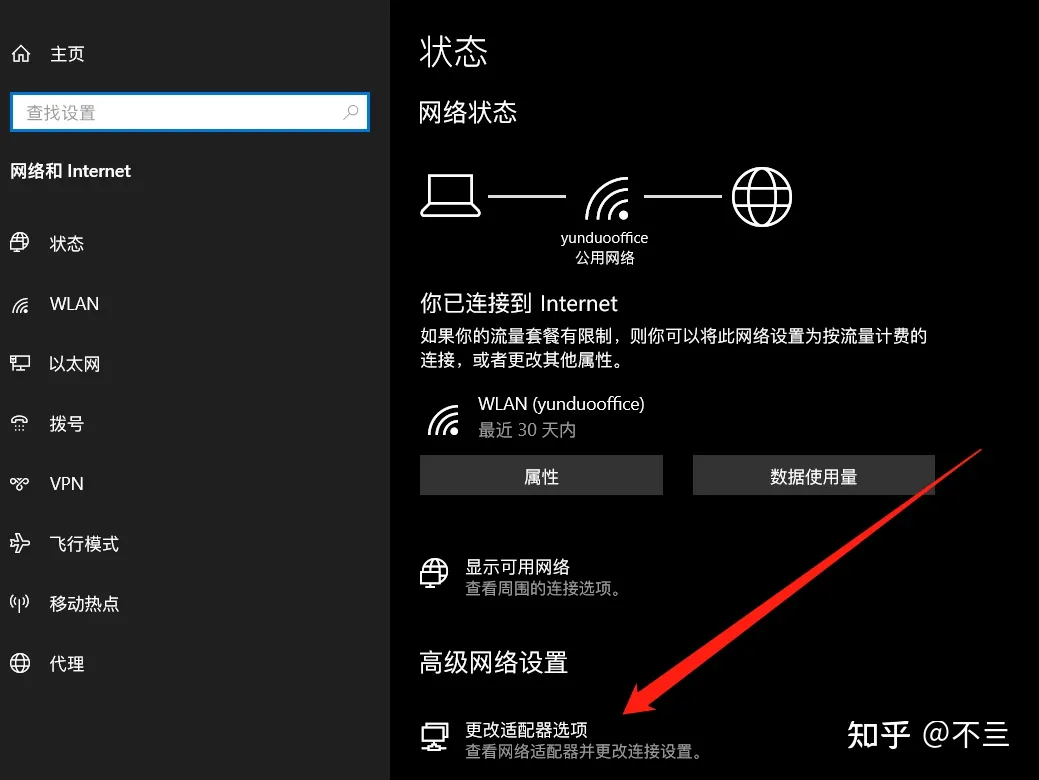
<span style="font-size:14px;"><span style="color:rgb(18,18,18);font-family:'-apple-system', BlinkMacSystemFont, 'Helvetica Neue', 'PingFang SC', 'Microsoft YaHei', 'Source Han Sans SC', 'Noto Sans CJK SC', 'WenQuanYi Micro Hei', sans-serif;font-size:14px;background-color:rgb(255,255,255);">&lt;2&gt;</span>选择“更改适配器选项”。</span>

![72176100_1677639146.webp](https://wechatapppro-1252524126.file.myqcloud.com/help_document/image/ueditor/72176100_1677639146.webp)

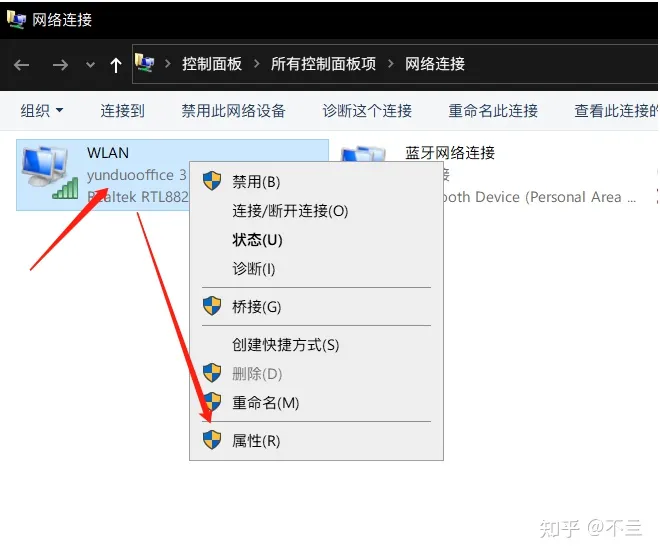
<span style="font-size:14px;">&lt;3&gt;右键“WLAN”图标，选择属性（连有线的需要改“以太网”的属性，更改在使用的那个网络就行）。</span>

![31487000_1677639147.webp](https://wechatapppro-1252524126.file.myqcloud.com/help_document/image/ueditor/31487000_1677639147.webp)

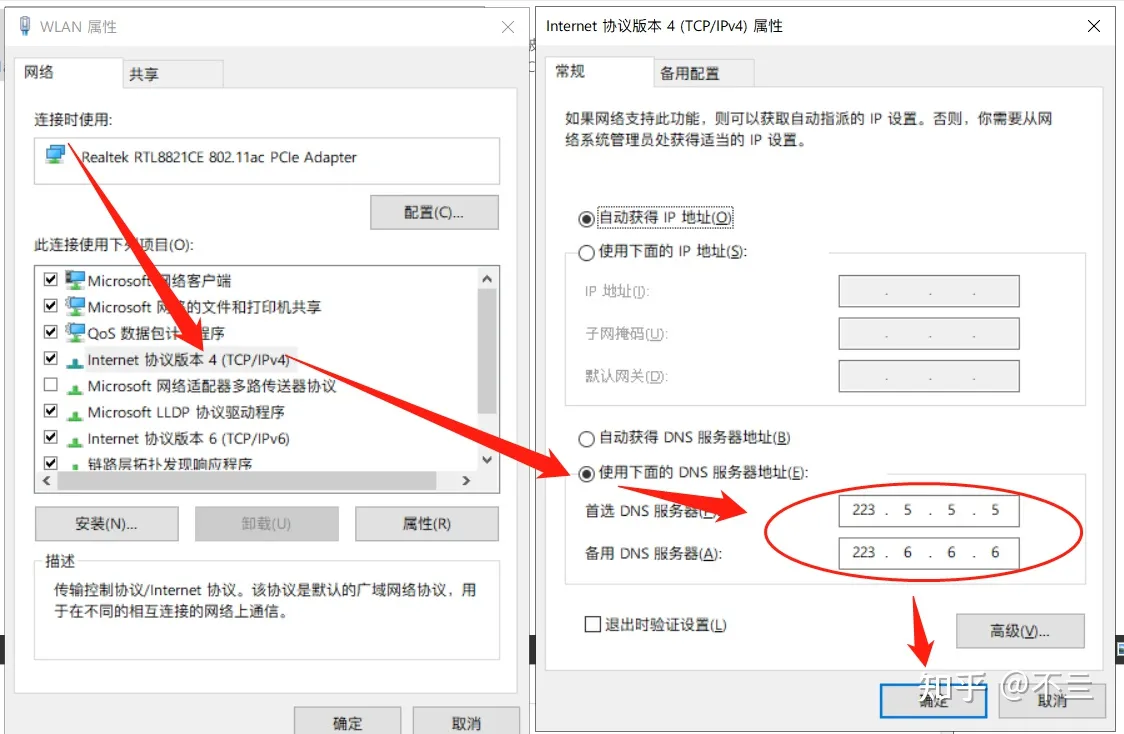
<span style="font-size:14px;">&lt;4&gt;在属性中选择“Internet协议版本4（TCP/IPv4）”双击打开，将DNS从自动获得改成手动填写的，输入一组DNS保存即可。</span>

![87934800_1677639147.webp](https://wechatapppro-1252524126.file.myqcloud.com/help_document/image/ueditor/87934800_1677639147.webp)

<span style="font-size:14px;"></span>

<span style="font-size:14px;">常用的公共dns</span>

<span style="font-size:14px;">腾讯：119.29.29.29</span>

<span style="font-size:14px;">阿里：223.5.5.5 、223.6.6.6</span>

<span style="font-size:16px;">**③ 如上述更换DNS后，还是无法恢复，则采用以下方式：**</span>

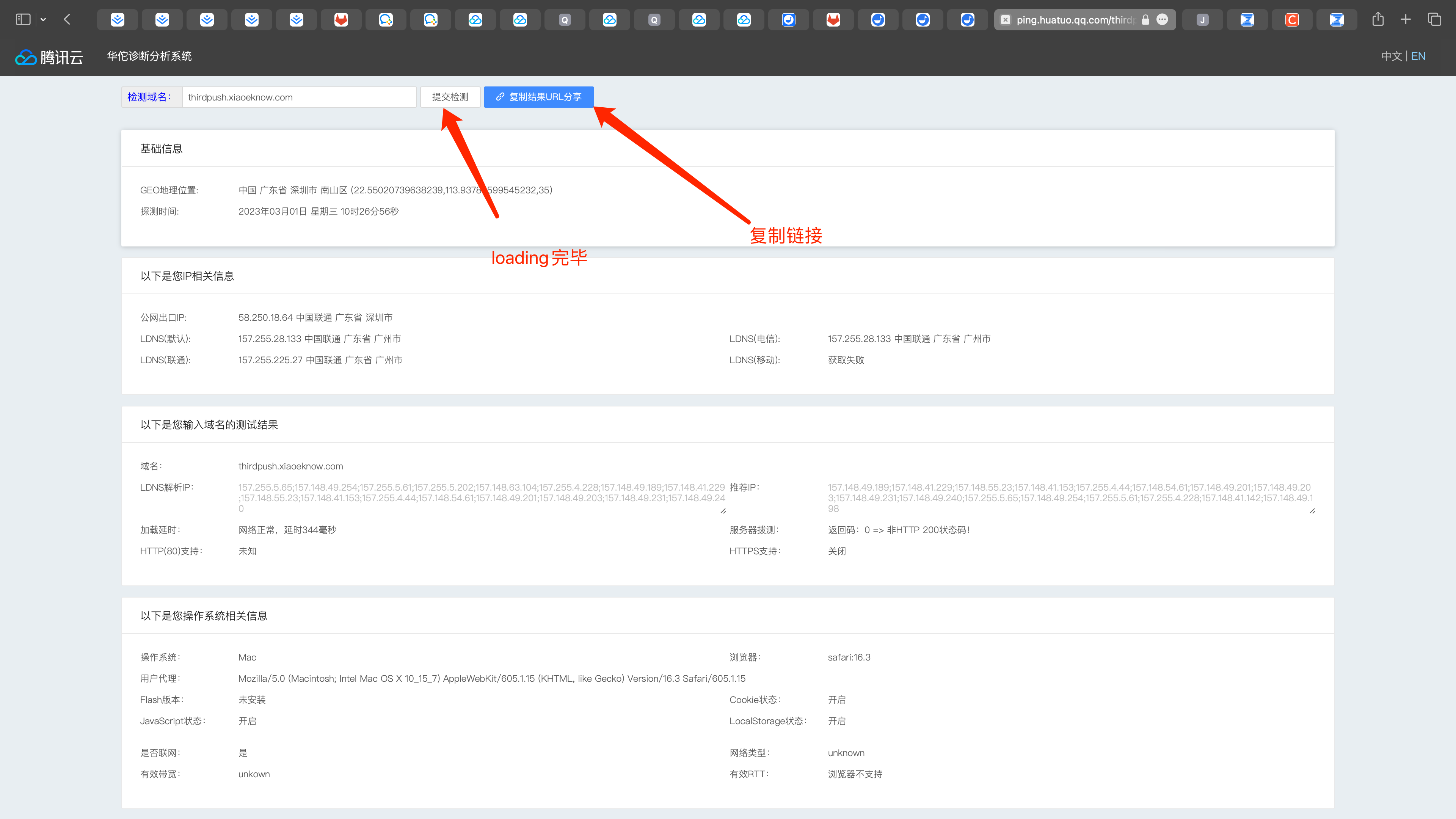
<span style="font-size:14px;">&lt;1&gt;将以下检测网站链接在浏览器打开</span>

<span style="font-size:14px;">[https://ping.huatuo.qq.com/thirdpush.xiaoeknow.com](https://ping.huatuo.qq.com/thirdpush.xiaoeknow.com)</span>

<span style="font-size:14px;">&lt;2&gt;等待页面的内容数据都加载完毕后，点击蓝色按钮“复制结果URL分享”</span>

![image.png](https://wechatapppro-1252524126.file.myqcloud.com/help_document/image/ueditor/19584000_1677639148.png ".png")

<span style="font-size:14px;">  
</span>

<span style="font-size:14px;">&lt;3&gt;将复制好的内容发送给您的服务管家，服务管家为您进行进一步的定位处理。</span>

<span style="font-size:14px;">  
</span>

# 什么是推流码？

<div data-elink-language-switch="1" id="bkmrk-english" style="border:1px solid #d6d9de;border-radius:6px;padding:10px 12px;margin:0 0 18px 0;background:#f8fafc;font-size:14px;">[English](/books/live-broadcast/page/what-is-a-streaming-key)</div><span class="author-p-144115212610417001 background-color:rgba(0, 0, 0) font-family:Hevetica Neue, Hevetica, Tahoma, sans-serif font-size:14pt"></span>

<span class="author-p-144115212610417001 background-color:rgba(0, 0, 0) font-family:Microsoft YaHei,微软雅黑,Roboto,sans-serif font-size:14pt"></span>

<span class="author-p-158920384553 background-color:rgba(0, 0, 0) color:#000000 font-family:Microsoft YaHei,微软雅黑,Roboto,sans-serif font-size:14pt" style="font-family:'Microsoft YaHei', '微软雅黑', Roboto, sans-serif;font-size:14pt;">OBS推流码指的是主播端将本地采集的语音视频流推送到媒体服务器的推流地址和推流锁密</span><span class="author-p-158920384553 color:#000000 font-family:Microsoft YaHei,微软雅黑,Roboto,sans-serif font-size:14pt" style="font-family:'Microsoft YaHei', '微软雅黑', Roboto, sans-serif;font-size:14pt;">，让你的直播内容和你的直播间进行一一对应。</span>

<span class="author-p-158920384553 color:#000000 font-family:Microsoft YaHei,微软雅黑,Roboto,sans-serif font-size:14pt" style="font-family:'Microsoft YaHei', '微软雅黑', Roboto, sans-serif;font-size:14pt;">推流码一般分为rtmp地址和流密匙两条，分别填入OBS以下位置：URL和流名称。</span>

<span class="author-p-144115212610417001 font-family:Microsoft YaHei,微软雅黑,Roboto,sans-serif font-size:14pt" style="font-family:'Microsoft YaHei', '微软雅黑', Roboto, sans-serif;font-size:14pt;"></span>

<span class="author-p-144115212610417001 font-family:Hevetica Neue, Hevetica, Tahoma, sans-serif font-size:14pt" style="font-family:'Hevetica Neue', Hevetica, Tahoma, sans-serif;font-size:14pt;"></span>

# 讲师在直播过程中需要休息怎么办？

<div data-elink-language-switch="1" id="bkmrk-english" style="border:1px solid #d6d9de;border-radius:6px;padding:10px 12px;margin:0 0 18px 0;background:#f8fafc;font-size:14px;">[English](/books/live-broadcast/page/what-should-the-instructor-do-if-they-need-a-break-during-the-live-stream)</div><span class="author-p-158920384553">桌面共享直播讲师需要休息时，请通知学员后，在OBS软件处点击停止推流即可，继续直播时，点击开始推流即可。</span>